

Fordeer Welcome! ✋😁
We're super excited to welcome you to the Fordeer community! 🎉
And we've prepared a little guide for you to start using Product Badge & Label
Enjoy reading!
This guide will walk you through the process of setting up a label campaign in our app.
Before starting
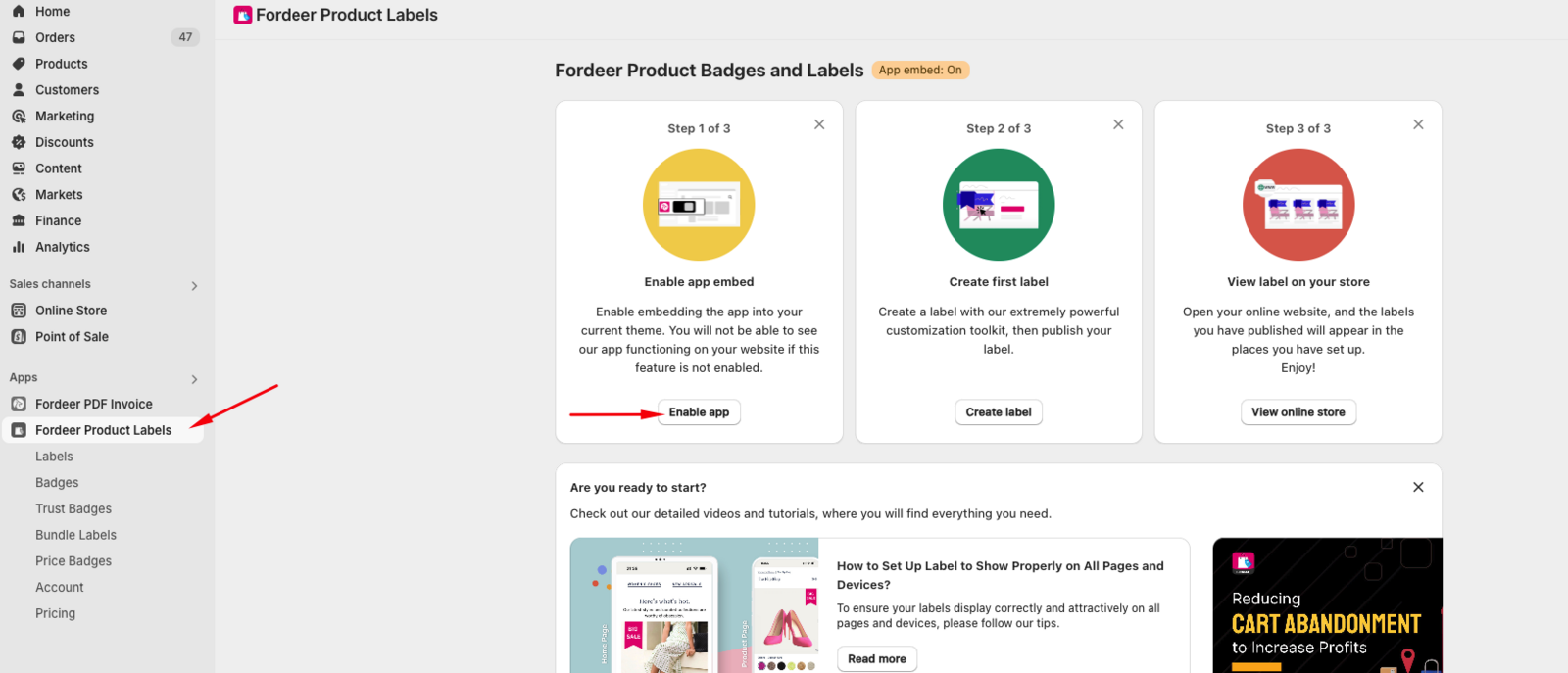
- Ensure Fordeer: badge is enabled by clicking on Enable button in Quick setup guide on app dashboard
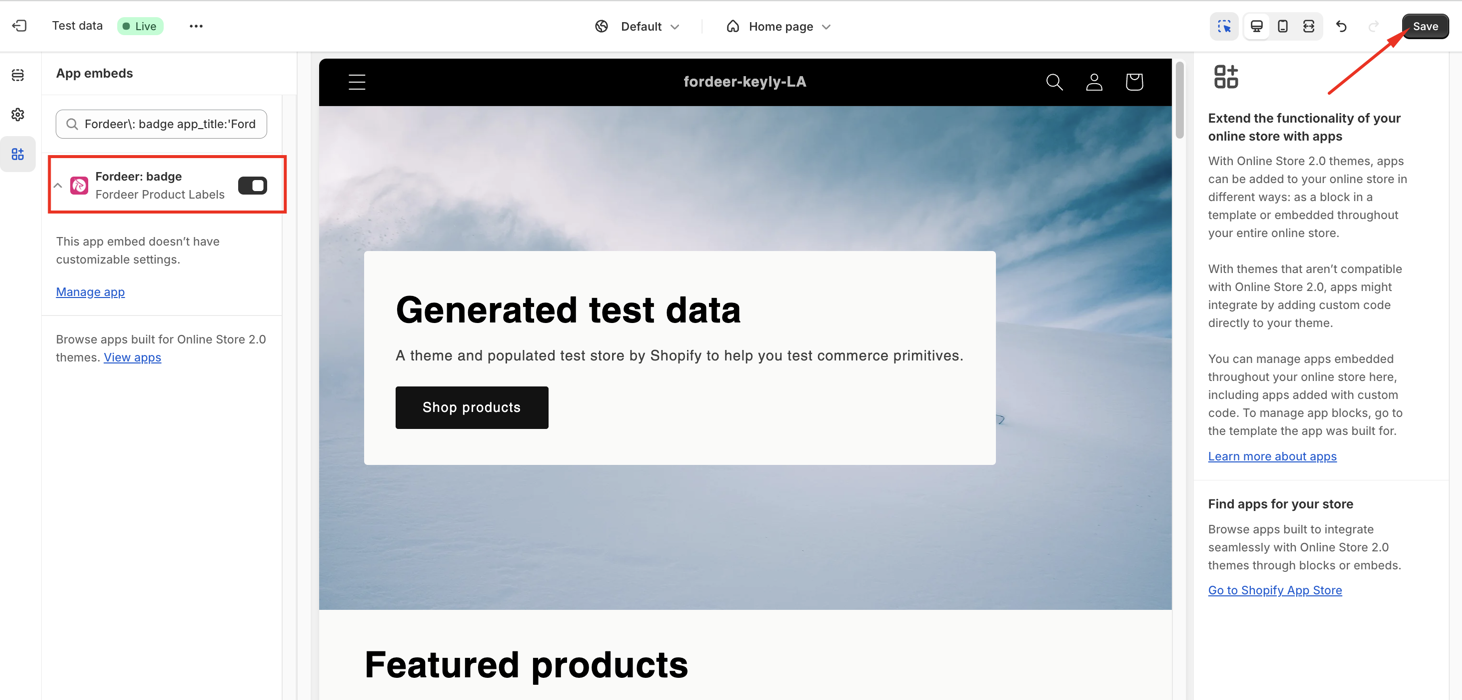
- Press Save in the top right corner
- What is label?
Product labels are used to be displayed inside the product images. Labels are effective tools for increasing sales and enhancing the shopping experience for customers.
Create a Label
You can watch out this video recording here to learn how to create a text label ⬇️
Check the label display
Once everything is set up, publish the label and verify that it displays correctly on your storefront.
If the labels do not show on your store, please do not hesitate to let us know via our support email: support@fordeercommerce.io or our friendly live chat on our app, we will be more than happy to help you.
💡 Note: Free plan users can create 2 label & badge campaigns. Upgrade today to unlock unlimited label campaigns and get 40% discount off.
We value your feedback — it helps us continuously improve ForDeer and provide you with a better experience.
🖥️ Demo store: Check out here with password: 1
👉 Chat with us: Share your feedback directly with our team.
👉 Email us: support@fordeercommerce.io
👉 Explore more apps: Discover more Fordeer apps.
👉 Join our community: Join ForDeer Community to get the latest updates, tips, and special deals.
🕐 Working hours: 8:30 AM – 5:00 PM (UTC+7), Monday–Friday.
We typically reply to live chats within minutes and emails within a few hours.
Need help? Feel free to reach out anytime via live chat or email!