

Overview
You can control which products display a label based on their weight range.
Fordeer automatically converts product weights between supported units, so products can still match your condition even if their original weight uses a different unit.
This guide explains how to set up a weight range condition for your labels.
How do I set a weight range condition?
Step 1: Go to Products
After designing your label, go to the Products tab.
Here, you can select which products the label will apply to and add additional conditions.
Step 2: Enable Weight range
-
Scroll down and expand Advanced options.
-
Select Weight range to enable the weight condition.
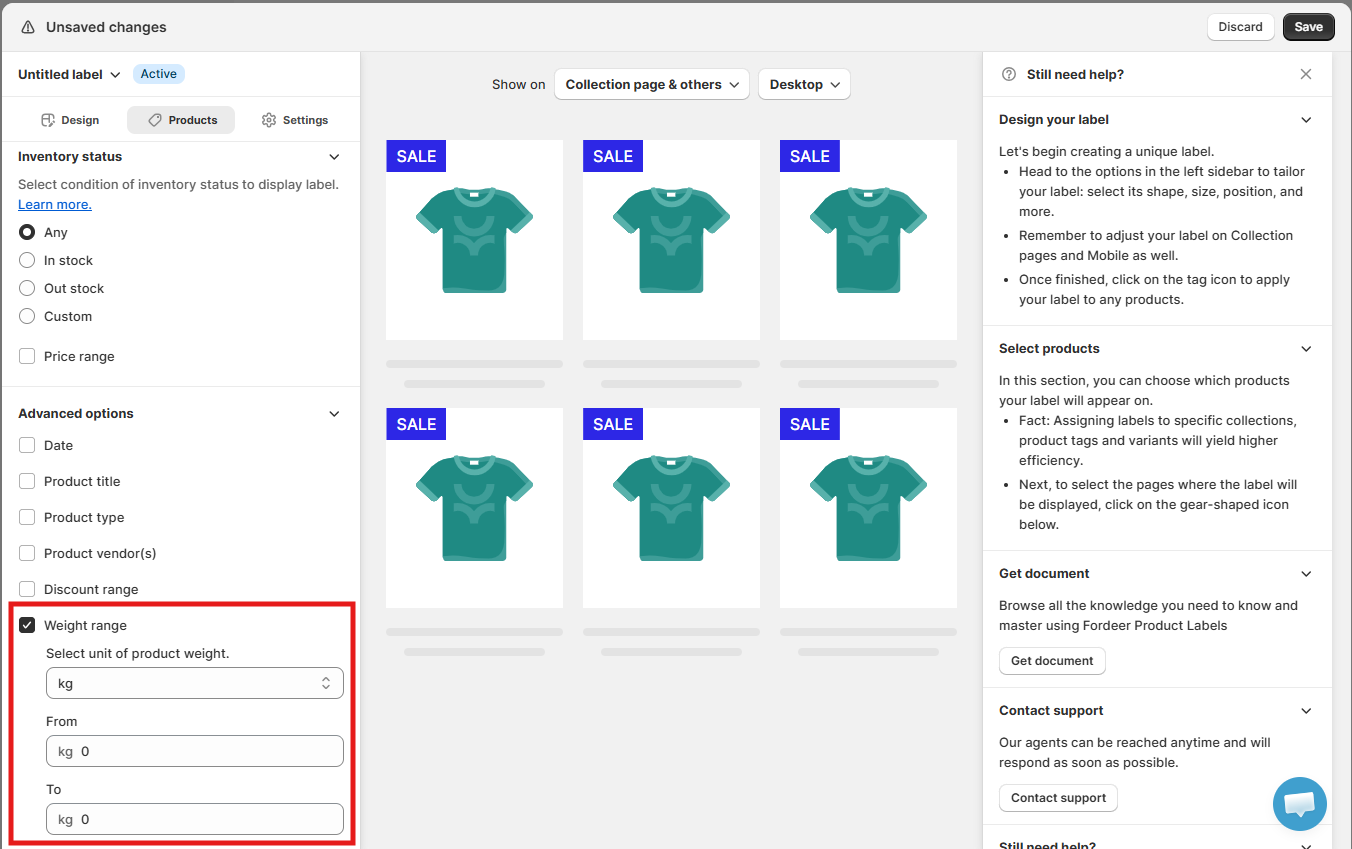
Step 3: Select a unit and enter the weight range
Choose the unit you want to use:
-
Kilograms (kg)
-
Pounds (lb)
-
Ounces (oz)
-
Grams (g)
-
Other
Then, enter the minimum and maximum weight in the From and To fields.
For example, select kg and enter 0 in From and 1 in To to display the label on products weighing between 0 and 1 kg.
Important: Fordeer automatically converts product weights to your selected unit. For example, a product weighing 500 g will match a weight range of 0–1 kg.
If you select Other, Fordeer compares only the product's raw weight value without converting the unit.
For example, with a range of 1–100 Other, products with raw weight values of 10 kg, 5 oz, or 99 g will match, while a product with a raw weight value of 500g will not.
Tip: Use kg, g, lb, or oz if you want Fordeer to automatically convert product weights before applying the condition.
Step 4: Save and check the label
-
Click Save in the top-right corner to apply your changes.
-
Then, visit your storefront and check products that meet the selected weight range to make sure the label displays correctly.
Important: A product must meet the weight range and any other product conditions you've configured for the label to appear.
We value your feedback — it helps us continuously improve ForDeer and provide you with a better experience.
🖥️ Demo store: Check out here with password: 1
👉 Chat with us: Share your feedback directly with our team.
👉 Email us: support@fordeercommerce.io
👉 Explore more apps: Discover more ForDeer apps.
👉 Join our community: Join ForDeer Community to get the latest updates, tips, and special deals.
🕐 Working hours: 8:30 AM – 5:00 PM (UTC+7), Monday–Friday.
We typically reply to live chats within minutes and emails within a few hours.
Need help? Feel free to reach out anytime via live chat or email!
Talk soon!