

Fordeer hello to you!
At the moment, our app adds several files to your theme to enhance the experience and optimize the application's performance.
To allow our app to add code file to your current theme, please go to Account section and click the Synchronize button for the application to automatically sync and address any potential errors.
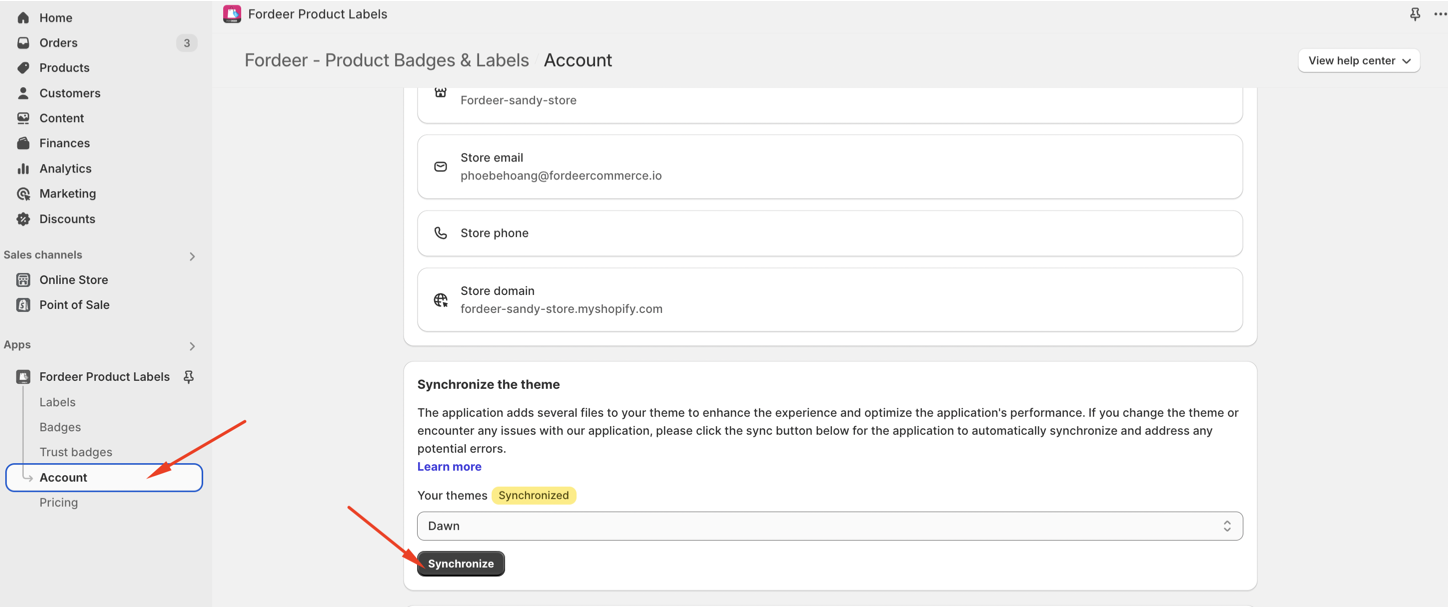
If you change to another theme or encounter any issues with our application, kindly click Synchronize button again. If this way does not work for you, kindly follow each steps below:
Step 1: Open your theme code
Go to Online store => Theme => Select Edit code action in your desired theme.
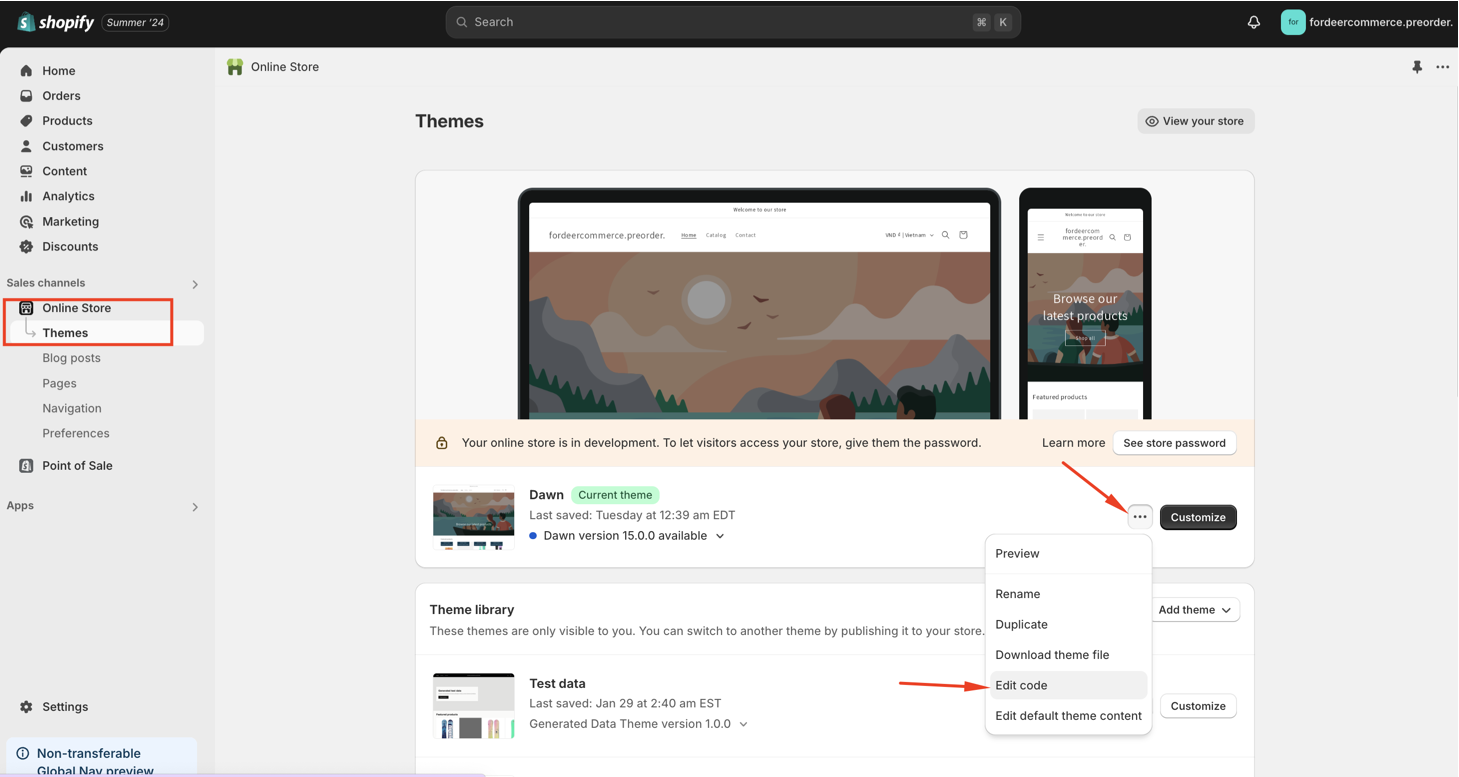
Step 2: Add a new template
On the Templates files, click Add a new template
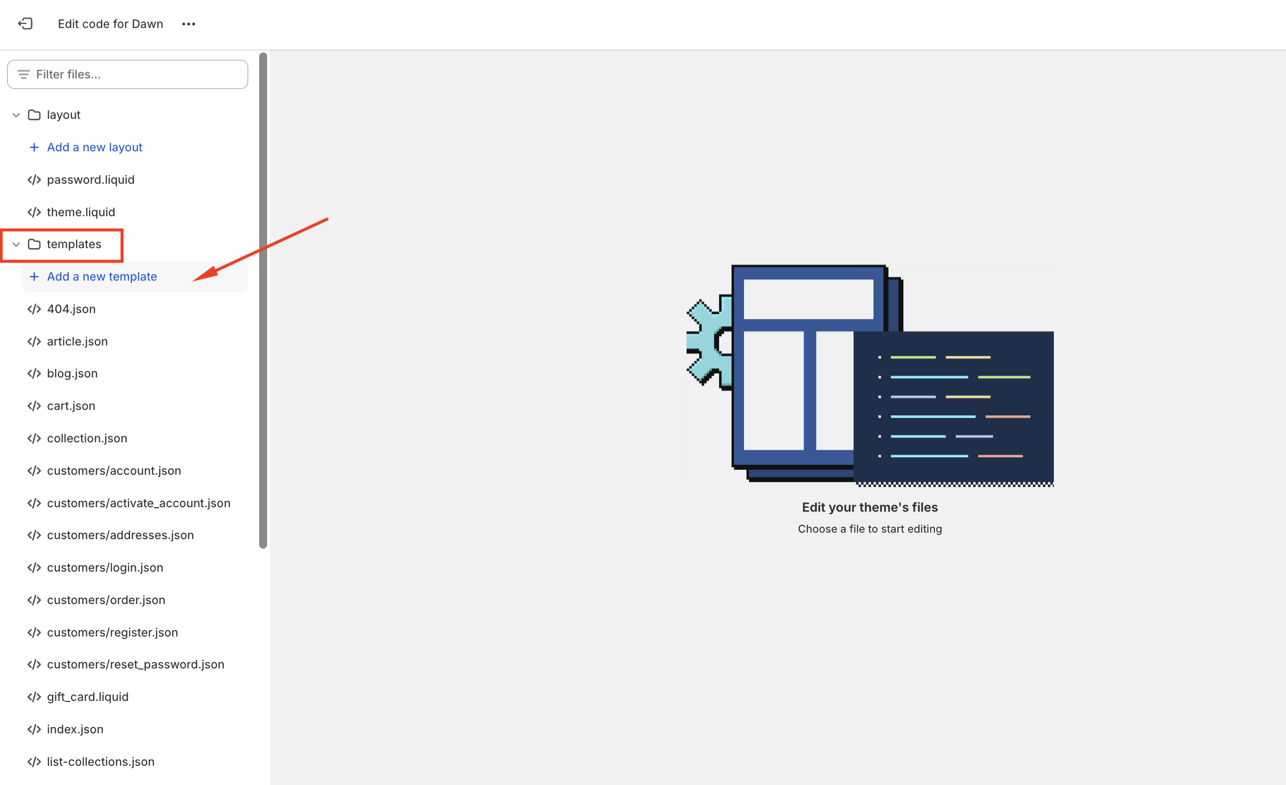
Step 3: Create the Fordeer template
Select template type is search => liquid and add file name fordeer.productsresult
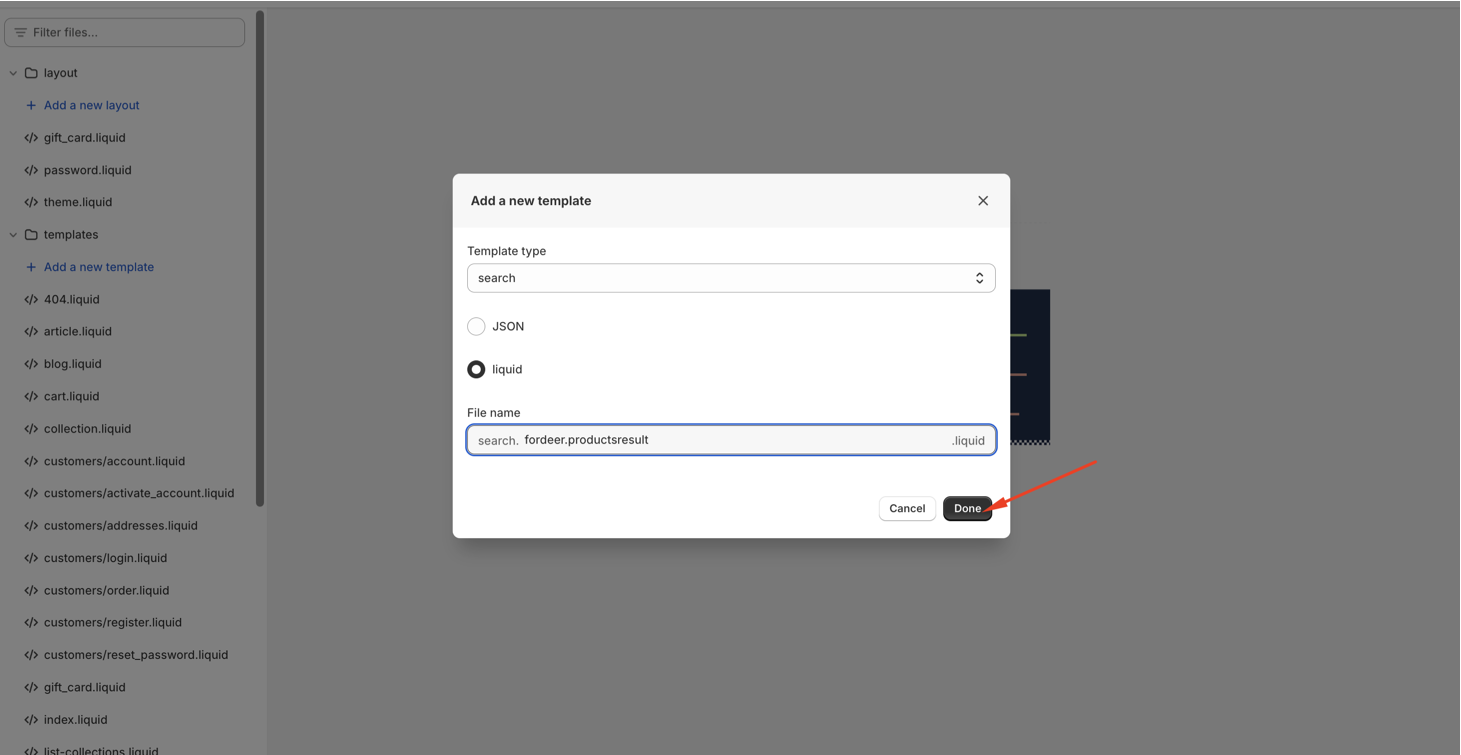
Step 4: Save the template
Click Done button to complete the adding file process. After that you will see the notification Asset created
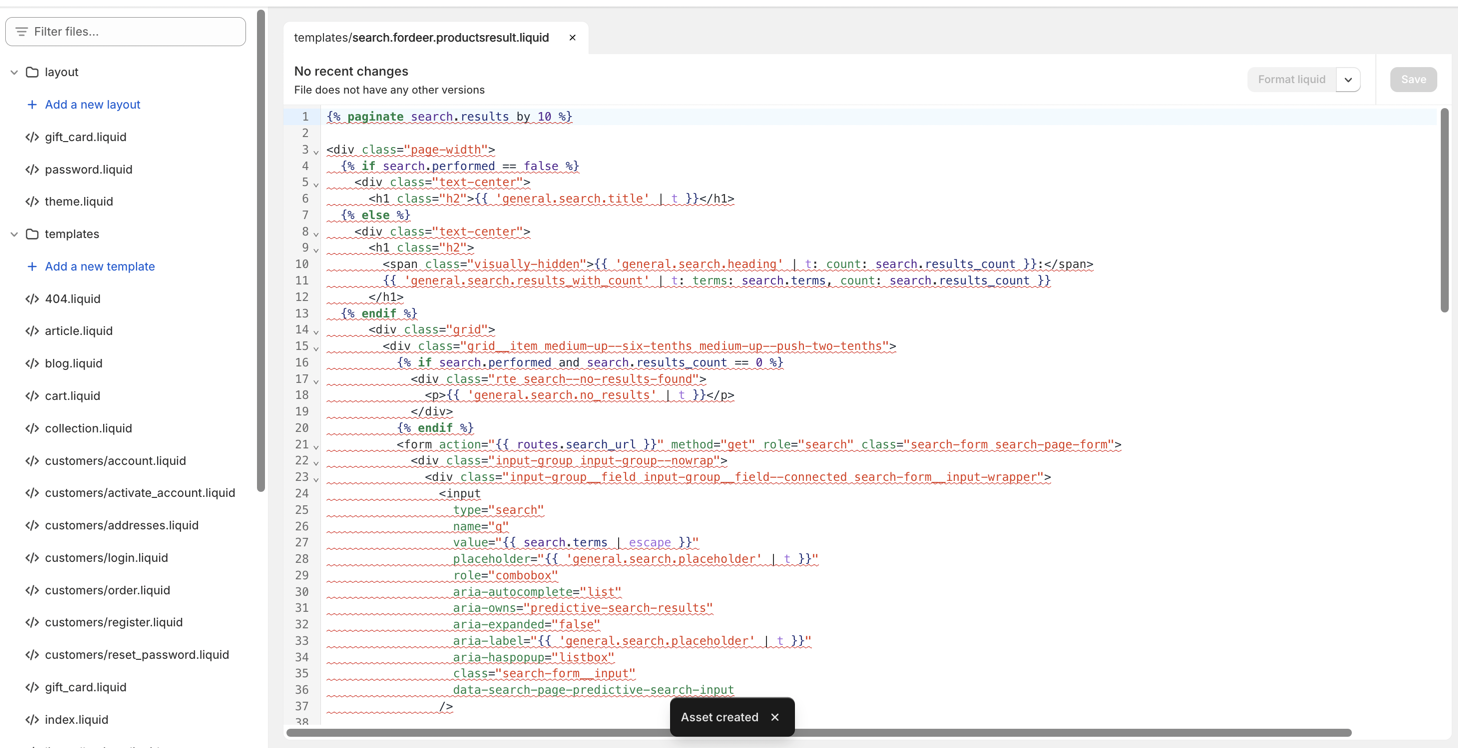
By doing all steps above, you added our app file to your theme successfully.
If the labels/badges do not show on your products, check the possible reasons why labels/badges are not showing on these articles or contact us via our app live chat for prompt assistance.
We value your feedback — it helps us continuously improve ForDeer and provide you with a better experience.
🖥️ Demo store: Check out here with password: 1
👉 Chat with us: Share your feedback directly with our team.
👉 Email us: hi@fordeercommerce.io
👉 Explore more apps: Discover more Fordeer apps.
👉 Join our community: Join ForDeer Community to get the latest updates, tips, and special deals.
🕐 Working hours: 8:30 AM – 5:00 PM (UTC+7), Monday–Friday.
We typically reply to live chats within minutes and emails within a few hours.
Need help? Feel free to reach out anytime via live chat or email!