

Hello from Fordeer!
Our app is designed to help you highlight multiple aspects of a product using labels. While we currently don't support label stacking directly, we can guide you through setting it up manually. Let's get started!
-
Create Label Campaigns:
-
To show a stack of two labels on one product, start by creating two separate label campaigns.
-
Adjust Label Margins:
- The key to label stacking is adjusting the label margins to position them correctly.
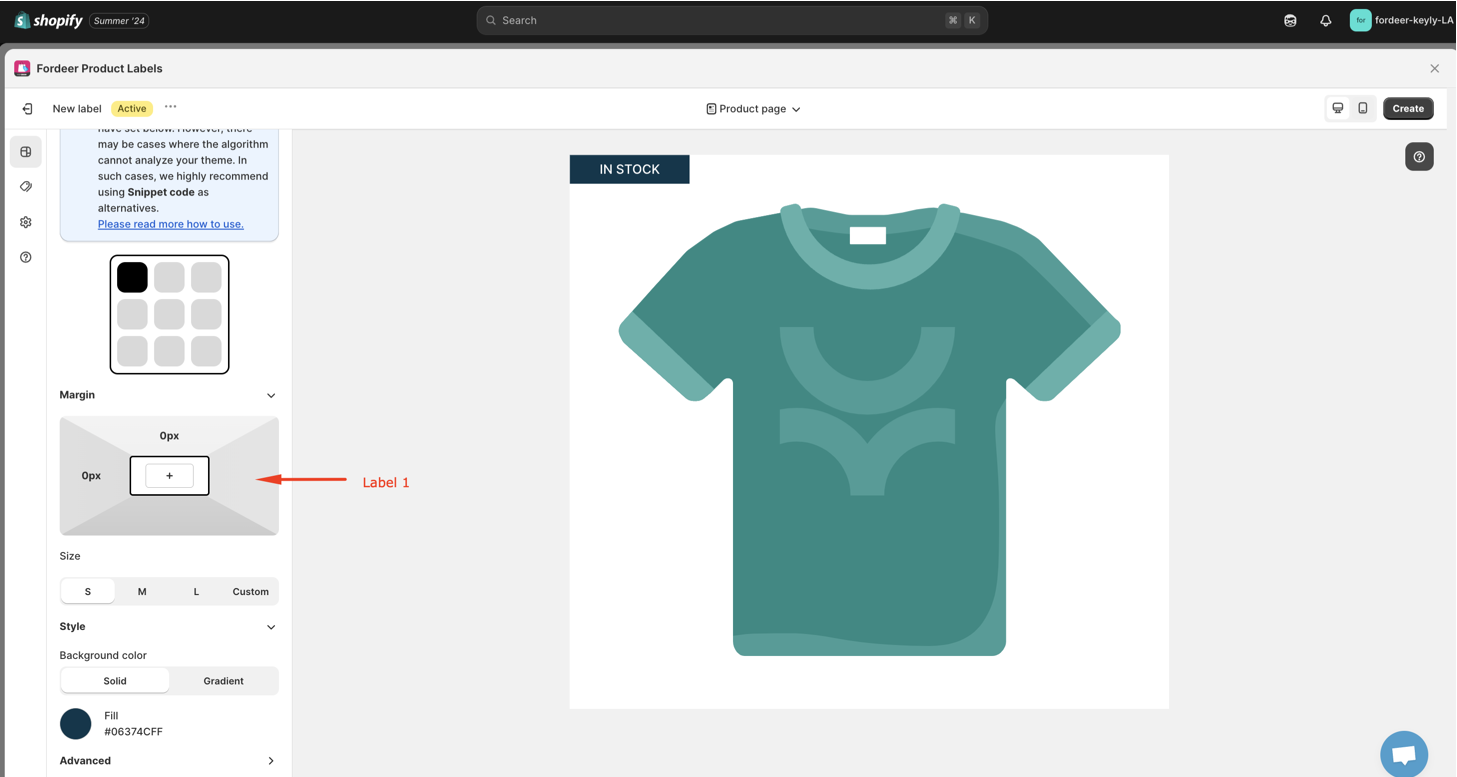
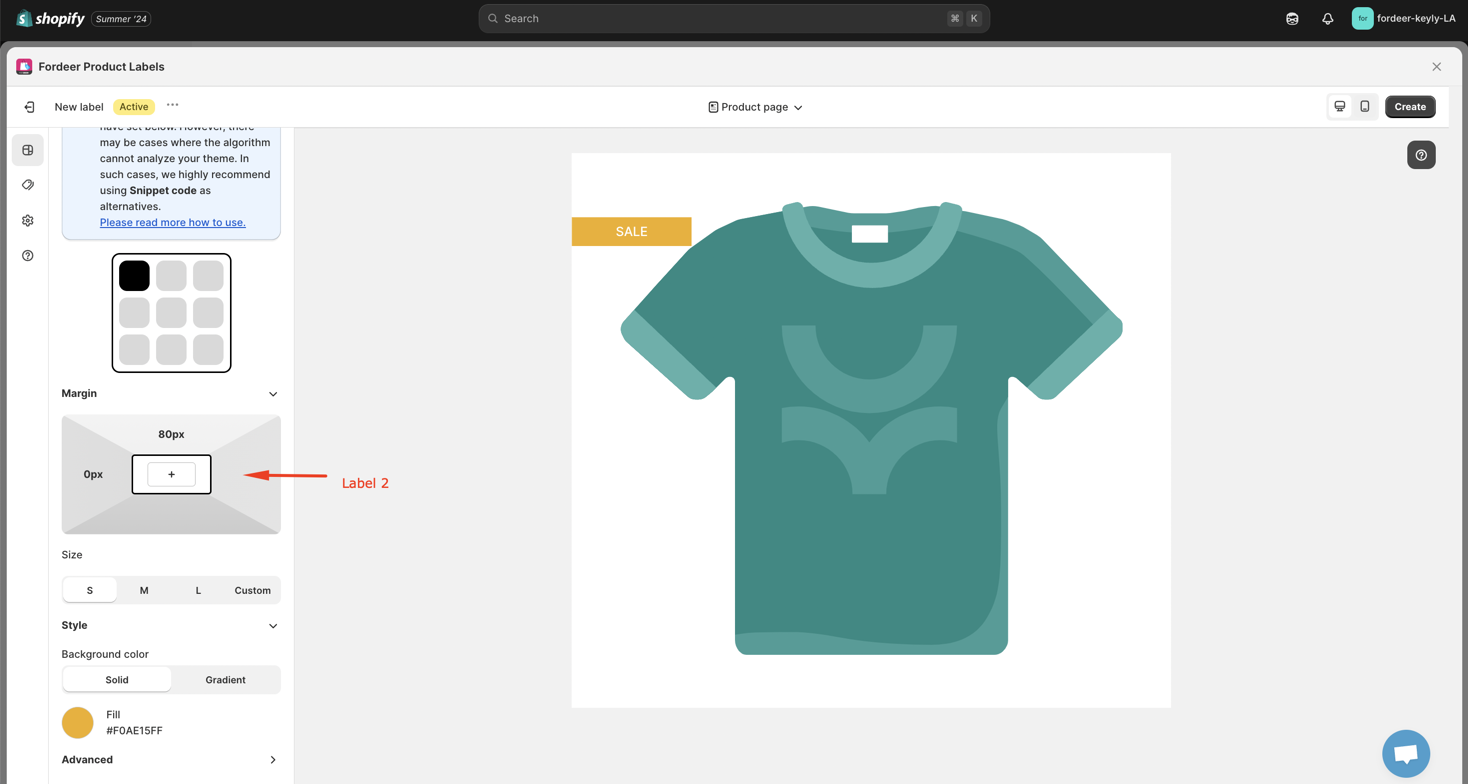
- Ensure each label campaign has a different margin to avoid overlap.
- Positioning Labels:
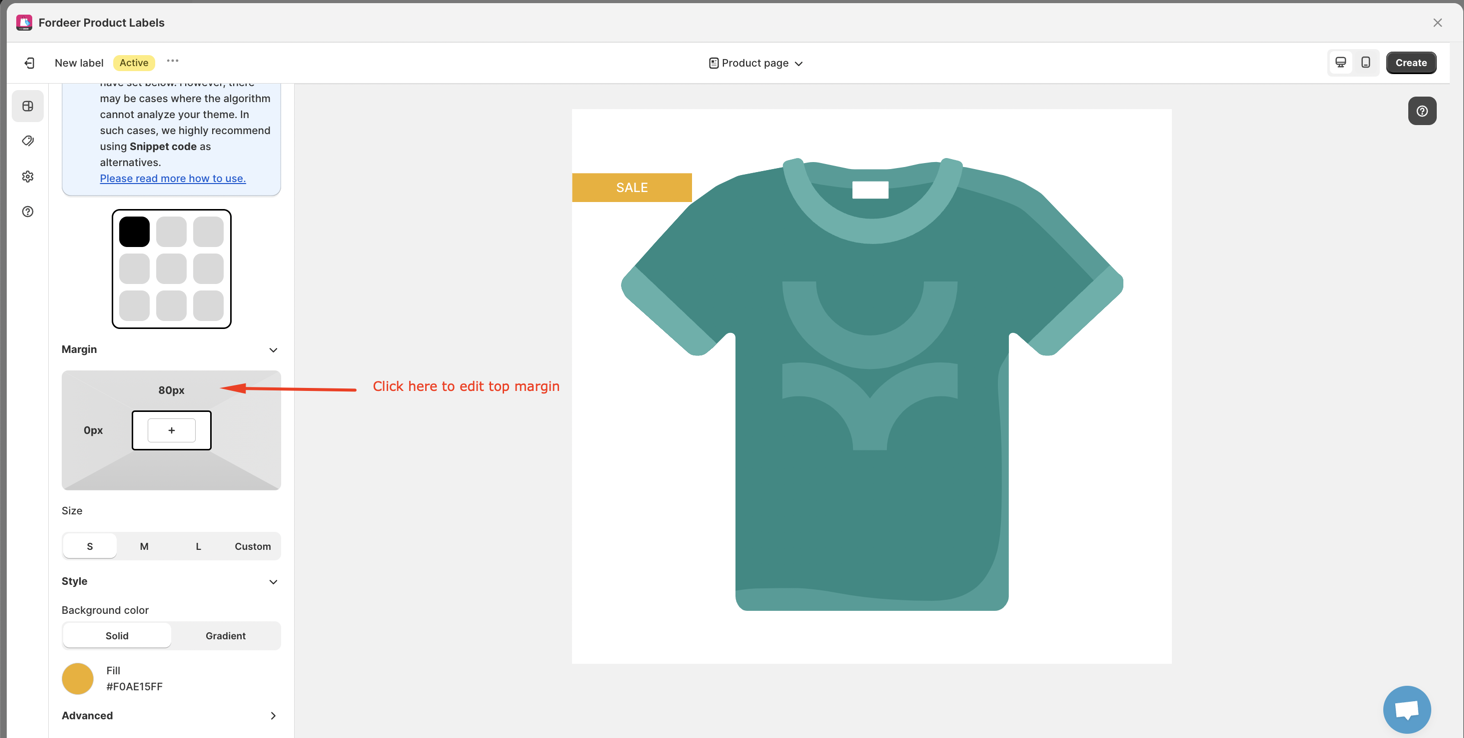
** For horizontal stacking:**
- Use the top and bottom margins to position the labels accordingly.
-
Save and Review:
-
After adjusting the settings, click Save button.
- Check your storefront to ensure the labels appear as intended.
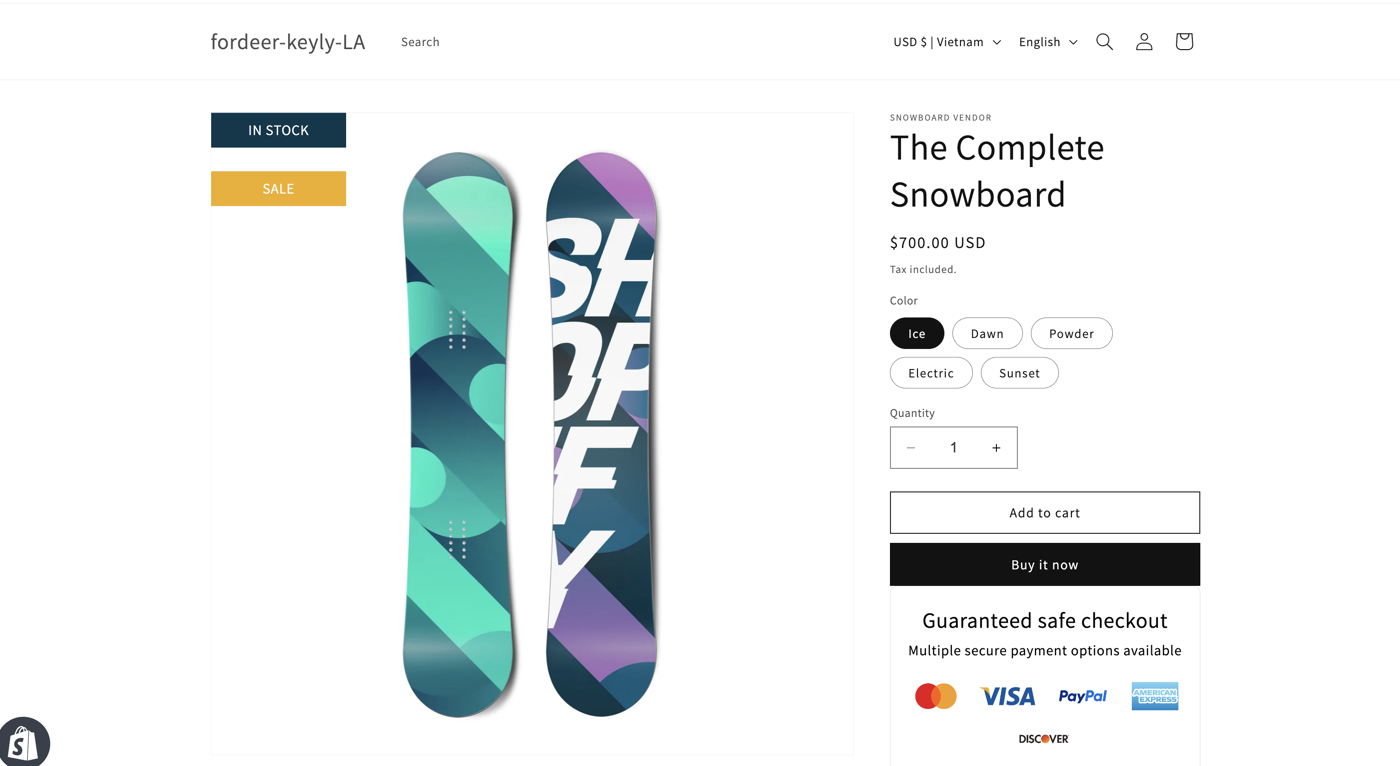
- If the labels are not positioned correctly, go back to the app and adjust the settings until you achieve the desired look.
We value your feedback — it helps us continuously improve ForDeer and provide you with a better experience.
🖥️ Demo store: Check out here with password: 1
👉 Chat with us: Share your feedback directly with our team.
👉 Email us: support@fordeercommerce.io
👉 Explore more apps: Discover more ForDeer apps.
👉 Join our community: Join ForDeer Community to get the latest updates, tips, and special deals.
🕐 Working hours: 8:30 AM – 5:00 PM (UTC+7), Monday–Friday.
We typically reply to live chats within minutes and emails within a few hours.
Need help? Feel free to reach out anytime via live chat or email!
Talk soon!