

Overview
Price Badges help highlight your product's price, compare-at price, and promotional information in a customized price block.
You can customize each element separately, choose which products display the Price Badge, and control its visibility across different pages and devices.
This guide explains how to create and set up a Price Badge.
Important: When a Price Badge is displayed, it replaces your theme's existing price display. If you use an App Block to position the Price Badge, disable the existing price display to avoid duplicate prices.
How do I create a Price Badge?
Step 1: Create a Price Badge
-
From the app sidebar, go to Price Badges.
-
Click Create price badge to start a new campaign.
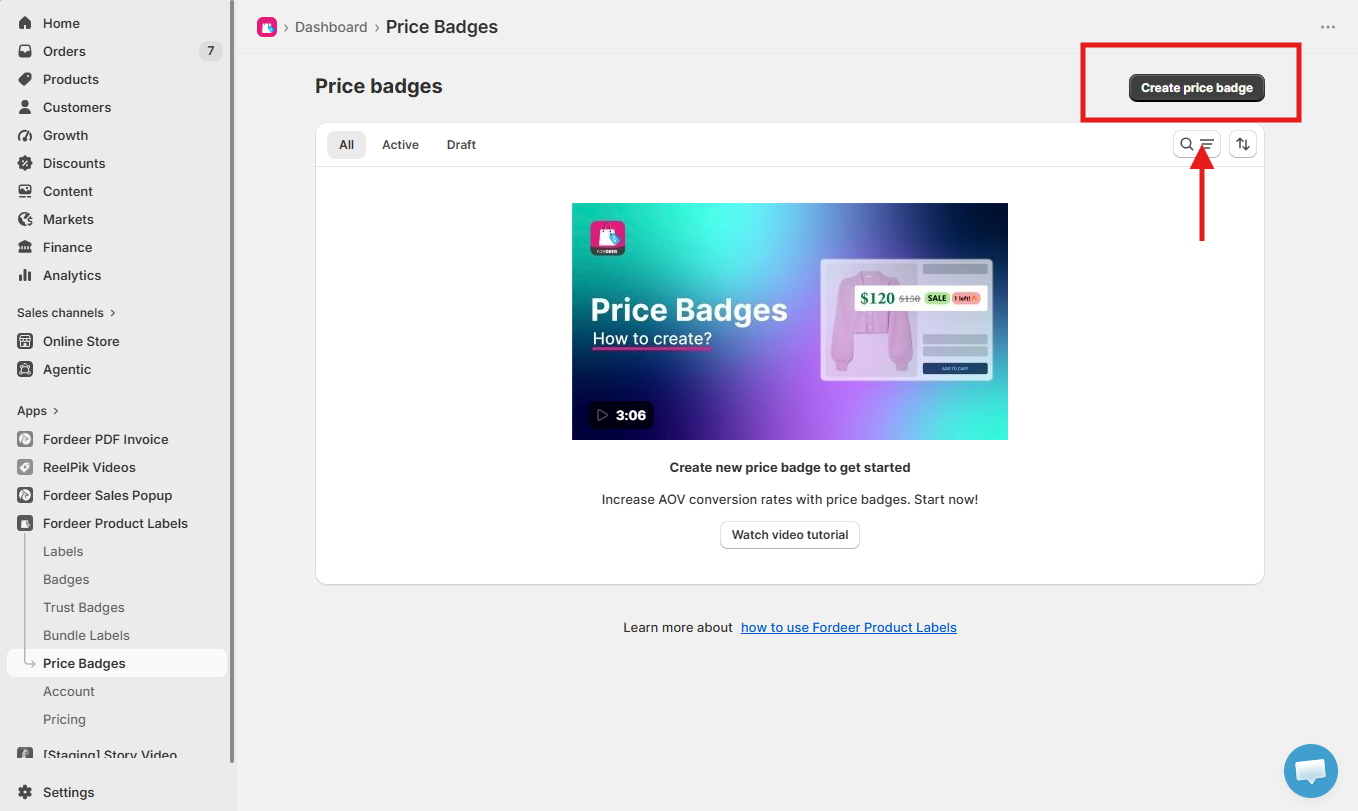
Step 2: Customize the Price Badge
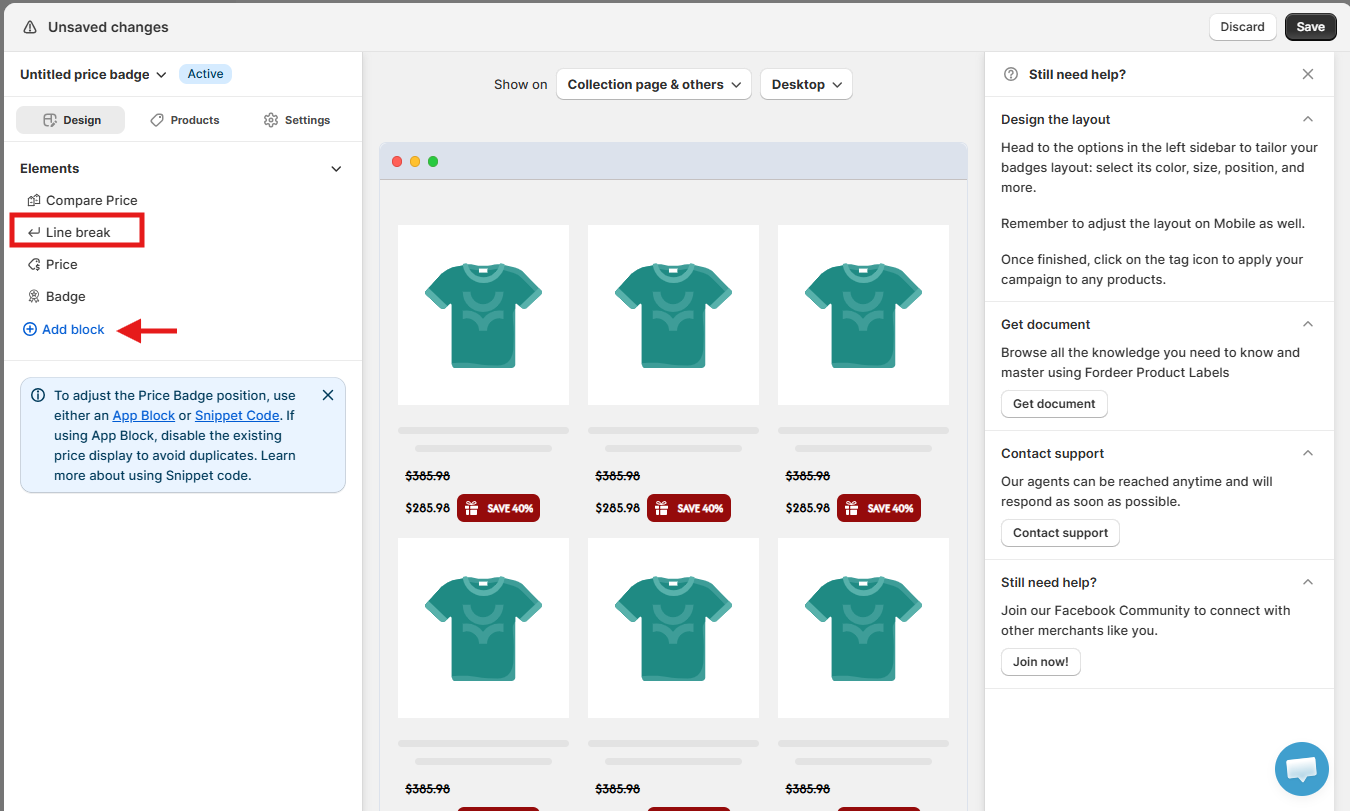
In the Design tab, you'll find three default elements:
-
Compare Price
-
Price
-
Badge
You can click each element to customize it individually.
1. Compare Price
Select Compare Price to customize how the original price appears.
You can adjust settings such as:
-
Background
-
Bold, italic, underline, and strikethrough
-
Text color
-
Font family
-
Font size
-
Desktop and Mobile visibility
-
Placement
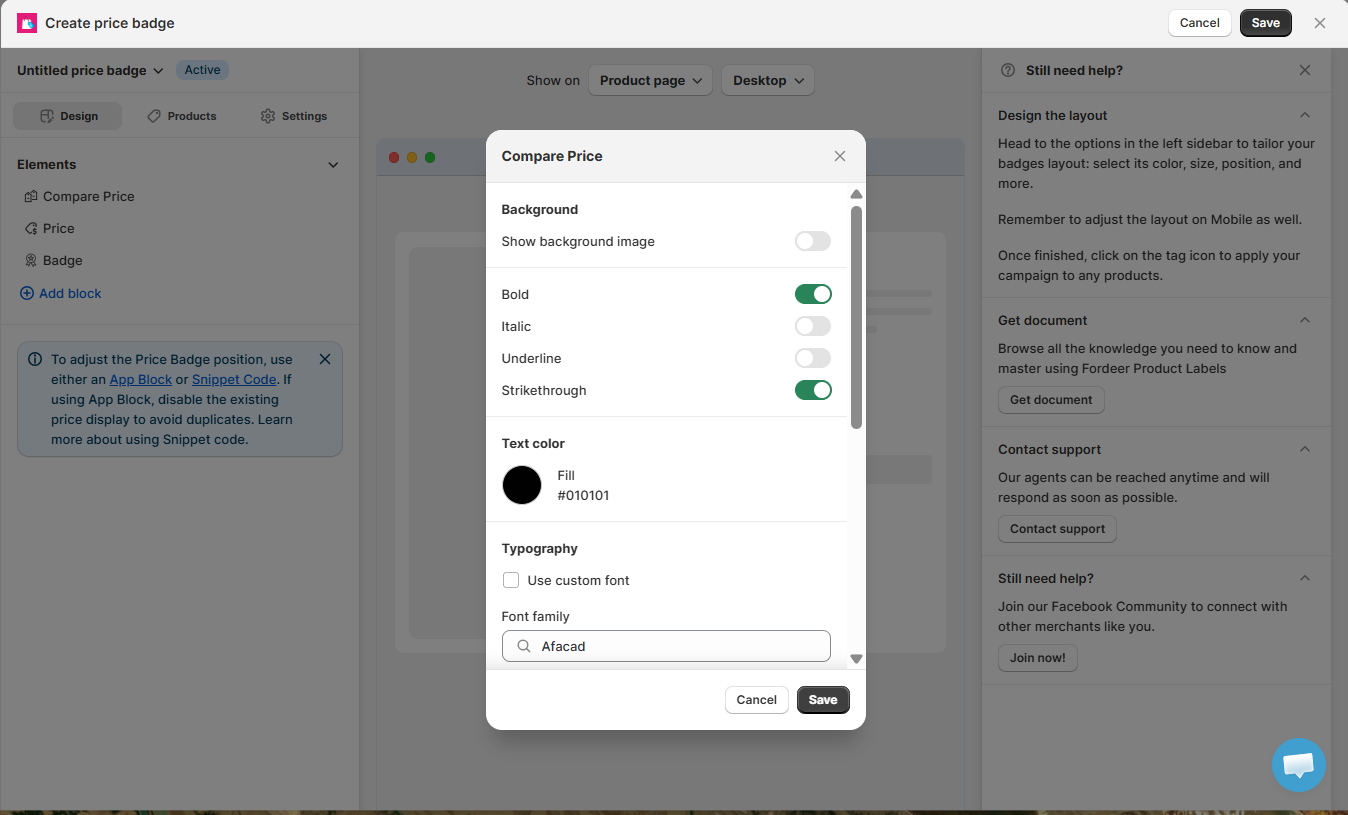
Tip: Use strikethrough on the Compare Price to make the difference between the original and current price easier to recognize.
2. Price
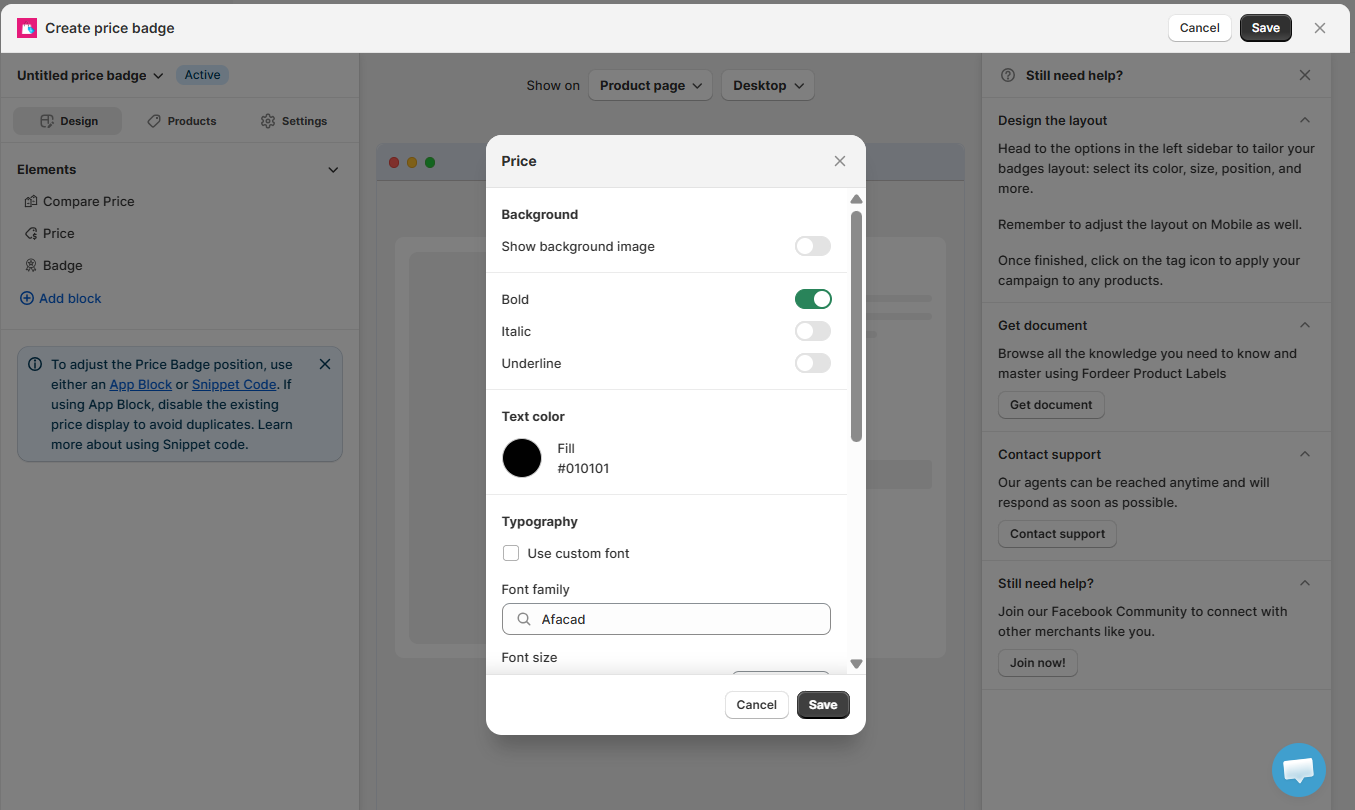
Select Price to customize the product's current price.
You can adjust its text style, color, font, size, device visibility, placement, and other available settings.
3. Badge
Select Badge to add promotional information alongside the prices, such as SALE, SAVE 40%, or another message.
You can customize the badge's:
-
Icon, icon size, color, background
-
Content, text style
-
Font size and line height
-
Desktop and Mobile visibility
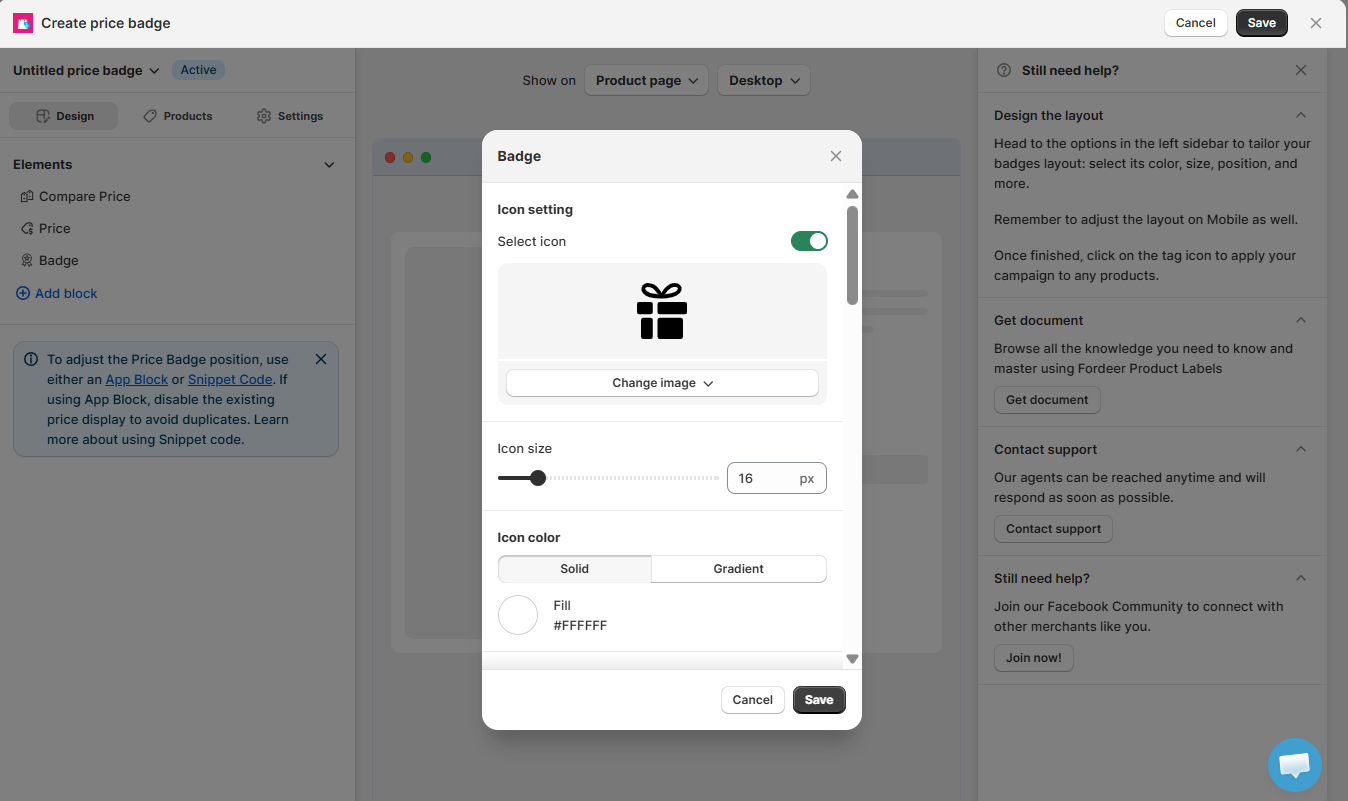
You can click Add block to add additional elements or hide them from your Price Badge layout.
Tip: Use the preview to check your Price Badge while customizing each element. You can switch between Product page/Collection page & others and Desktop/Mobile from the selectors above the preview.
You can also insert a line break to separate elements with a new line, giving you more control over the layout and presentation.
Step 3: Choose which products display the Price Badge
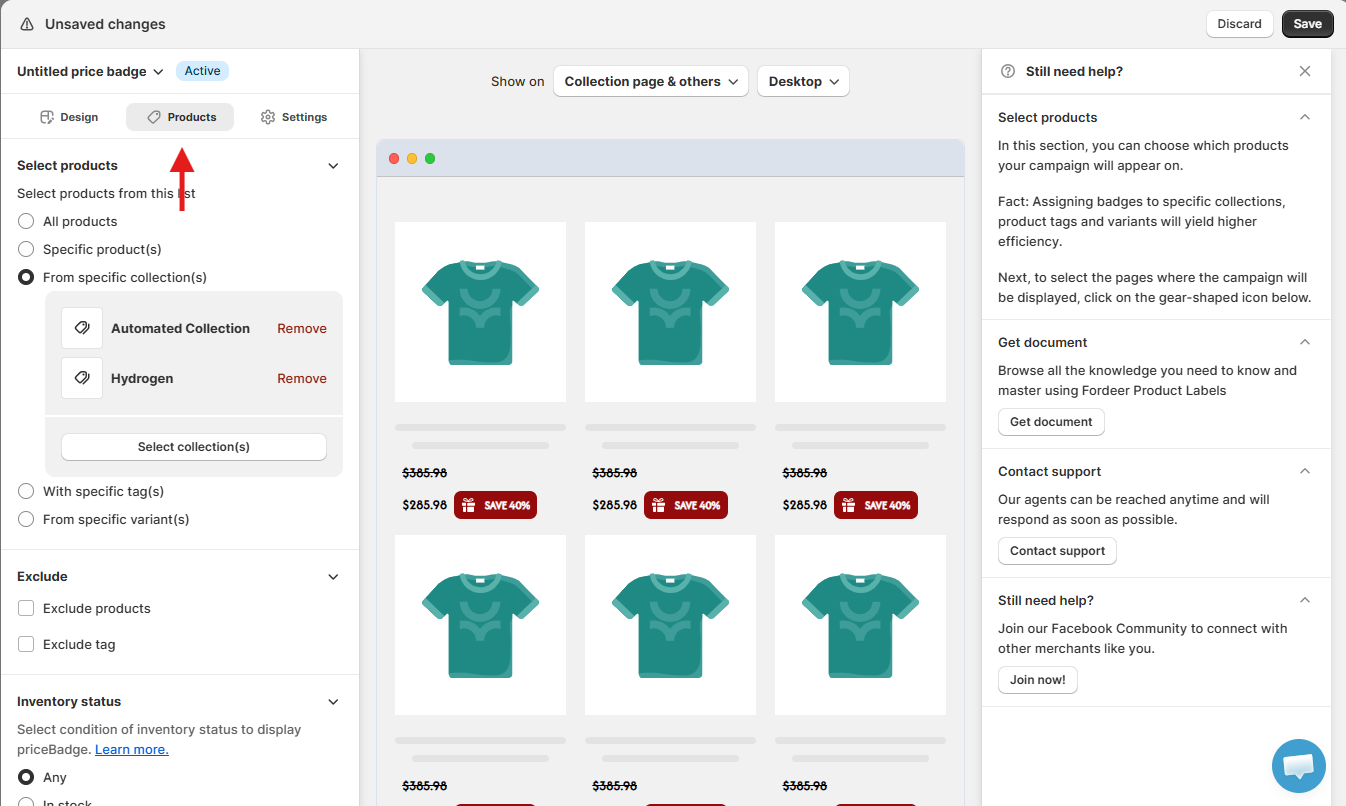
Go to the Products tab to choose which products the Price Badge applies to.
You can target:
-
All products
-
Specific products
-
Specific collections
-
Specific tags
-
Specific variants
You can also use additional conditions such as Inventory status, Price range, Date, Product title, Product type, Product vendor, Discount range, and Weight range to narrow down the products.
Important: A product must meet the conditions you've configured for the Price Badge to appear.
Step 4: Configure display settings
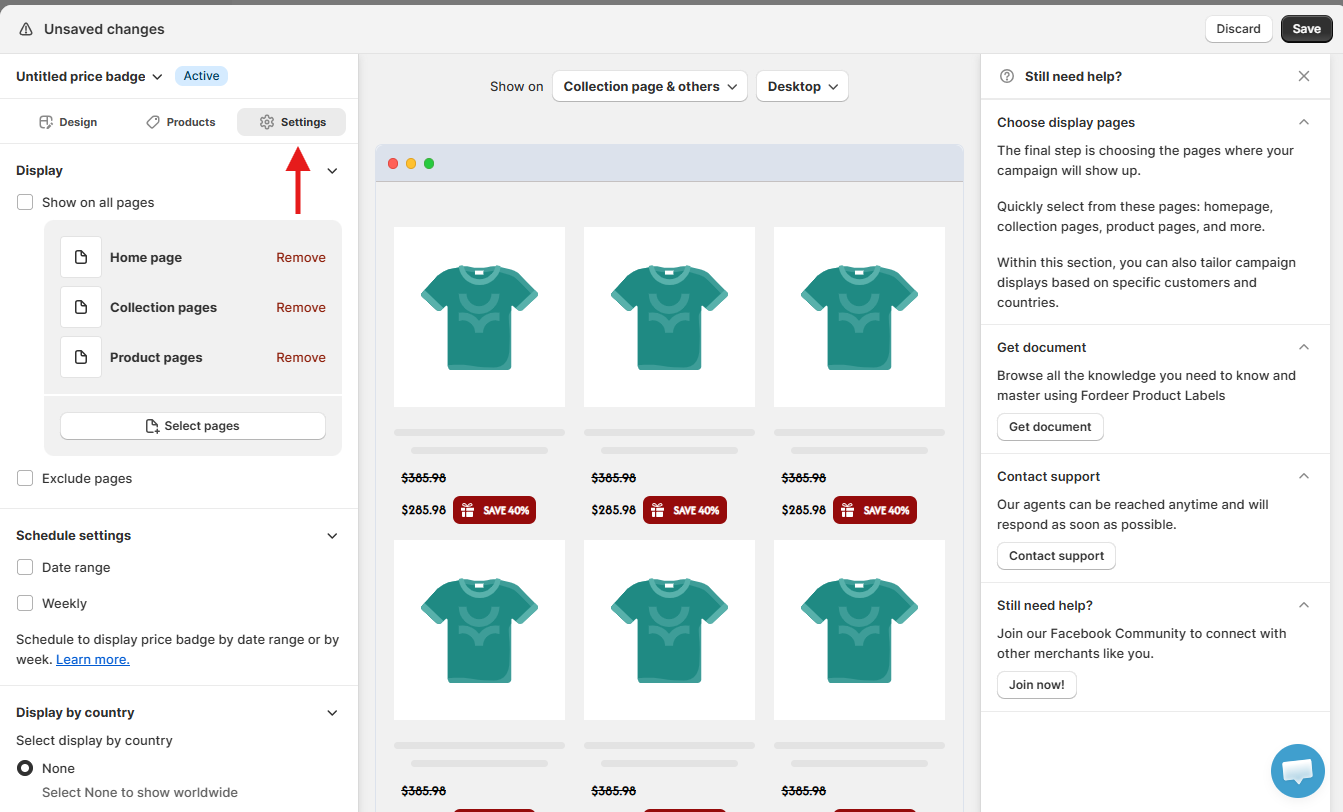
Go to the Settings tab to control when and where your Price Badge appears.
Depending on your setup, you can configure settings such as:
-
Pages where the Price Badge appears
-
Schedule settings
-
Country visibility
-
Customer visibility
Step 5: Position the Price Badge (Optional)
To control where the Price Badge appears in your theme, use either an App Block or Snippet Code.
If you're using an App Block, disable your theme's existing price display to prevent duplicate prices.
Tip: Try the App Block first when supported by your theme. Use Snippet Code when you need to manually control the Price Badge position.
Step 6: Save and check your Price Badge
Once you've finished configuring your Price Badge, click Save.
Visit the selected products on your storefront and check that:
-
The Price Badge appears on the correct products.
-
The price and compare-at price display correctly.
-
The layout looks correct on both Desktop and Mobile.
-
The original theme price is not displayed twice.
We value your feedback — it helps us continuously improve ForDeer and provide you with a better experience.
🖥️ Demo store: Check out here with password: 1
👉 Chat with us: Share your feedback directly with our team.
👉 Email us: hi@fordeercommerce.io
👉 Explore more apps: Discover more Fordeer apps.
👉 Join our community: Join ForDeer Community to get the latest updates, tips, and special deals.
🕐 Working hours: 8:30 AM – 5:00 PM (UTC+7), Monday–Friday.
We typically reply to live chats within minutes and emails within a few hours.
Need help? Feel free to reach out anytime via live chat or email!