

Overview
You can customize how your labels/badges appear on different pages and devices.
Fordeer allows you to set up the design separately for Product pages and Collection pages & others, as well as for Desktop and Mobile.
This guide explains how to customize each version so your labels/badges display properly across your store.
How do I customize labels/badges for different pages?
Step 1: Go to Design
Open the label/badge you want to customize and go to the Design tab.
Step 2: Select a page
Under Placement, select the page you want to customize:
-
Product page
-
Collection page & others
Collection page & others includes collection pages, the homepage, search pages, and other supported pages.
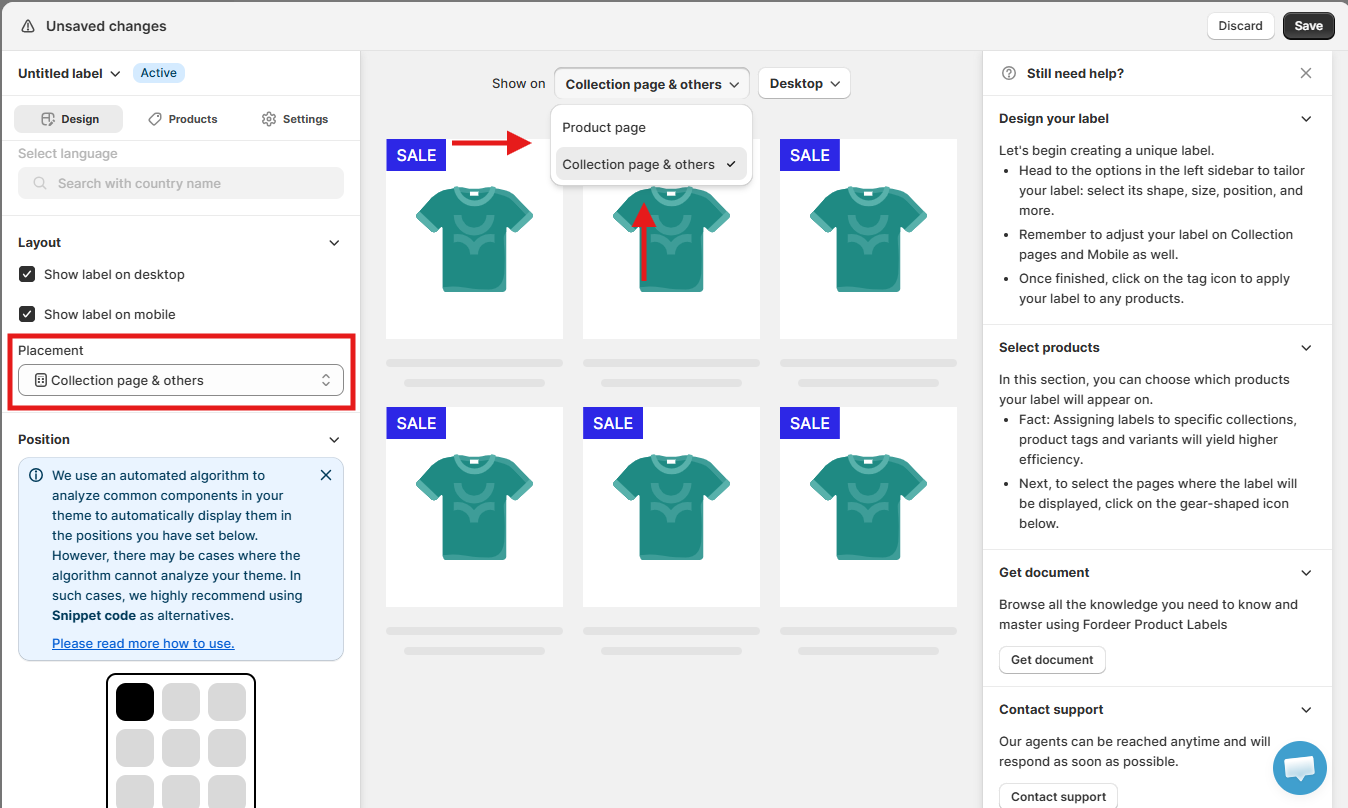
Step 3: Customize the label/badge
Adjust the design settings for the selected page, such as:
-
Size
-
Position
-
Margin
-
Font size
-
Other available design settings
You can check your changes directly in the preview.
Switch between Product page and Collection page & others to customize each version separately.
Tip: Check both placements to make sure your label/badge looks good wherever it appears.
How do I customize labels/badges for different devices?
Step 1: Choose which devices display the label/badge
-
In the Design tab, go to Layout.
-
Choose where you want the label/badge to appear:
-
Show label on desktop
-
Show label on mobile
You can enable either option or both.
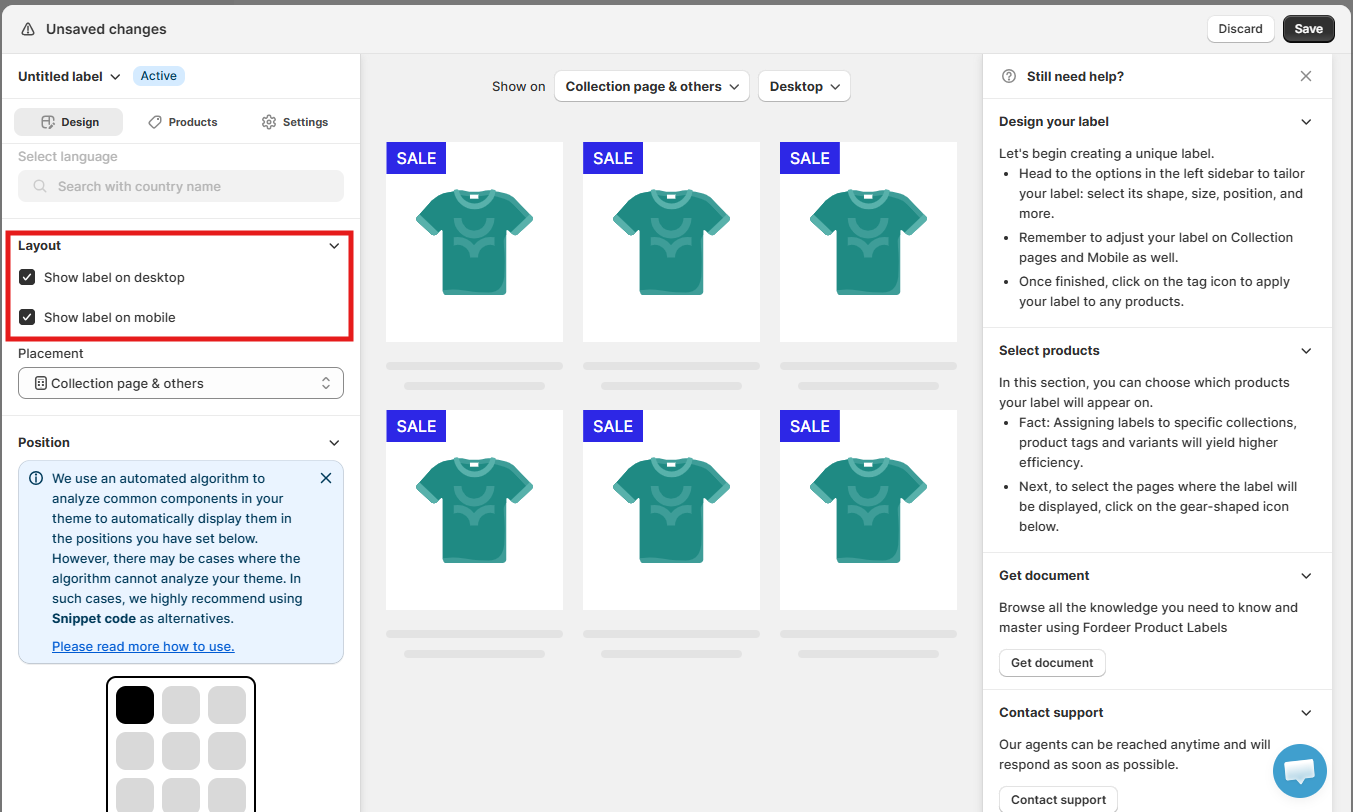
Step 2: Select a device
At the top of the preview, open the device dropdown and select:
-
Desktop
-
Mobile
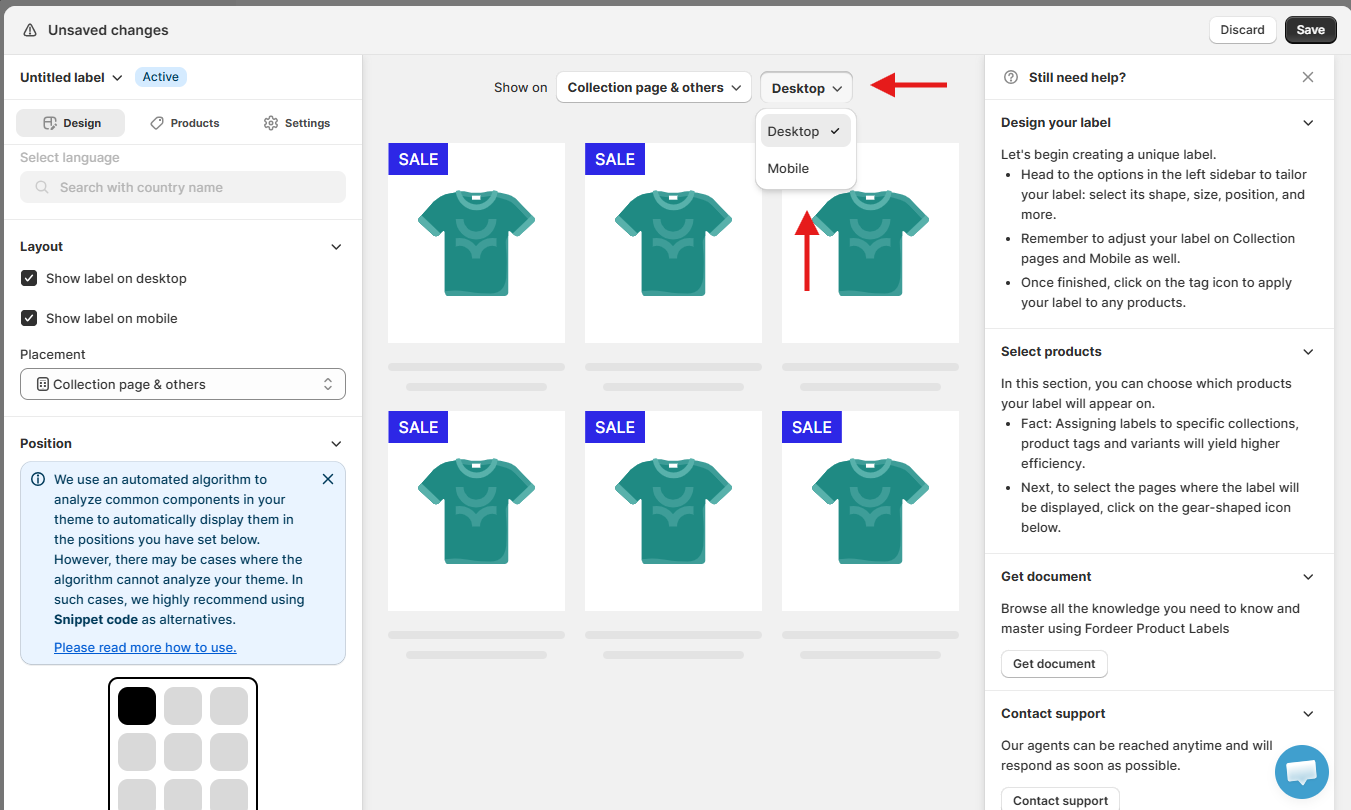
Step 3: Customize and preview each device
Adjust the design settings for the selected device.
Switch between Desktop and Mobile to customize and preview each version separately.
Tip: If your label/badge is enabled on both Desktop and Mobile, check both versions before saving to make sure it displays properly on different screen sizes.
Save and check your changes
Once you've finished customizing your label/badge for the required pages and devices, click Save in the top-right corner.
Then, visit your storefront and check the label/badge on the pages and devices you've enabled.
Important: Page and device settings can be customized separately. Make sure you review all the page and device combinations where you want your label/badge to appear.
We value your feedback — it helps us continuously improve ForDeer and provide you with a better experience.
🖥️ Demo store: Check out here with password: 1
👉 Chat with us: Share your feedback directly with our team.
👉 Email us: hi@fordeercommerce.io
👉 Explore more apps: Discover more ForDeer apps.
👉 Join our community: Join ForDeer Community to get the latest updates, tips, and special deals.
🕐 Working hours: 8:30 AM – 5:00 PM (UTC+7), Monday–Friday.
We typically reply to live chats within minutes and emails within a few hours.
Need help? Feel free to reach out anytime via live chat or email!