

Overview
You can schedule when your labels/badges appear on your store using Date range and Weekly settings.
Use Date range to run a label/badge during a specific period, or Weekly to choose specific days and times of the week.
This guide explains how to configure both scheduling options.
How do I schedule a label/badge?
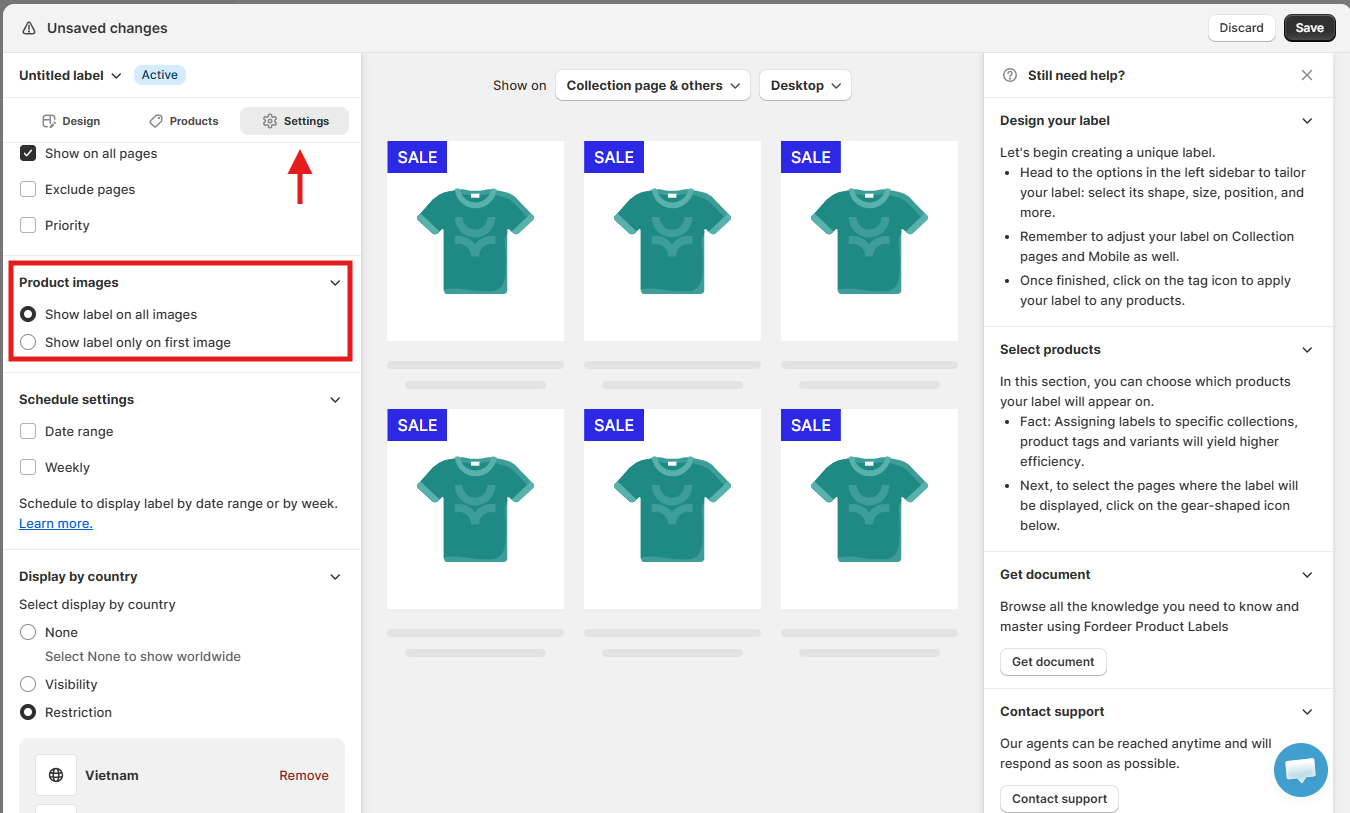
Step 1: Go to Schedule settings
-
Open the label/badge you want to schedule and go to the Settings tab.
-
Scroll down and expand Schedule settings.
Step 2: Set a Date range
-
Enable Date range to set a specific period for your label/badge.
-
Choose:
-
From date: When the label/badge starts displaying.
-
To date: When the label/badge stops displaying.
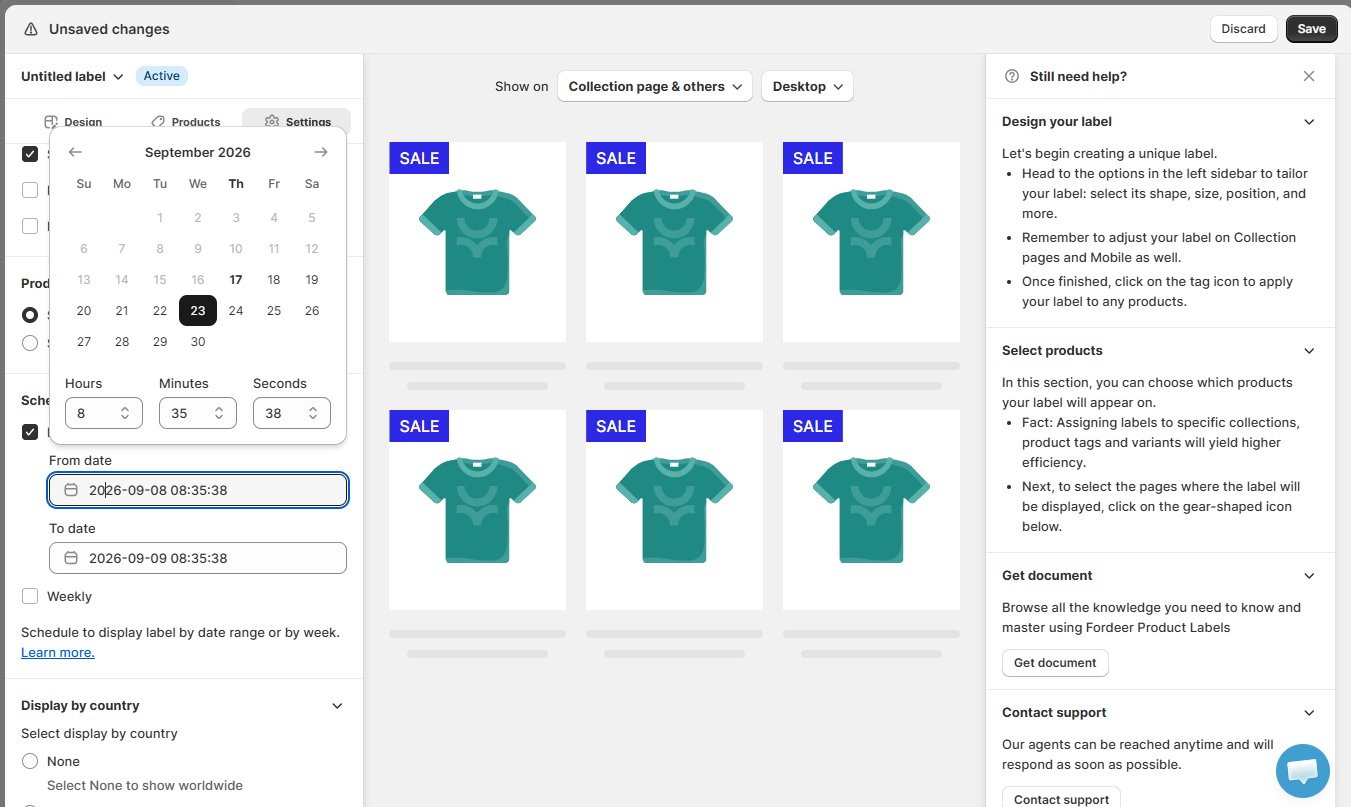
For example, you can schedule a SALE label to appear only during a promotional campaign.
Step 3: Set a Weekly schedule
Enable Weekly if you want the label/badge to appear only on specific days of the week.
Select the days you want the label/badge to display.
For each selected day, you can choose:
-
All day: Display the label/badge for the entire day.
-
Time range: Set a specific start and end time for that day.
You can configure each day separately.
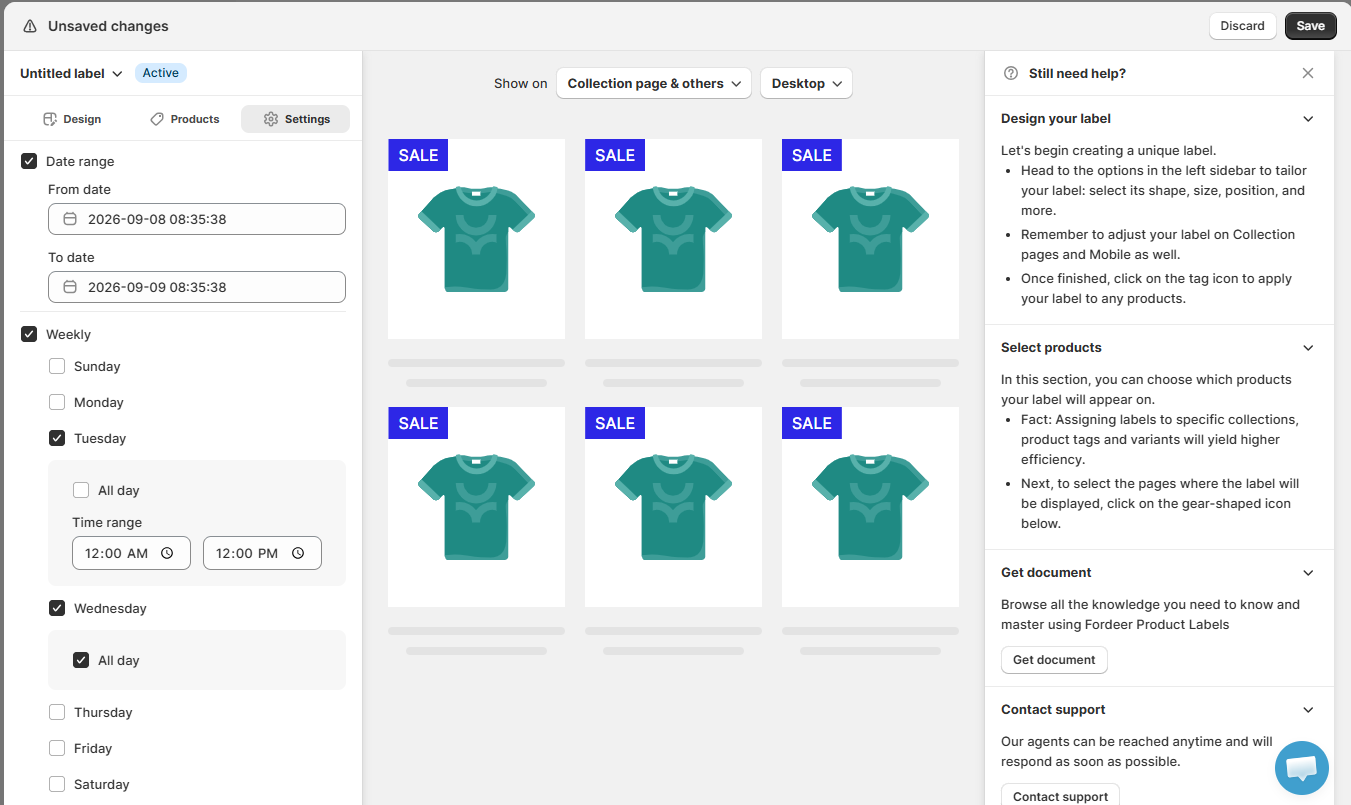
Tip: Use Weekly scheduling for recurring campaigns, such as weekend promotions or offers that run during specific hours.
Step 4: Save your schedule
Once you've finished setting the schedule, click Save in the top-right corner.
Your label/badge will display according to the date and time conditions you've configured.
What happens if both Date range and Weekly are enabled?
When both Date range and Weekly are enabled, the label/badge must follow both scheduling conditions.
If their end times are different, Fordeer prioritizes the condition that ends first. The {days_remaining} variable also follows the earlier ending time.
For example:
-
Date range: Ends on September 23.
-
Weekly: The current schedule ends at 11:59 PM on September 22.
In this case, the Weekly schedule ends first, so the label/badge will stop displaying according to the Weekly setting. The {days_remaining} variable will also count down based on that schedule.
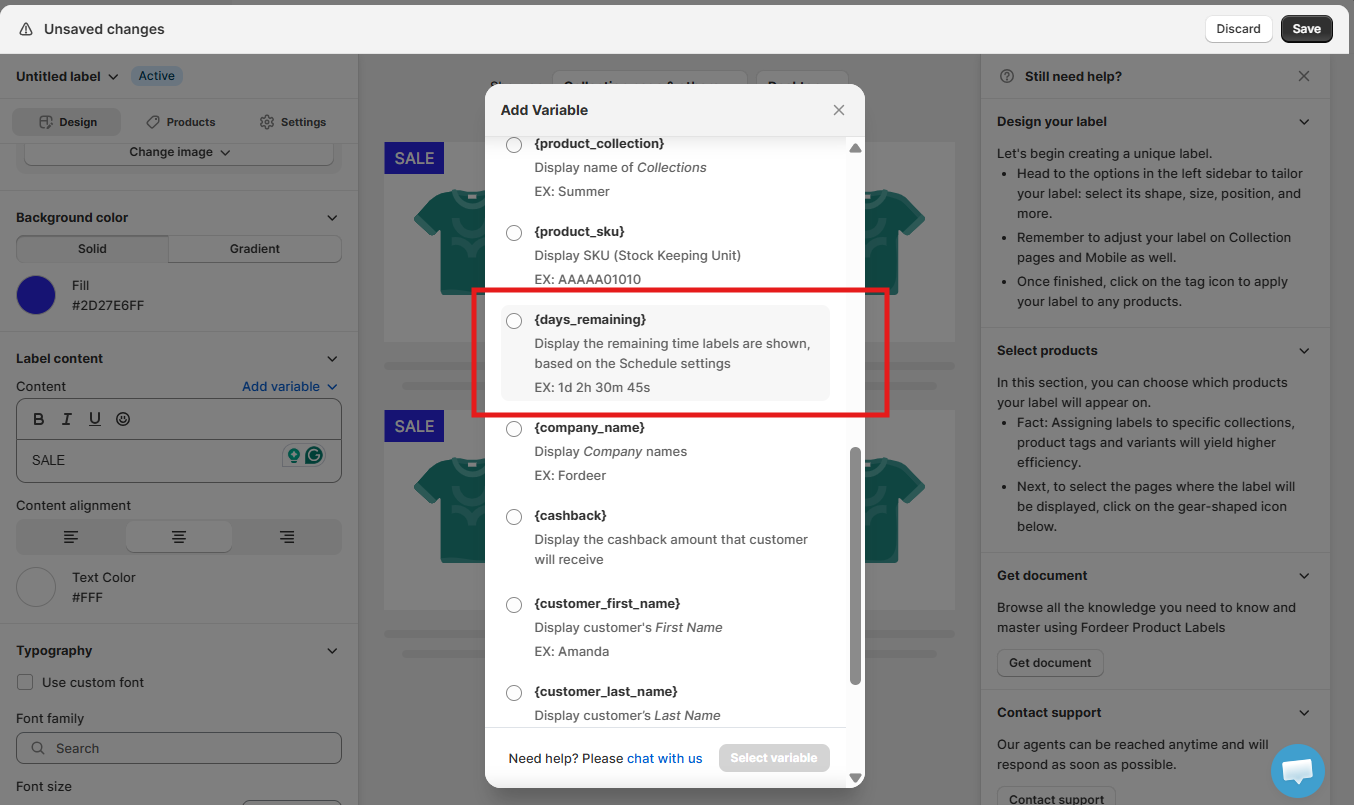
Important: When using both scheduling options, check both settings carefully to make sure your label/badge appears during the intended period.
Why isn't my scheduled label/badge showing?
If the label/badge is not visible, check that:
-
The current date and time fall within your Date range.
-
The current day is enabled under Weekly.
-
The current time falls within the selected Time range, if applicable.
-
The label/badge is active and its other display conditions are met.
Note: Schedule settings are available on the Standard plan and higher.
We value your feedback — it helps us continuously improve ForDeer and provide you with a better experience.
🖥️ Demo store: Check out here with password: 1
👉 Chat with us: Share your feedback directly with our team.
👉 Email us: hi@fordeercommerce.io
👉 Explore more apps: Discover more ForDeer apps.
👉 Join our community: Join ForDeer Community to get the latest updates, tips, and special deals.
🕐 Working hours: 8:30 AM – 5:00 PM (UTC+7), Monday–Friday.
We typically reply to live chats within minutes and emails within a few hours.
Need help? Feel free to reach out anytime via live chat or email!