

The article below will guide you on showing label on product image based on price range.
This feature will show a label only on products within the price range you have defined. Follow these steps to set up the price range:
-
Go to the Labels settings that you want to display.
-
On Product settings page, then select Specific product(s)/From specific collection(s)/With specific tag(s)/Specific variant(s).
-
Here you can see the Price range option. Toggle the button to turn this feature on.
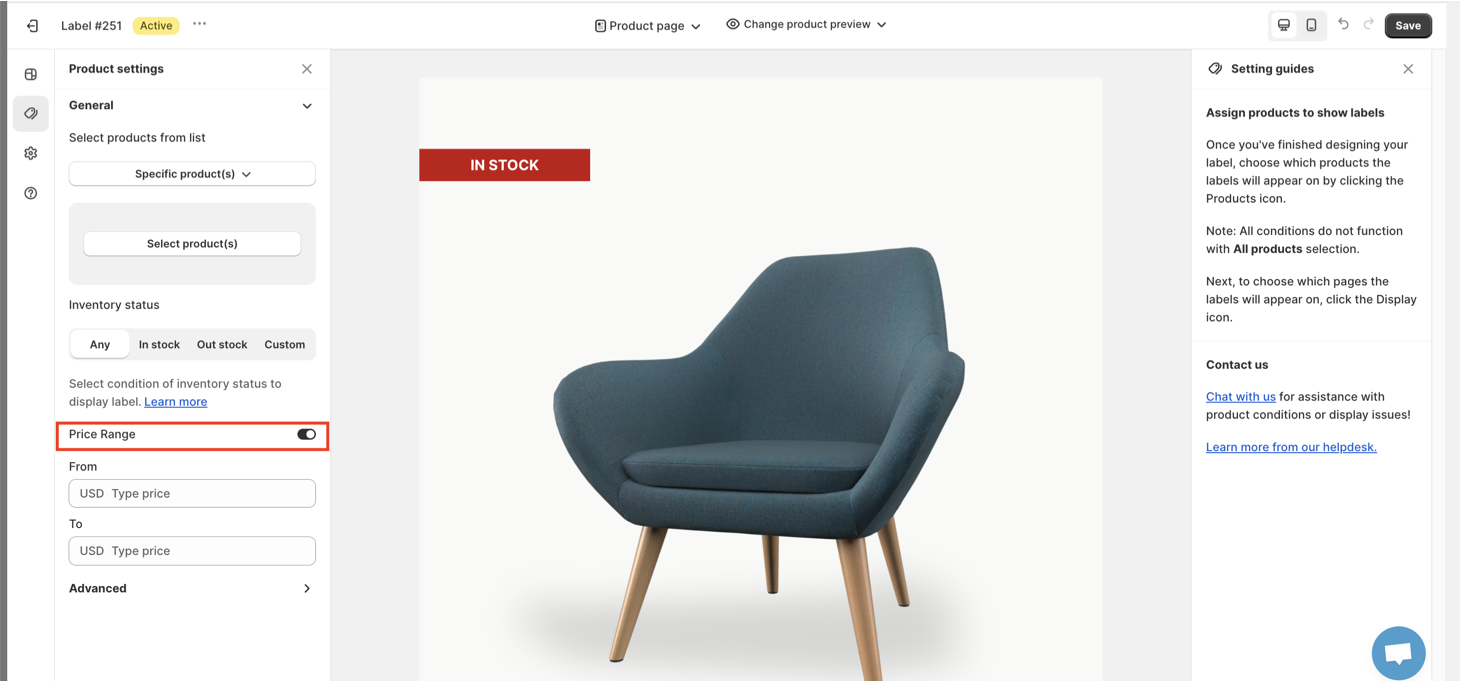
- Set the price range as desired and click to Save button.
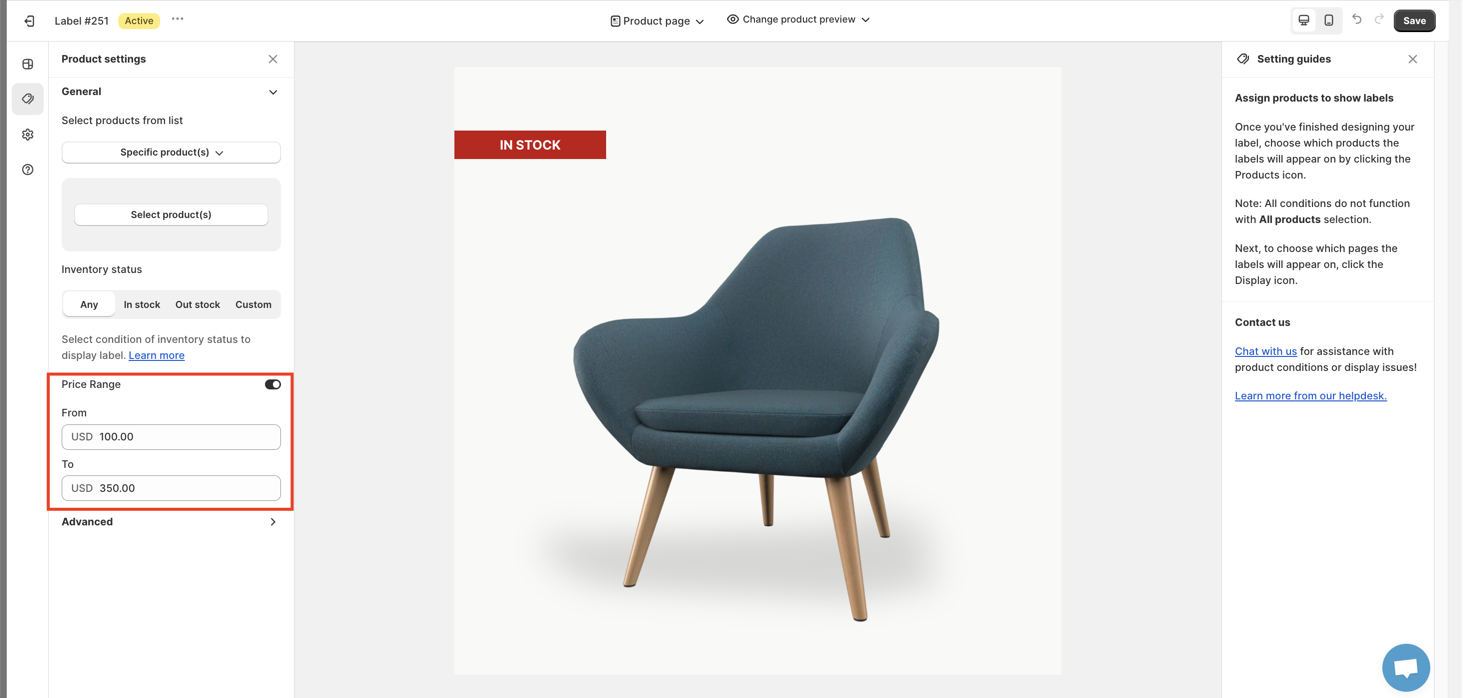
Take a note that the currency in the Price section of Fordeer app corresponds to the currency of your Shopify store.
This guide provides comprehensive instructions on how to set the labels price range.
You can find out how to set up another conditions on these article below:
We value your feedback — it helps us continuously improve ForDeer and provide you with a better experience.
🖥️ Demo store: Check out here with password: 1
👉 Chat with us: Share your feedback directly with our team.
👉 Email us: support@fordeercommerce.io
👉 Explore more apps: Discover more ForDeer apps.
👉 Join our community: Join ForDeer Community to get the latest updates, tips, and special deals.
🕐 Working hours: 8:30 AM – 5:00 PM (UTC+7), Monday–Friday.
We typically reply to live chats within minutes and emails within a few hours.
Need help? Feel free to reach out anytime via live chat or email!
Talk soon!