

Hello, good day to you!
Today, we will show you how to create a label to show on newly added products.
-
Navigate to the Label Setting section.
-
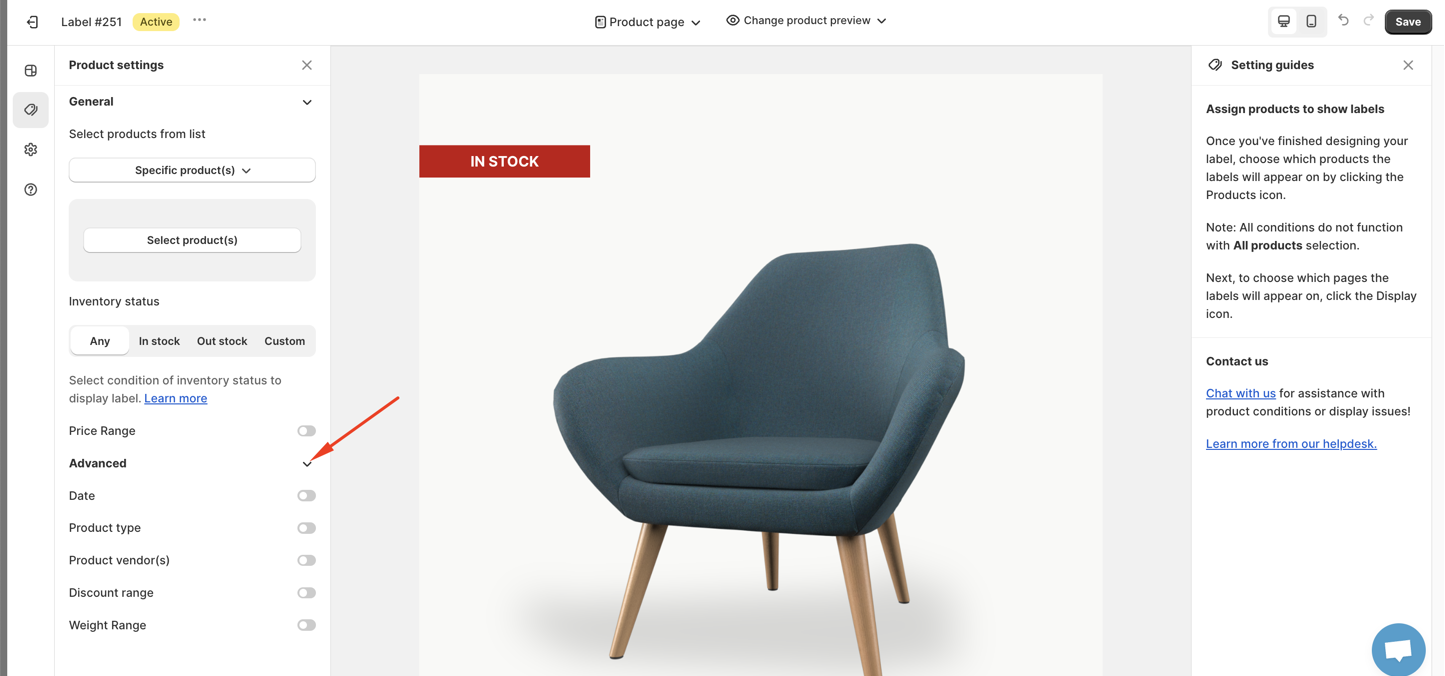
Click on the Product Setting option located on the sidebar. On the Product Setting page, click on the arrow next to the Advanced arrow. A drop-down list will appear.
- Toggle the Date button and select either Date Added or Date Published based on your preference.
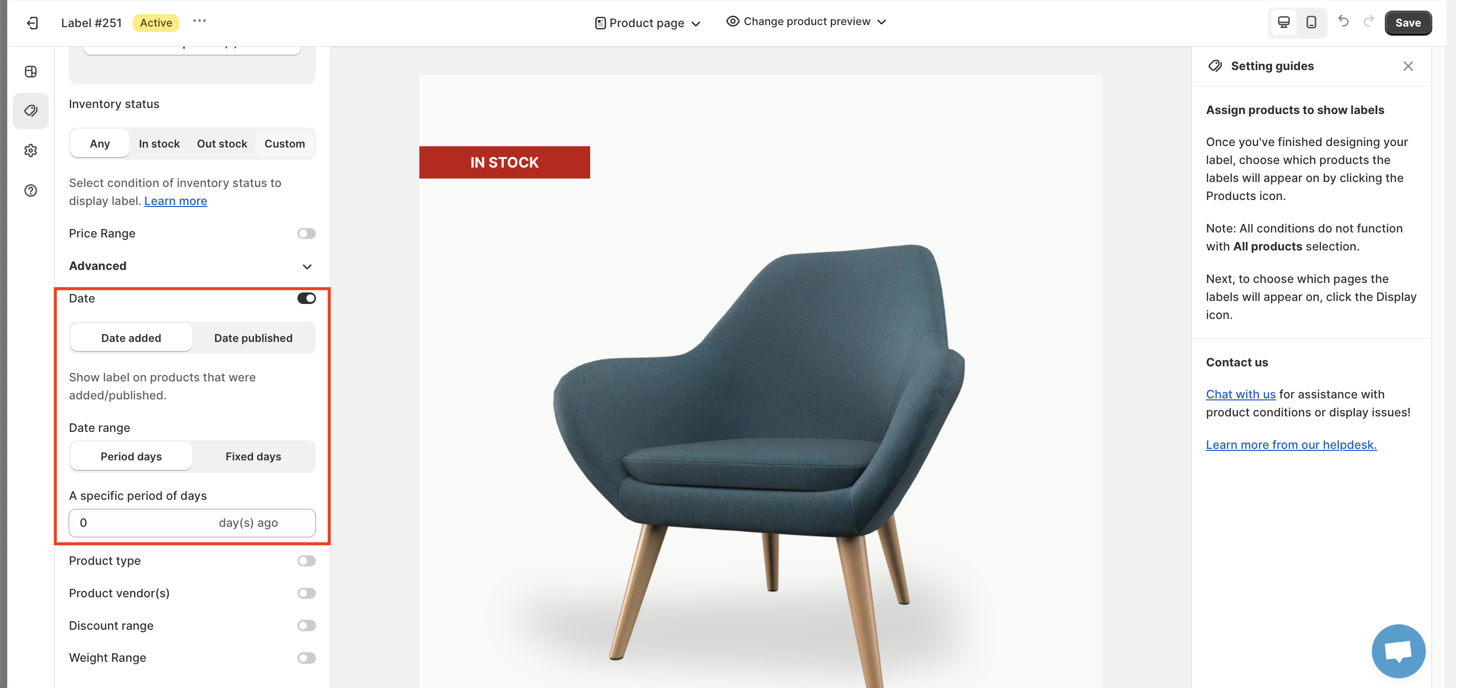
Date added is the date you added the products to your store and Date published is the date you let your customer see the products
- In the date filter section, fill in the number of days before that the products were added to your store.
For example, if you select 1 day ago, only products that were added to your store yesterday will be displayed.
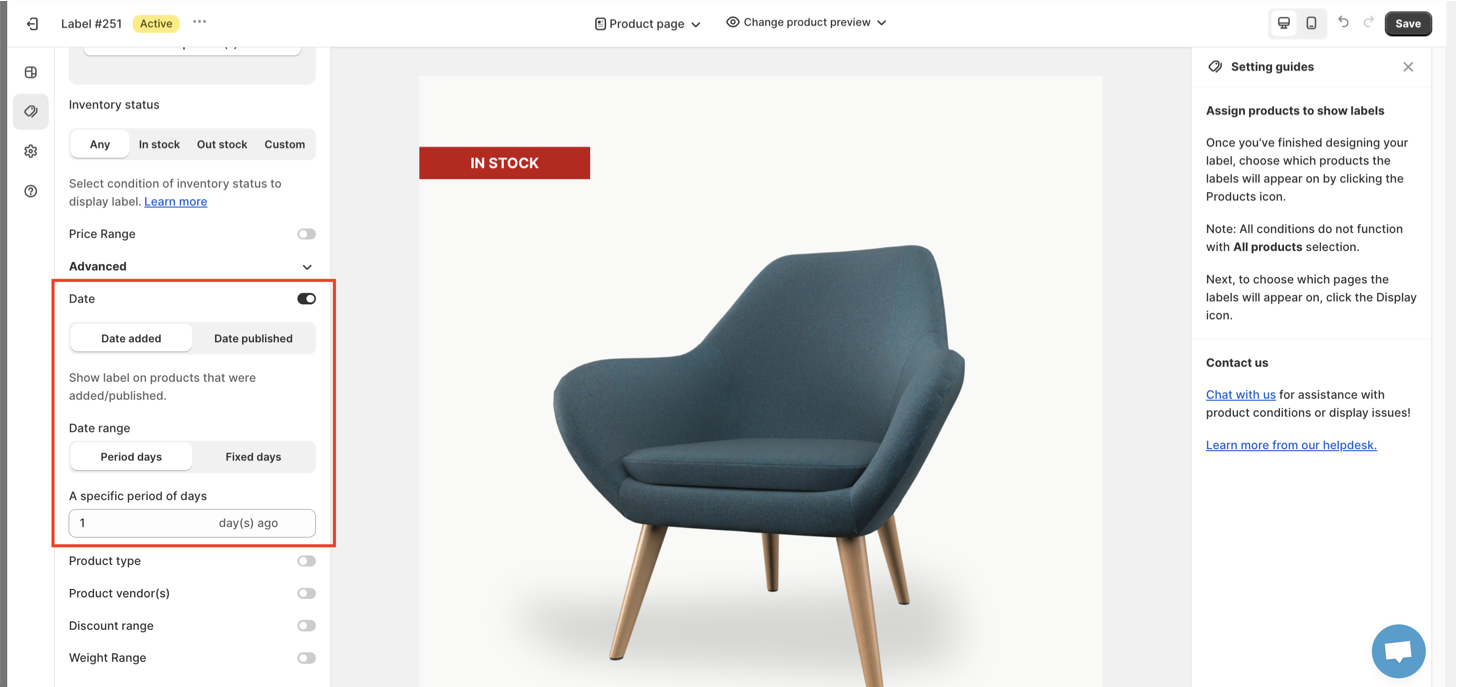
You can decide to select between period days and fixed days based on your needs.
By following these steps, you'll be able to create a label that showcases newly added products in your store. If you want to check on another conditions, feel free to read all the related article below:
We value your feedback — it helps us continuously improve ForDeer and provide you with a better experience.
🖥️ Demo store: Check out here with password: 1
👉 Chat with us: Share your feedback directly with our team.
👉 Email us: support@fordeercommerce.io
👉 Explore more apps: Discover more ForDeer apps.
👉 Join our community: Join ForDeer Community to get the latest updates, tips, and special deals.
🕐 Working hours: 8:30 AM – 5:00 PM (UTC+7), Monday–Friday.
We typically reply to live chats within minutes and emails within a few hours.
Need help? Feel free to reach out anytime via live chat or email!