

Overview
Trust Badges help build customer confidence by highlighting important information on your product pages, such as payment methods, product benefits, and service guarantees.
With Fordeer, you can create and customize Trust Badges, choose where they appear, and control which products and devices display them.
This guide explains how to create and publish a Trust Badge campaign.
Before creating a Trust Badge
Before you start, make sure Fordeer: Badge is enabled on your store.
-
From the app dashboard, click Activate.
-
Enable Fordeer: Badge.
-
Click Save in the top-right corner.
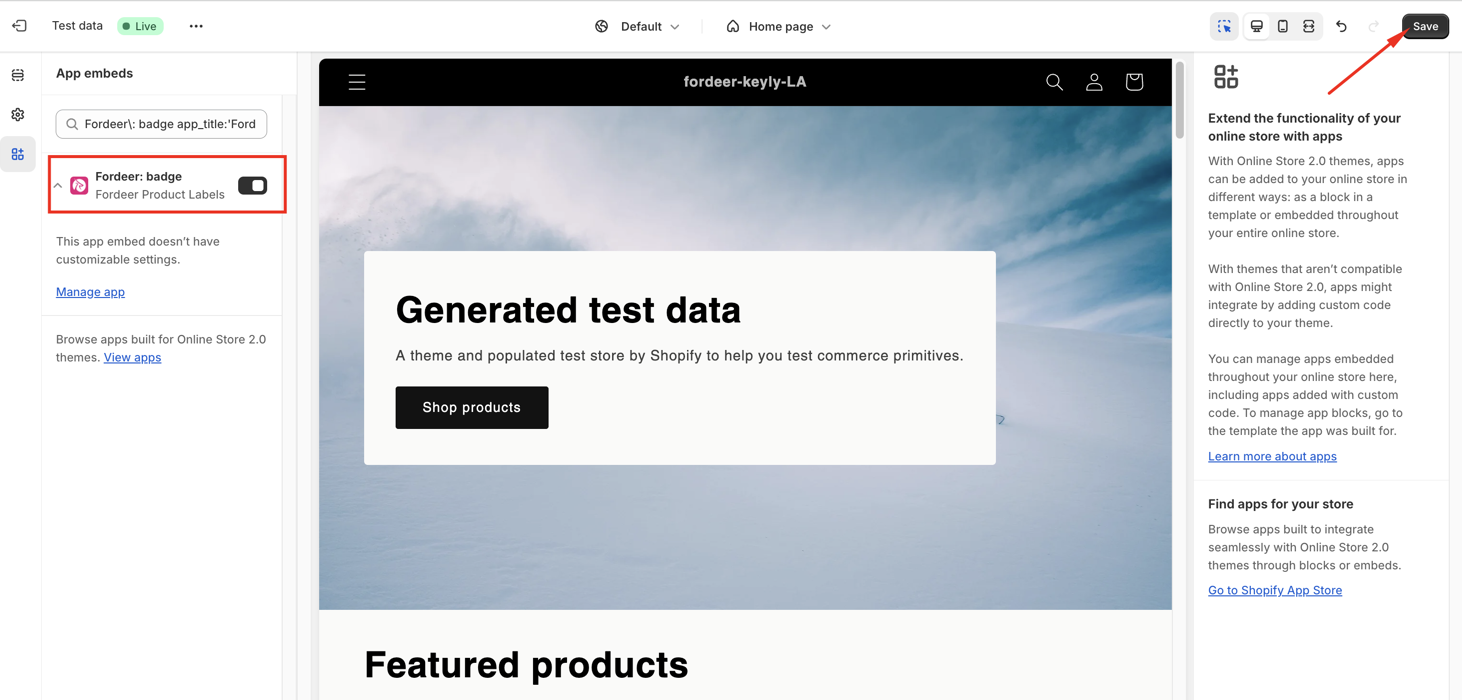
Important: Fordeer: Badge app must be enabled for your Trust Badges to appear on your storefront.
How do I create a Trust Badge?
Step 1. Create a new Trust Badge
-
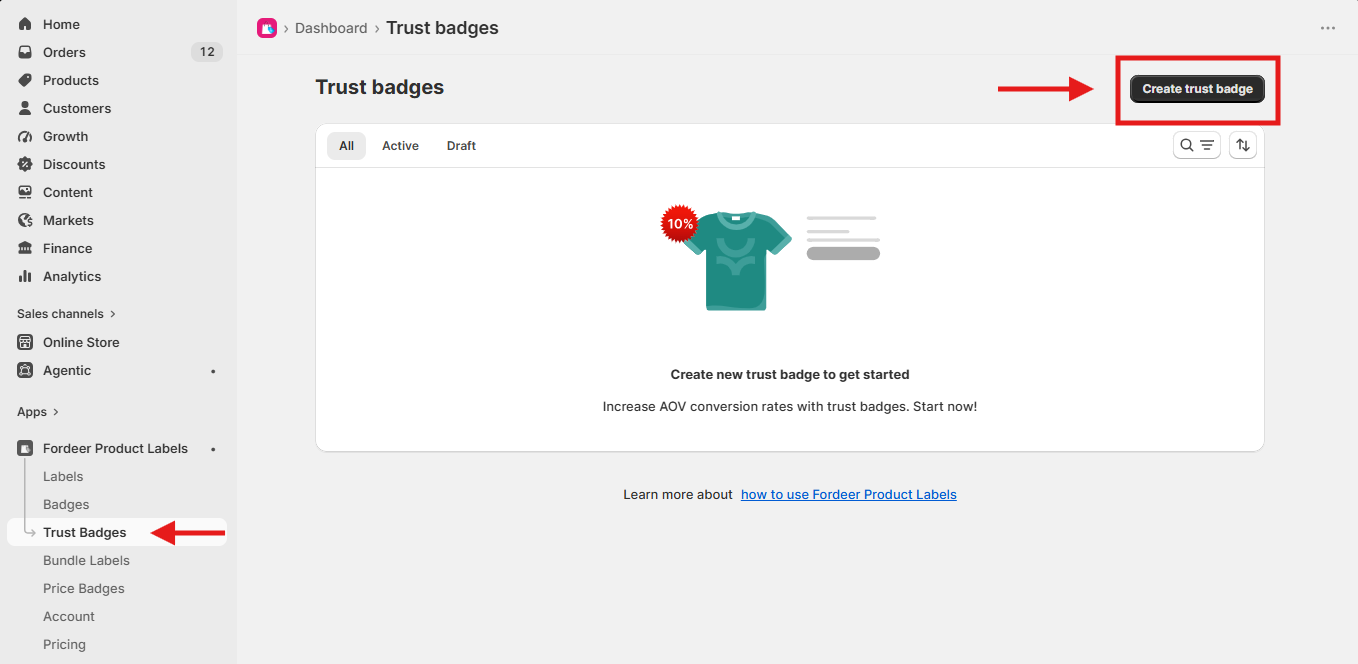
From the app sidebar, go to Trust Badges.
-
Click Create trust badge to start a new campaign.
Step 2. Choose and customize your Trust Badge
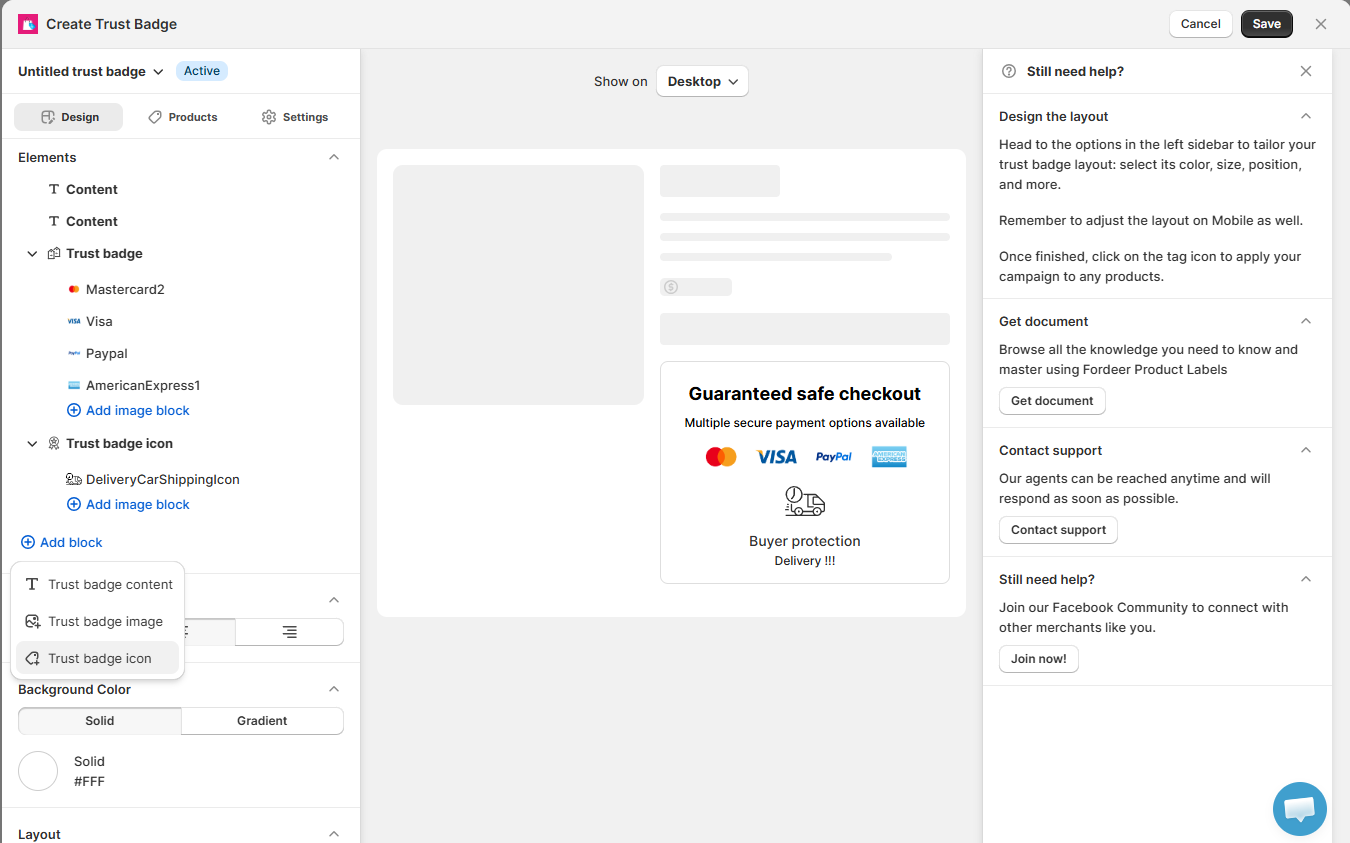
In the Design tab, you can build your Trust Badge by adding and customizing different blocks.
Click Add block and choose the type of content you want to add:
-
Trust badge content: Add a heading, description, or other text to your Trust Badge.
-
Trust badge image: Add payment badges or upload your own badge images.
-
Trust badge icon: Add an icon with supporting text, such as delivery, security, or buyer protection information.
You can add multiple blocks and arrange them to create the layout that works best for your store.
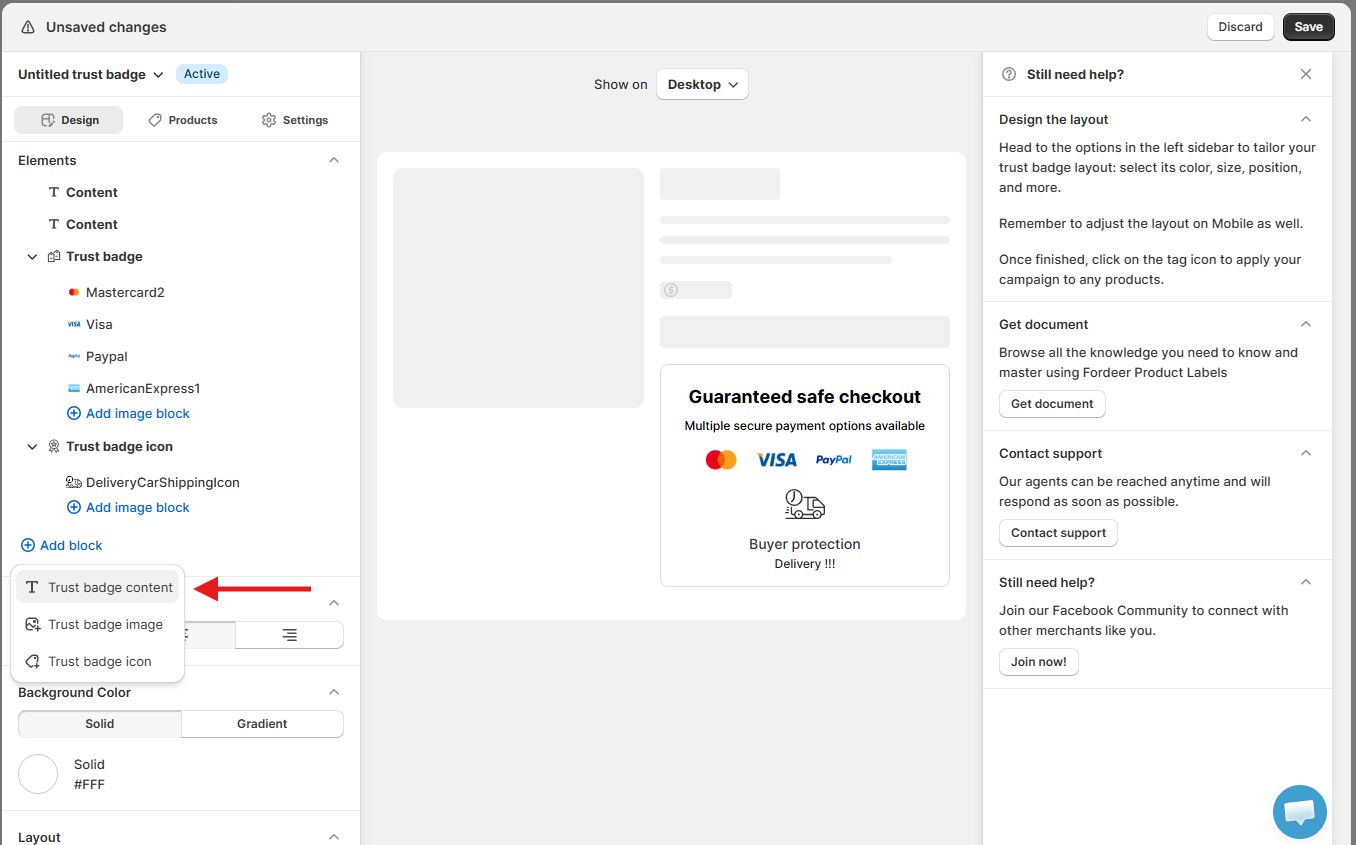
Select any block in the left sidebar to customize its content and appearance. You can also adjust the overall layout, including alignment, background, spacing, border, and other design settings.
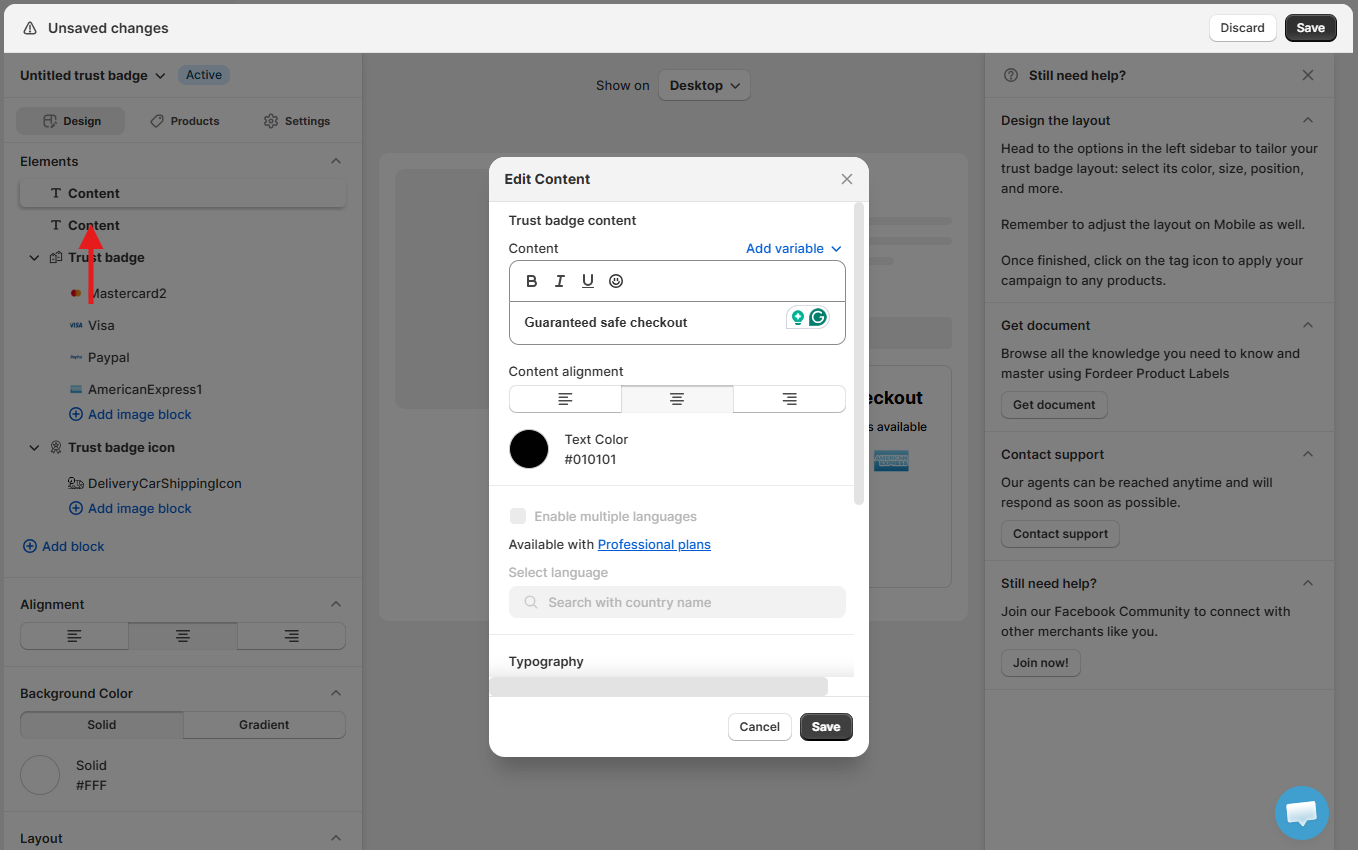
Use the Desktop/Mobile selector at the top to preview and customize how your Trust Badge appears on each device.
Tip: Check both Desktop and Mobile views before saving to make sure your Trust Badge displays correctly on different screen sizes.
Step 3. Choose which devices display the Trust Badge
Select the devices where you want your Trust Badge to appear:
-
Desktop
-
Mobile
-
Both Desktop and Mobile
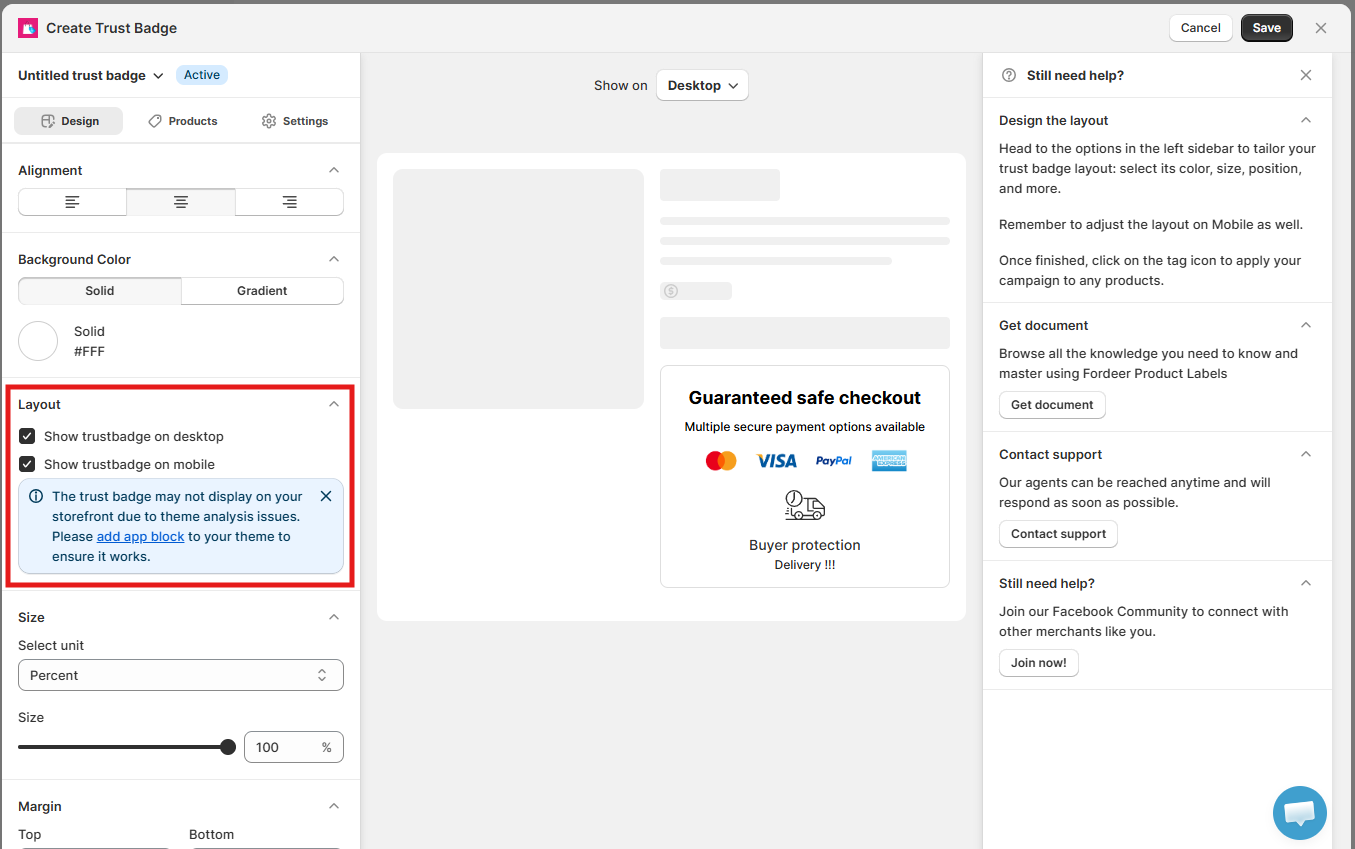
Tip: Select both Desktop and Mobile if you want the Trust Badge to be visible to all customers.
Step 4. Choose which products display the Trust Badge
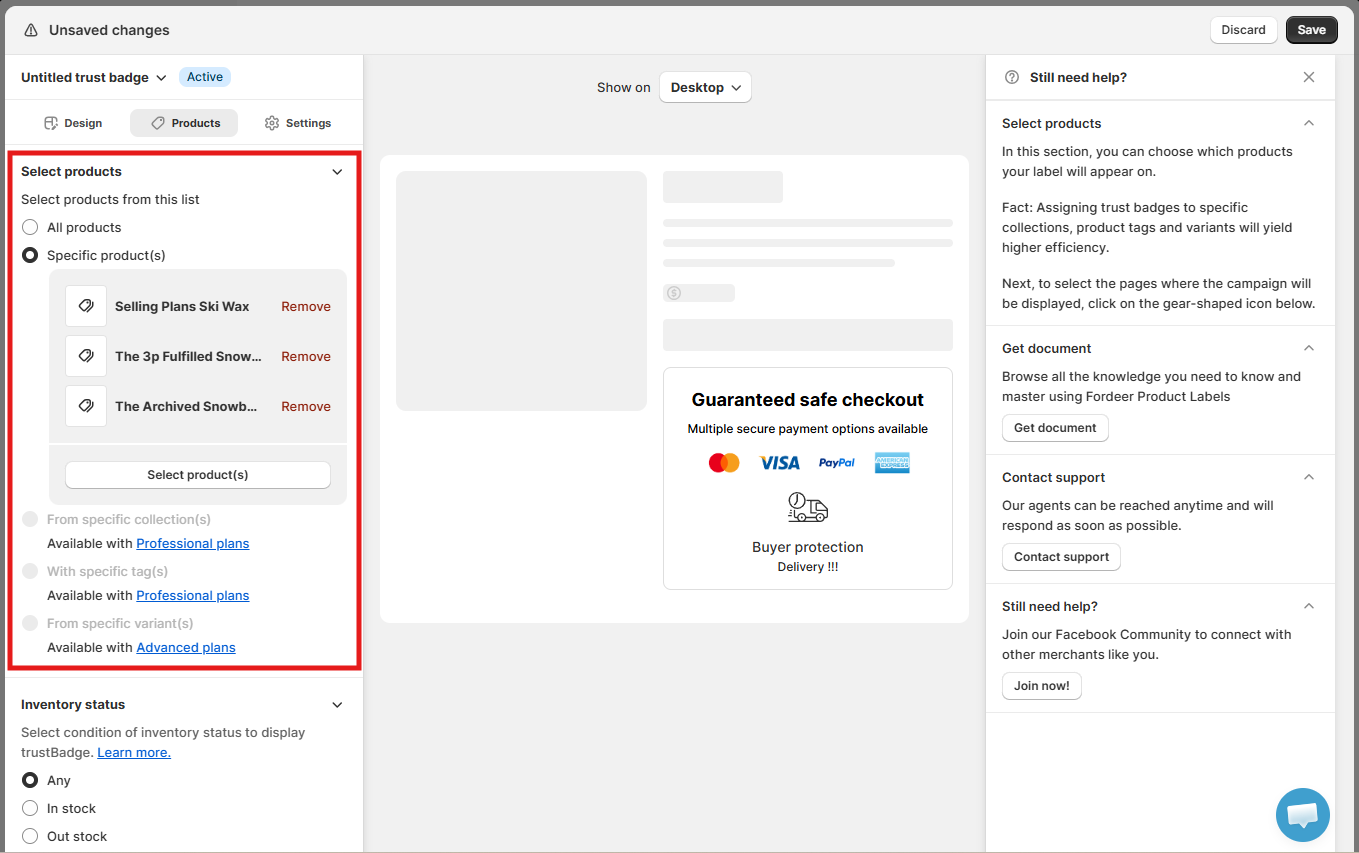
Go to the Products tab and choose where your Trust Badge should appear.
You can display it based on:
-
All products
-
Specific products
-
Collections
-
Variants
-
Tags
-
Inventory status
Step 5. Save your Trust Badge
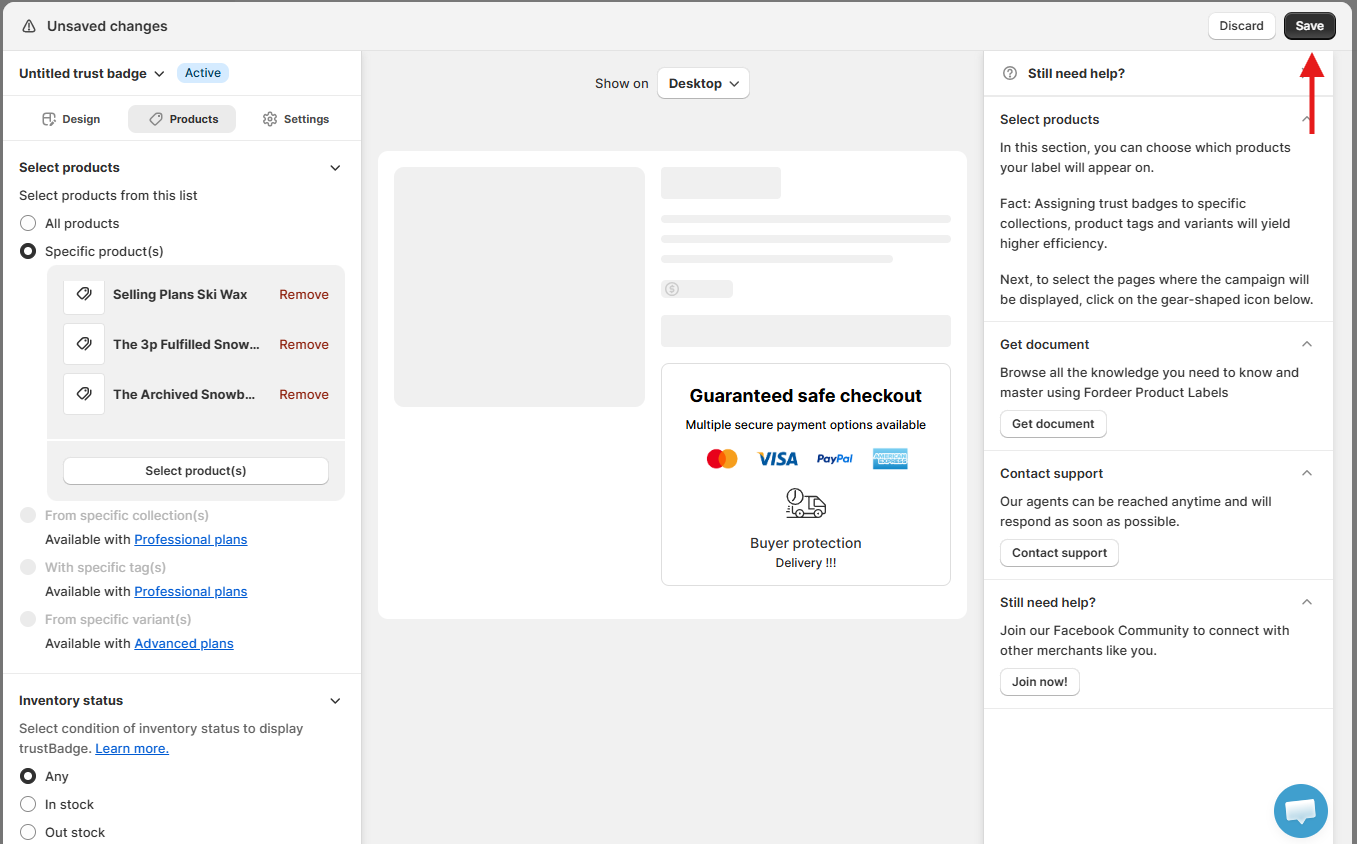
Once you've finished configuring your campaign, click Create to save your changes.
How do I check if my Trust Badge is working?
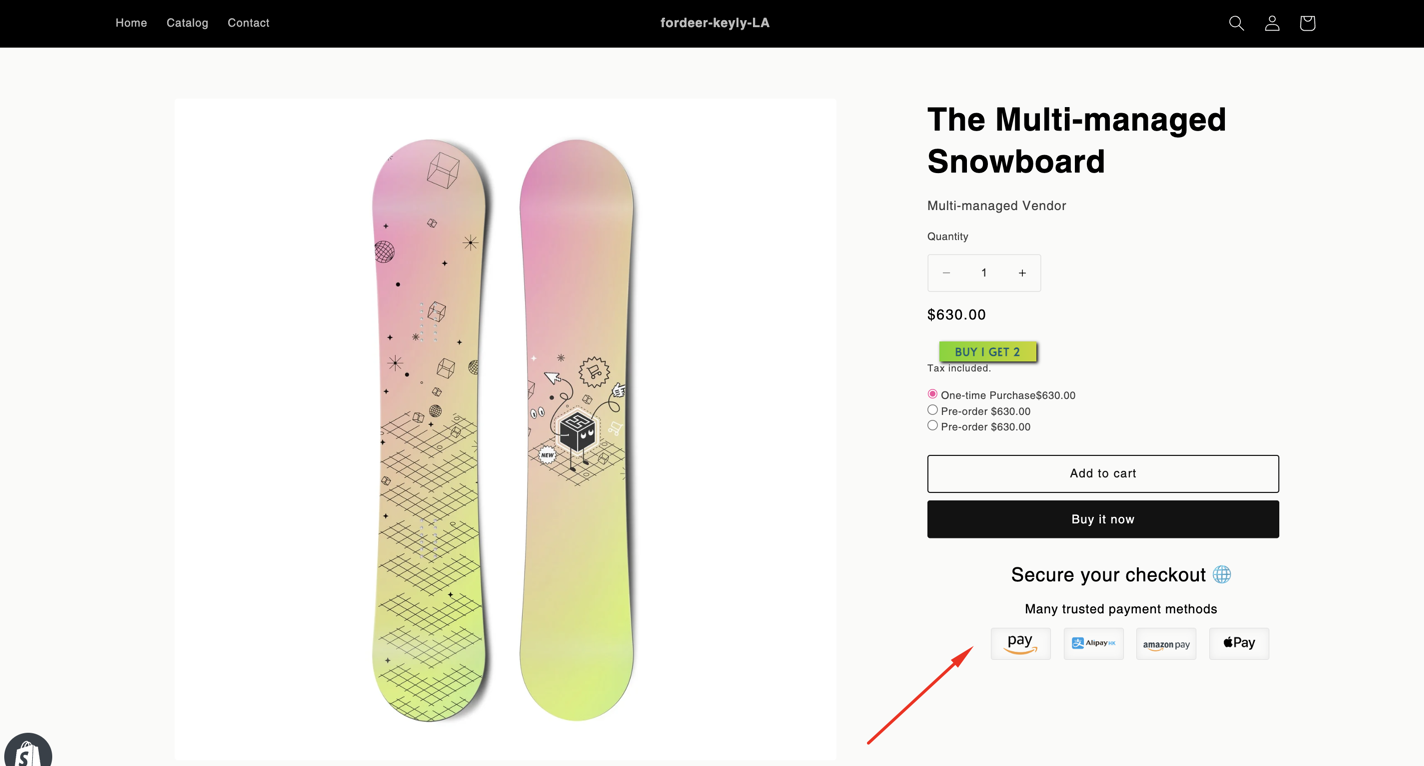
After creating your Trust Badge, visit one of the selected product pages on your storefront.
Check that the badge appears correctly on the devices and products you selected.
Note:
Trust Badges are available only on Product Pages and are completely FREE for all users.
If your Trust Badge does not appear or is not displayed correctly after you complete all the steps, please contact our team for assistance.
We value your feedback — it helps us continuously improve ForDeer and provide you with a better experience.
🖥️ Demo store: Check out here with password: 1
👉 Chat with us: Share your feedback directly with our team.
👉 Email us: support@fordeercommerce.io
👉 Explore more apps: Discover more ForDeer apps.
👉 Join our community: Join ForDeer Community to get the latest updates, tips, and special deals.
🕐 Working hours: 8:30 AM – 5:00 PM (UTC+7), Monday–Friday.
We typically reply to live chats within minutes and emails within a few hours.
Need help? Feel free to reach out anytime via live chat or email!