

Hello from Fordeer,
You can ensure badges show on your product pages by adding a badge block. Here’s how to do it:
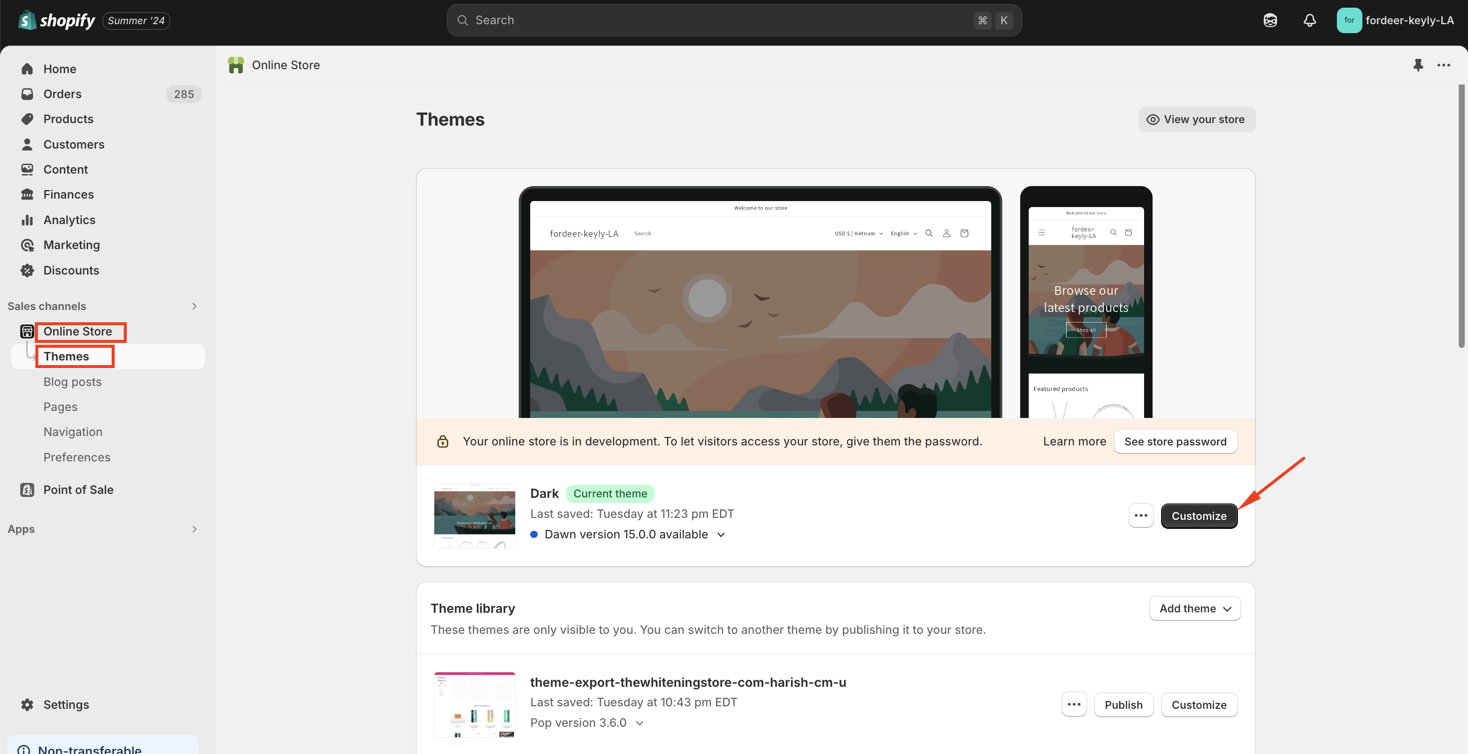
Step 1: Go to Online Store > Themes > Click Customize.
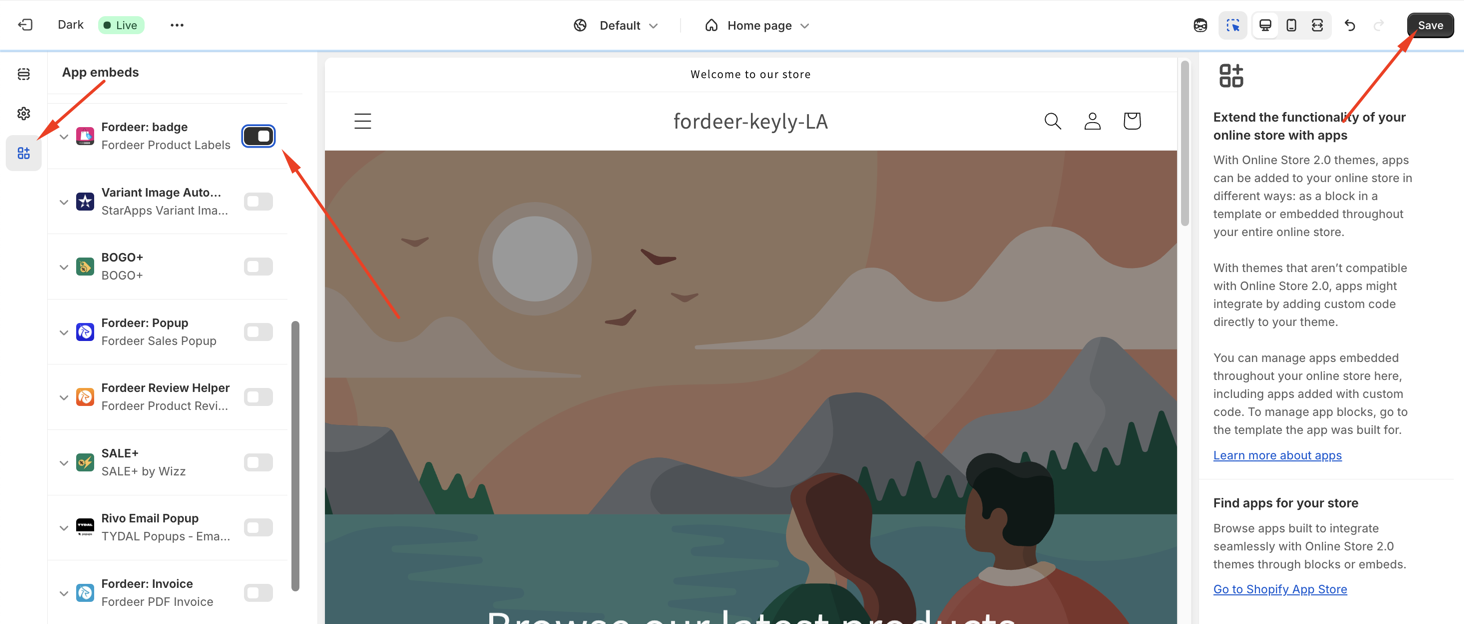
Step 2: Go to the App Embeds section and activate our app embeds ( Fordeer: badge ).
Currently, you can only add the badge block to product pages in the Theme Editor.
Adding Badge Block to the Product Page:
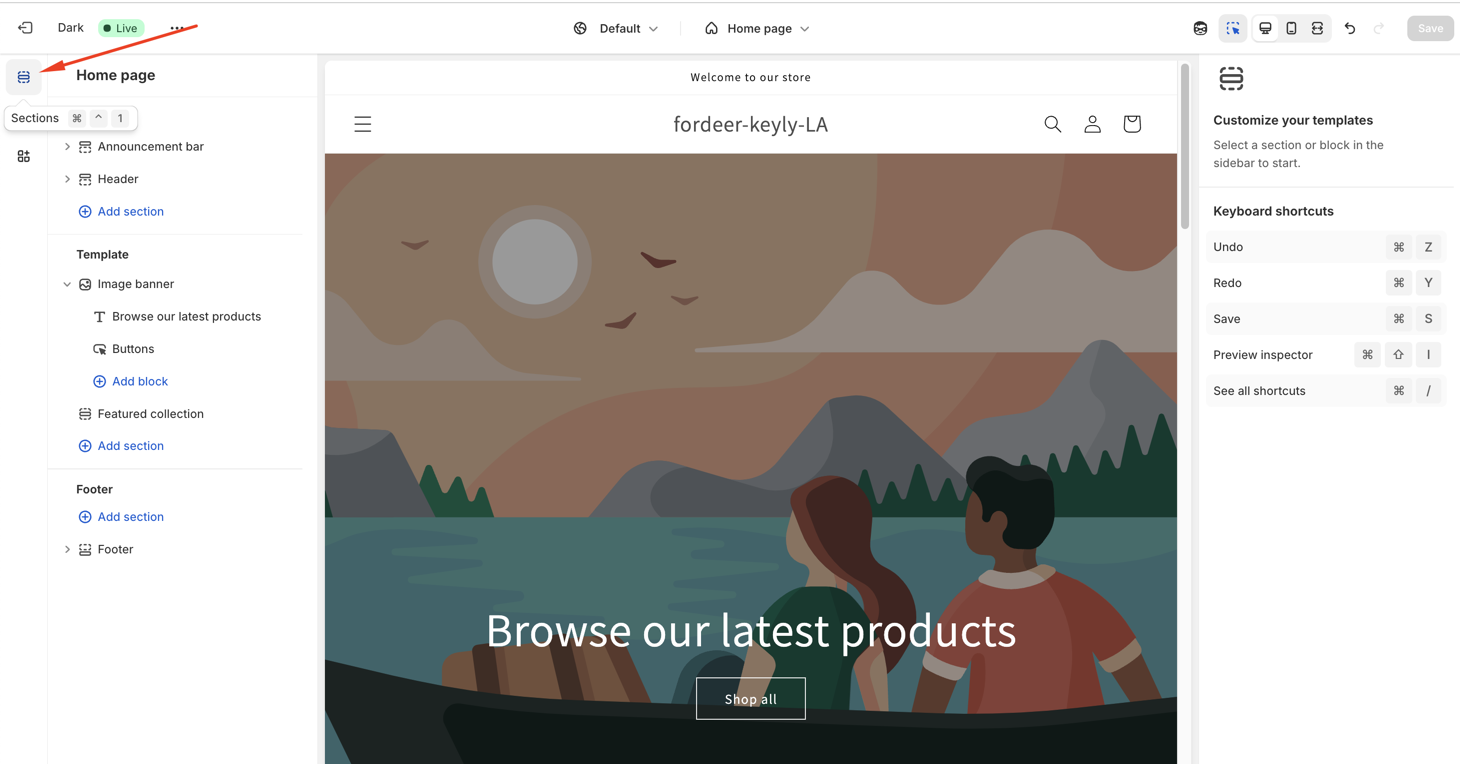
Step 3: Navigate to the Sections page
Step 4: In the Theme Editor, go to the Product Page section.
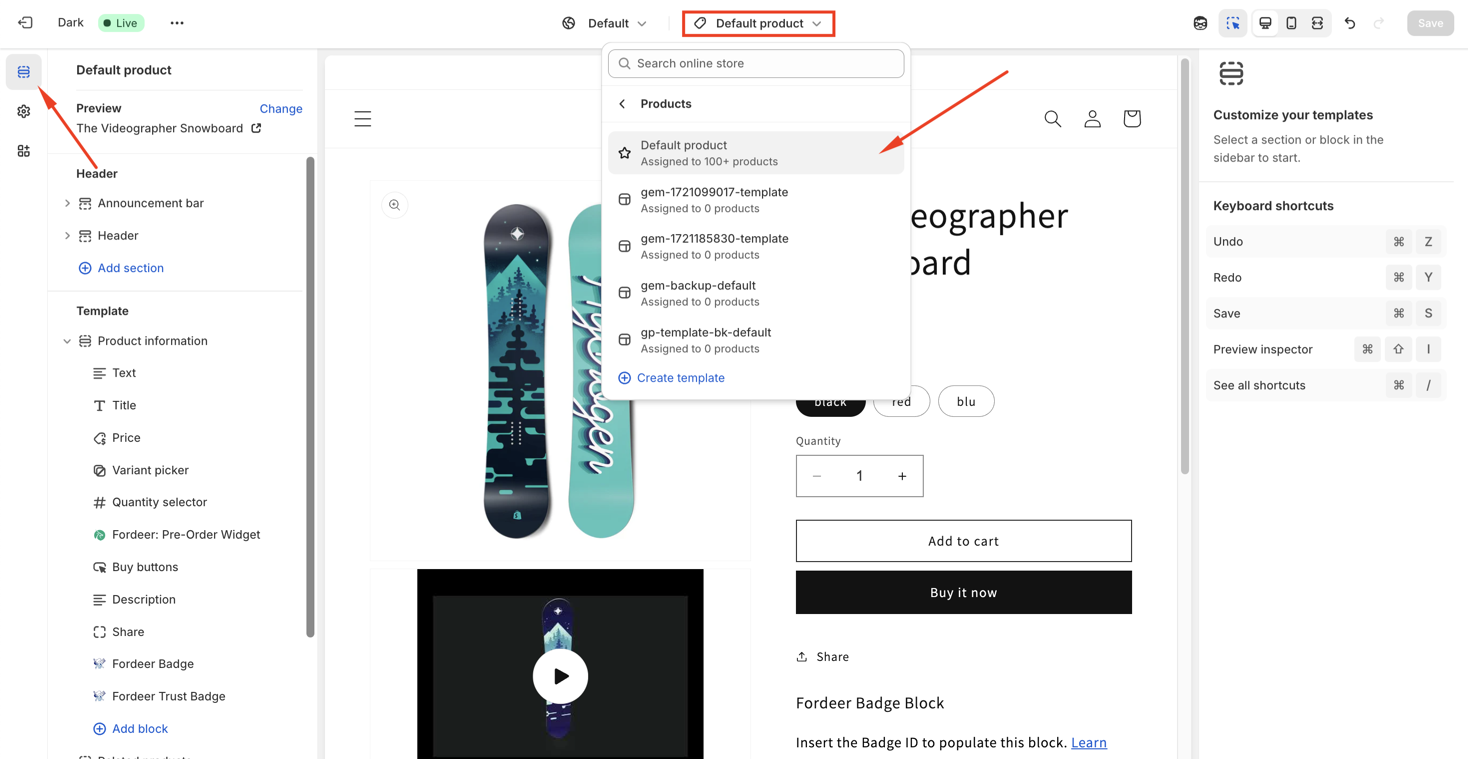
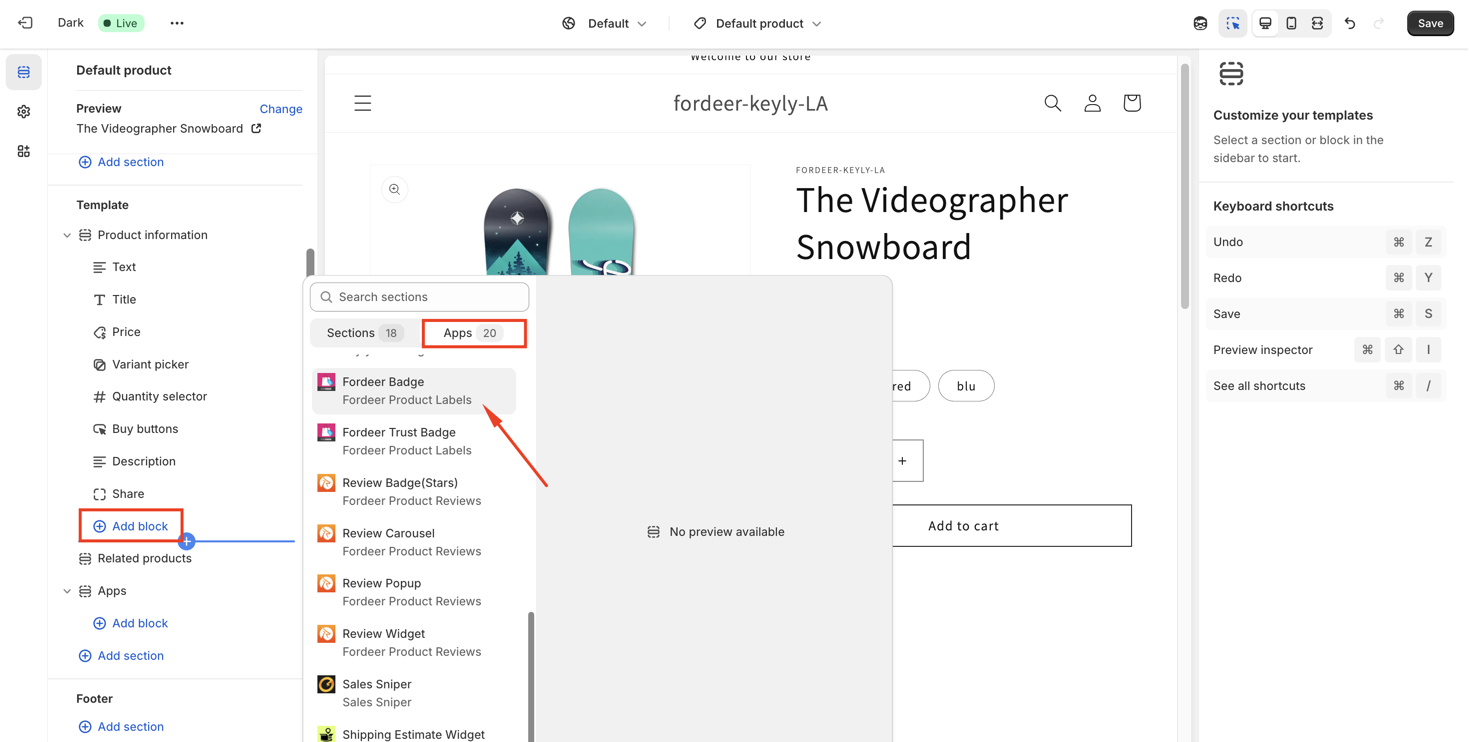
Step 5: Add badge block
- Click Add section/add block and select Fordeer Badge.
Step 6: Enter the badge ID.
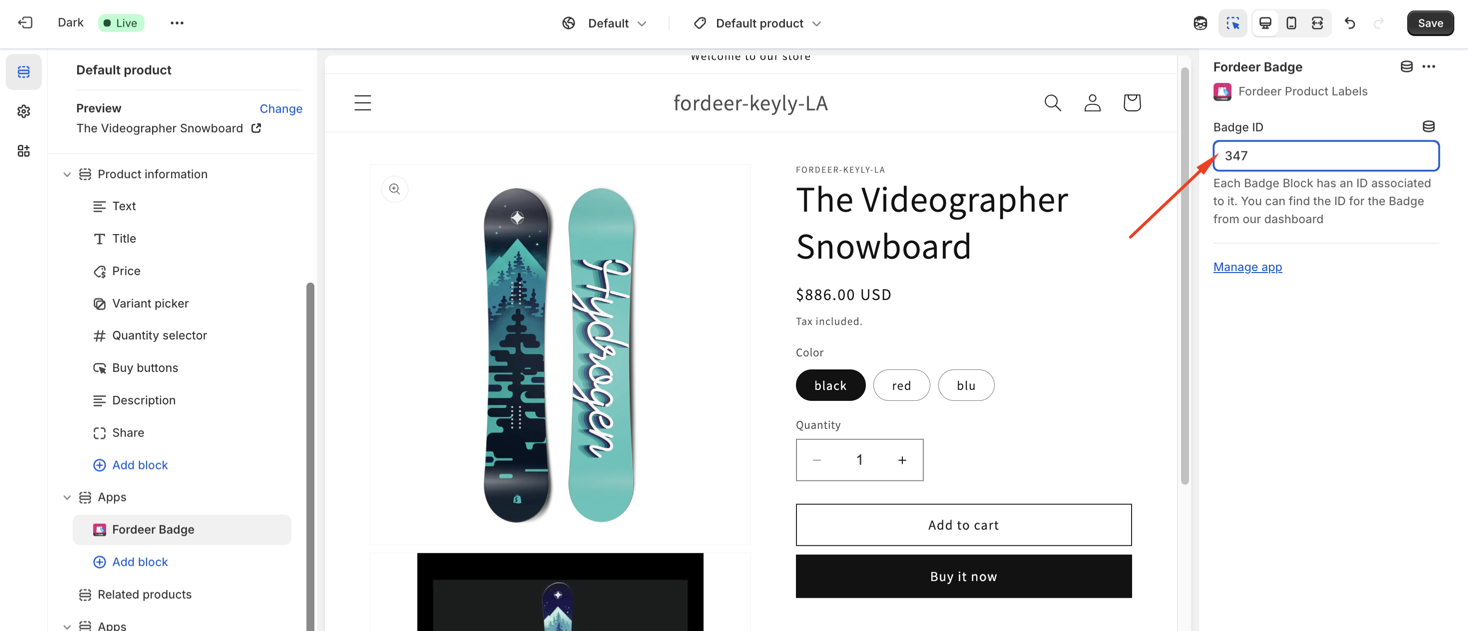
You can customize the position of the badge on the product page.
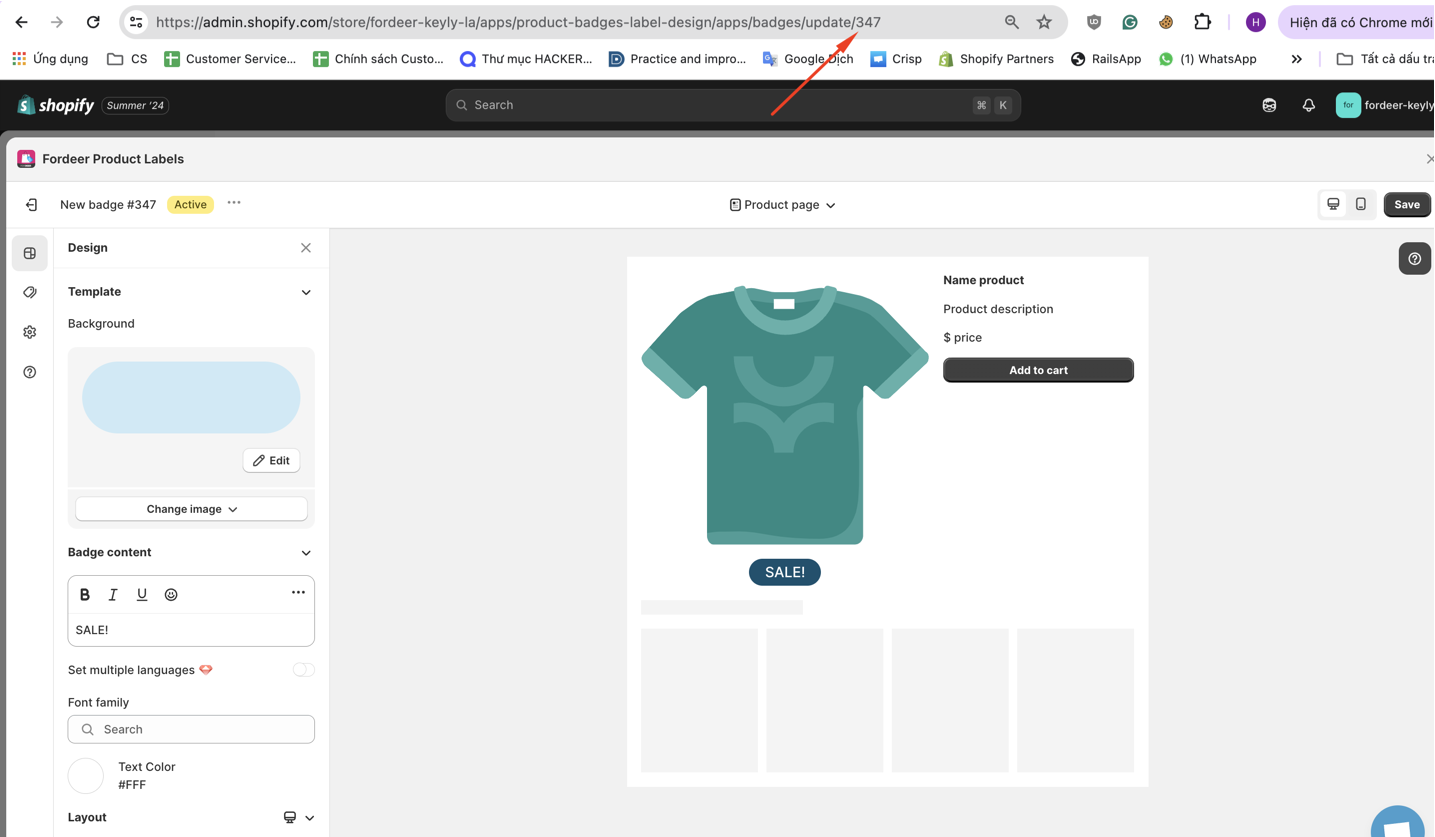
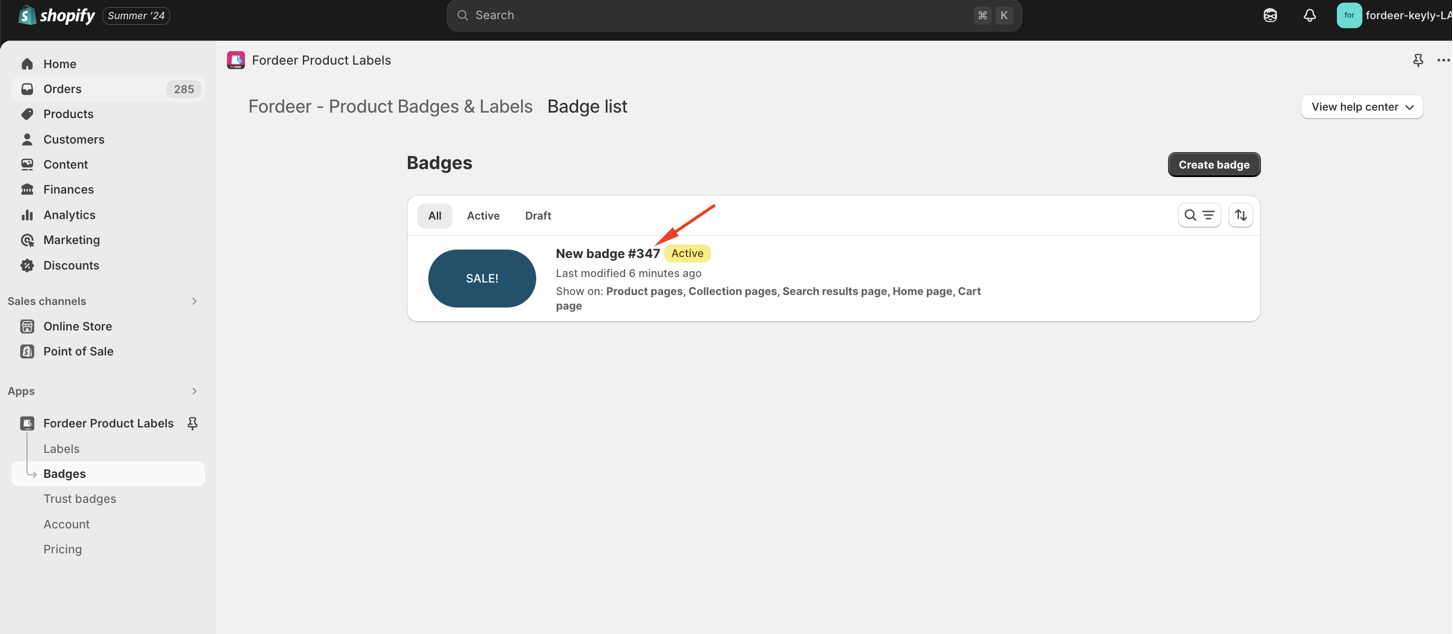
How to Get the Badge ID:
- Click on the badge campaign settings.
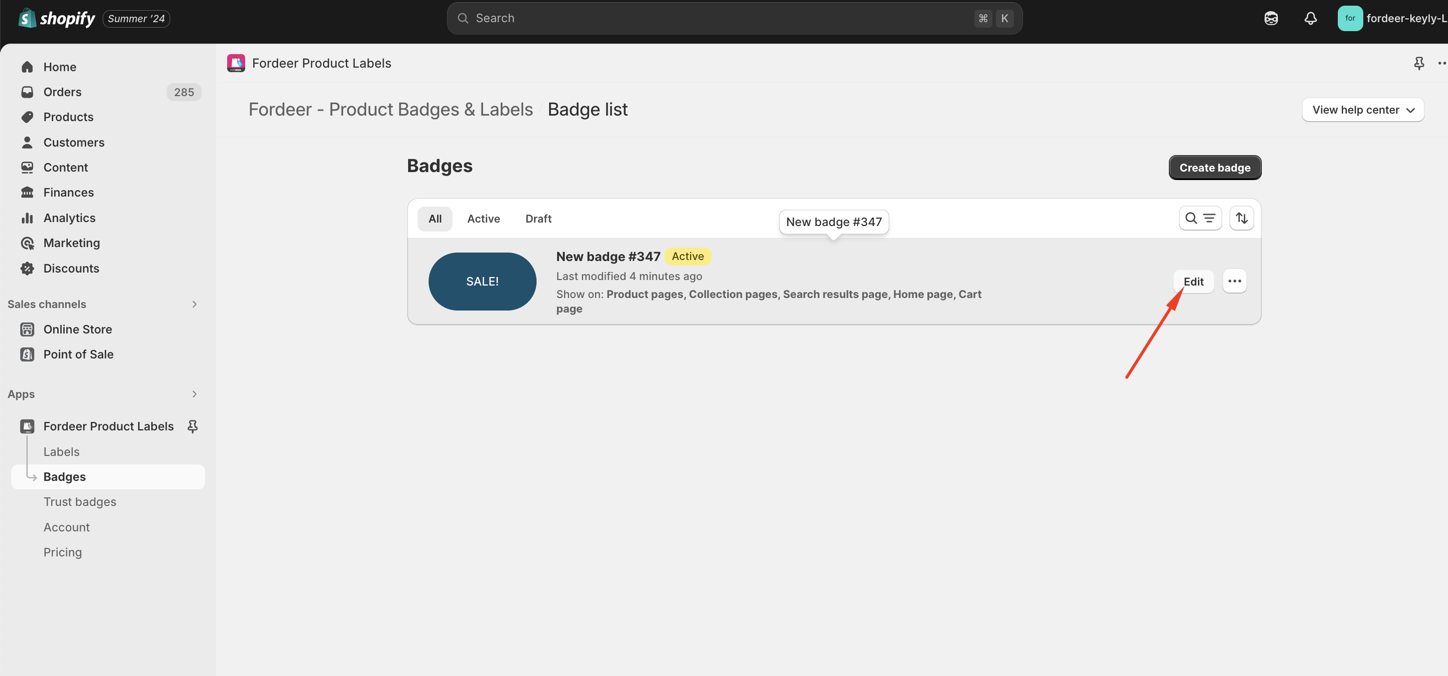
- The badge ID will be visible in the URL link or from badge default name.
Note:
-
If you use the block, you cannot set the badge position directly under the product image.
-
To display the badge under the product image, you can use the shortcode or contact us via live chat for prompt assistance.
We value your feedback — it helps us continuously improve ForDeer and provide you with a better experience.
🖥️ Demo store: Check out here with password: 1
👉 Chat with us: Share your feedback directly with our team.
👉 Email us: support@fordeercommerce.io
👉 Explore more apps: Discover more ForDeer apps.
👉 Join our community: Join ForDeer Community to get the latest updates, tips, and special deals.
🕐 Working hours: 8:30 AM – 5:00 PM (UTC+7), Monday–Friday.
We typically reply to live chats within minutes and emails within a few hours.
Need help? Feel free to reach out anytime via live chat or email!