

Fordeer Hello to you! 😁 (ngọc my bảo cần sửa)
Adjusting the margins of your labels/badges can optimize the display efficiency for your store. If you are seeking guidance on how to accomplish this, this article will be beneficial for you.
-
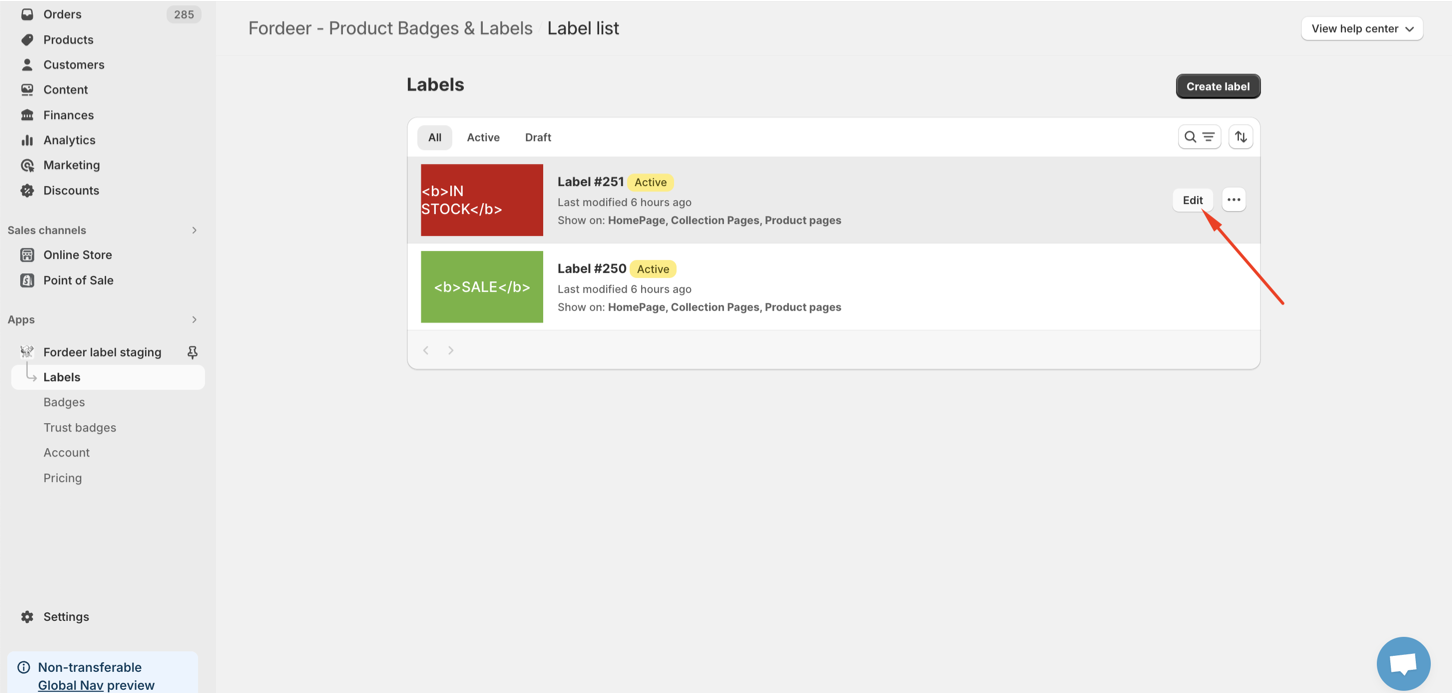
Navigate to the Labels/Badge page in the sidebar menu.
-
Click to the Edit of the label/badge that you want to edit the margin.
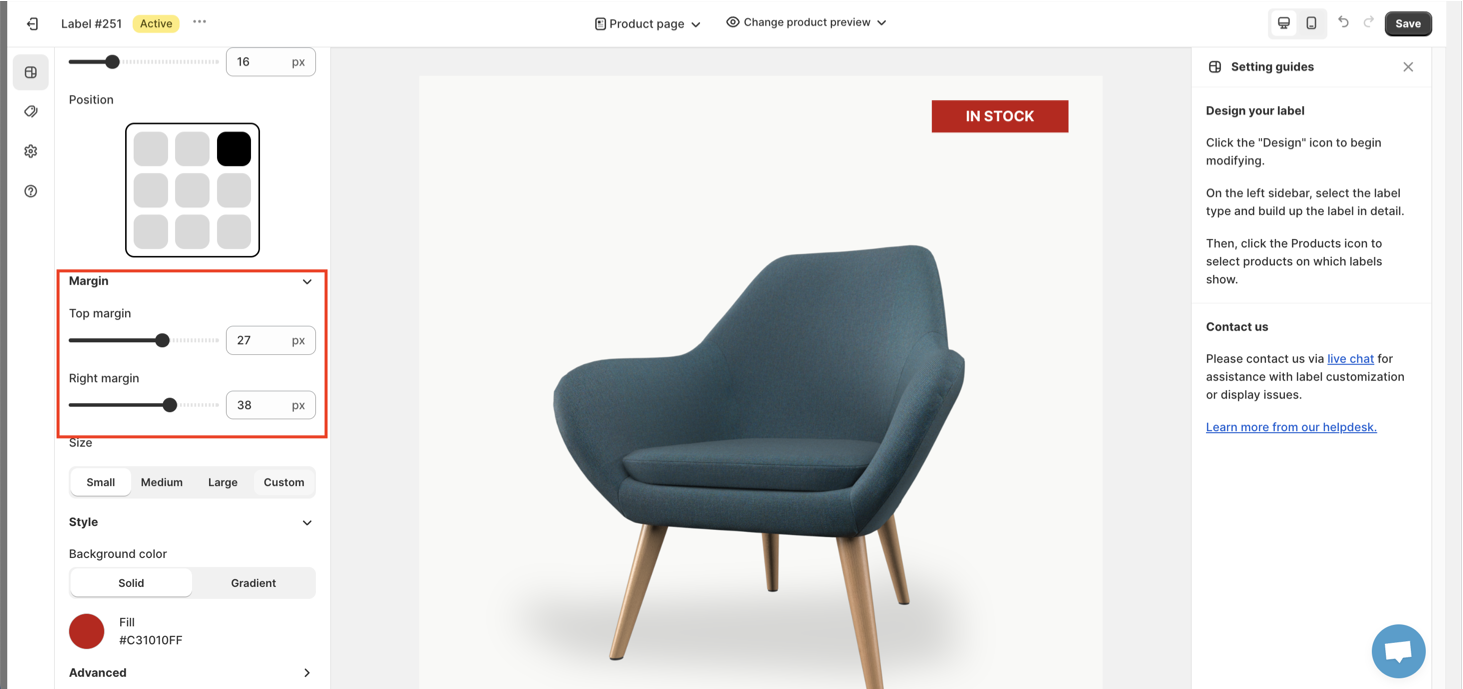
- On the Design section, you will see the Margin section. Here you can adjust the top, bottom,left and right margin to fit with your needs.
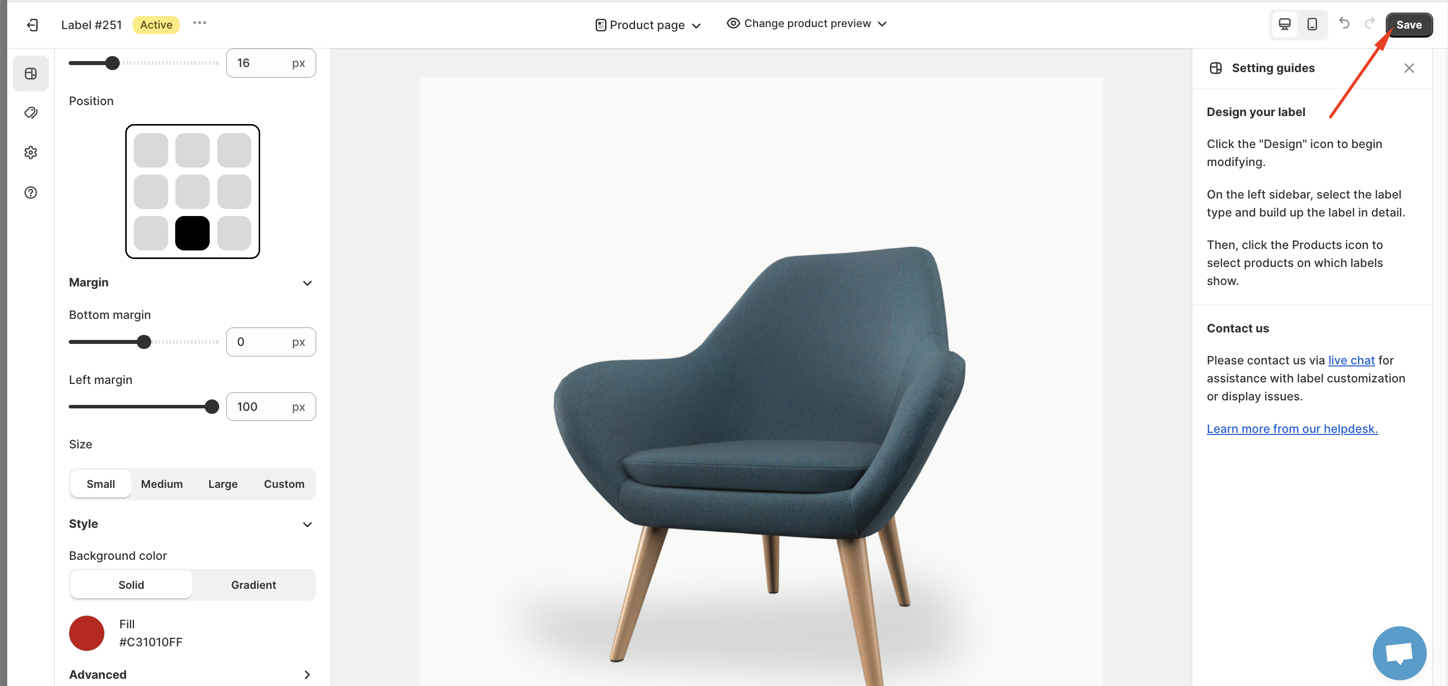
- Click Save button at the end to save all the changes.
This feature is only available in the Advanced plan. Please upgrade your plan to access it without limitations.
This guide provides comprehensive instructions on how to edit the margin of the label/badge.
By adjusting the margin the label, you can absolutely create a label stack to show on your product images or you can make your labels more attractive in customers' eyes.
We value your feedback — it helps us continuously improve ForDeer and provide you with a better experience.
🖥️ Demo store: Check out here with password: 1
👉 Chat with us: Share your feedback directly with our team.
👉 Email us: support@fordeercommerce.io
👉 Explore more apps: Discover more ForDeer apps.
👉 Join our community: Join ForDeer Community to get the latest updates, tips, and special deals.
🕐 Working hours: 8:30 AM – 5:00 PM (UTC+7), Monday–Friday.
We typically reply to live chats within minutes and emails within a few hours.
Need help? Feel free to reach out anytime via live chat or email!
Talk soon!