

Overview
When multiple badges are applied to the same product and position, you can use Set badge in line to control how they are arranged.
Badges assigned to the same line will appear next to each other. You can also assign badges to different lines to create a multi-line layout.
This guide explains how to set up and customize badges in line.
How do I set badges in line?
Step 1: Open the badge
Open the badge you want to configure and go to the Design tab.
Make sure the badge is positioned where you want it to appear, such as below the product image, product title, price, or Add to cart button.
Step 2: Enable Set badge in line
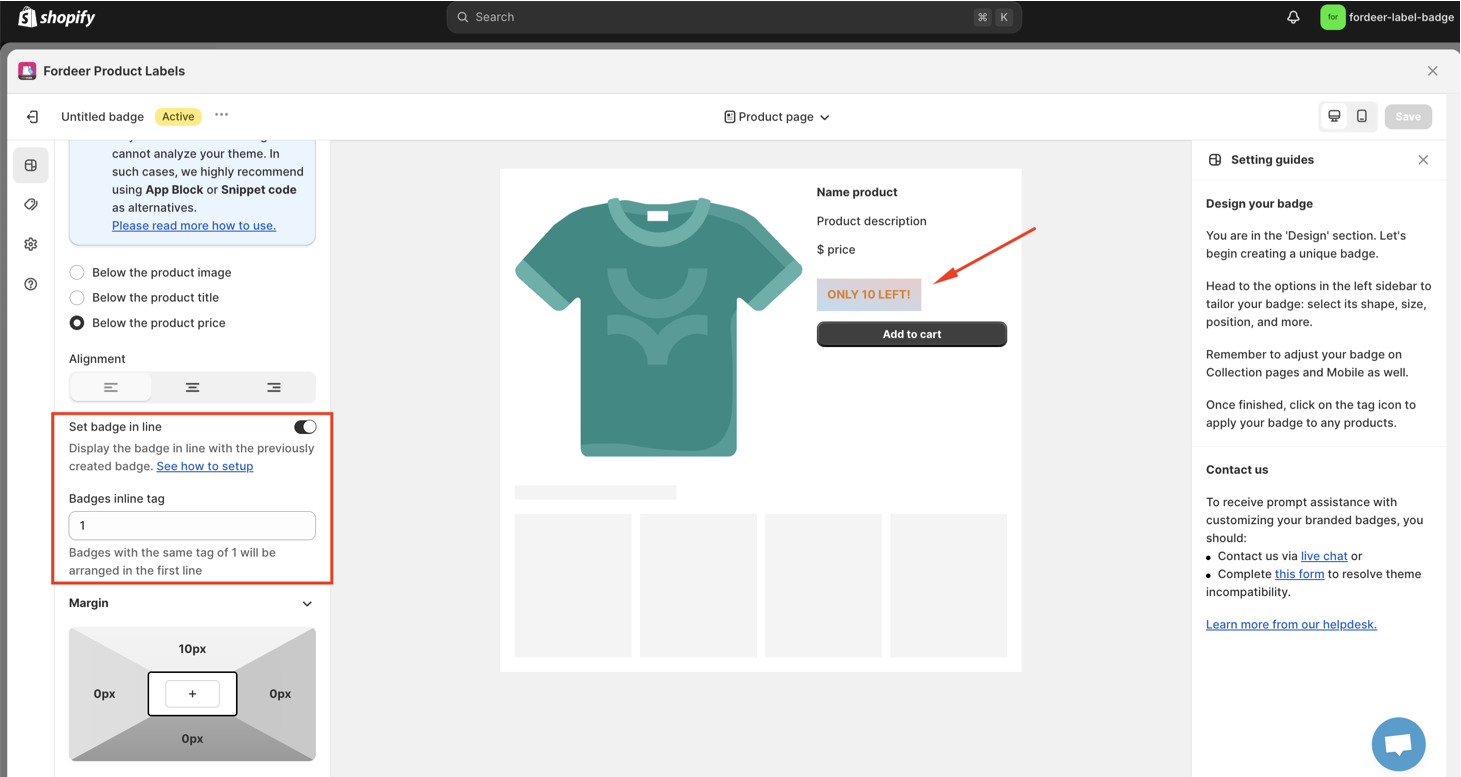
Scroll to Badge alignment and enable Set badge in line.
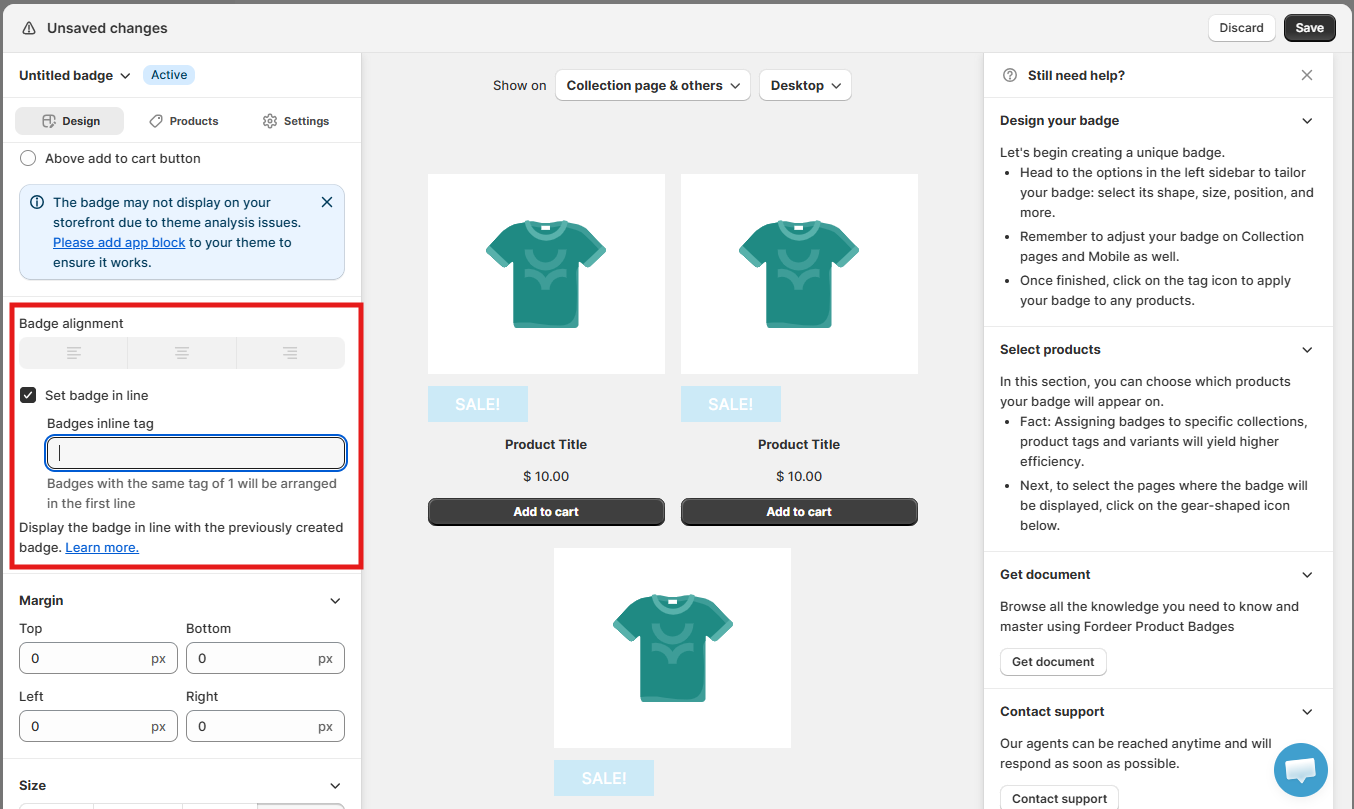
Once enabled, the Badges inline tag field will appear.
Important: When Set badge in line is enabled, the regular Badge alignment settings will be disabled.
Step 3: Enter a Badges inline tag
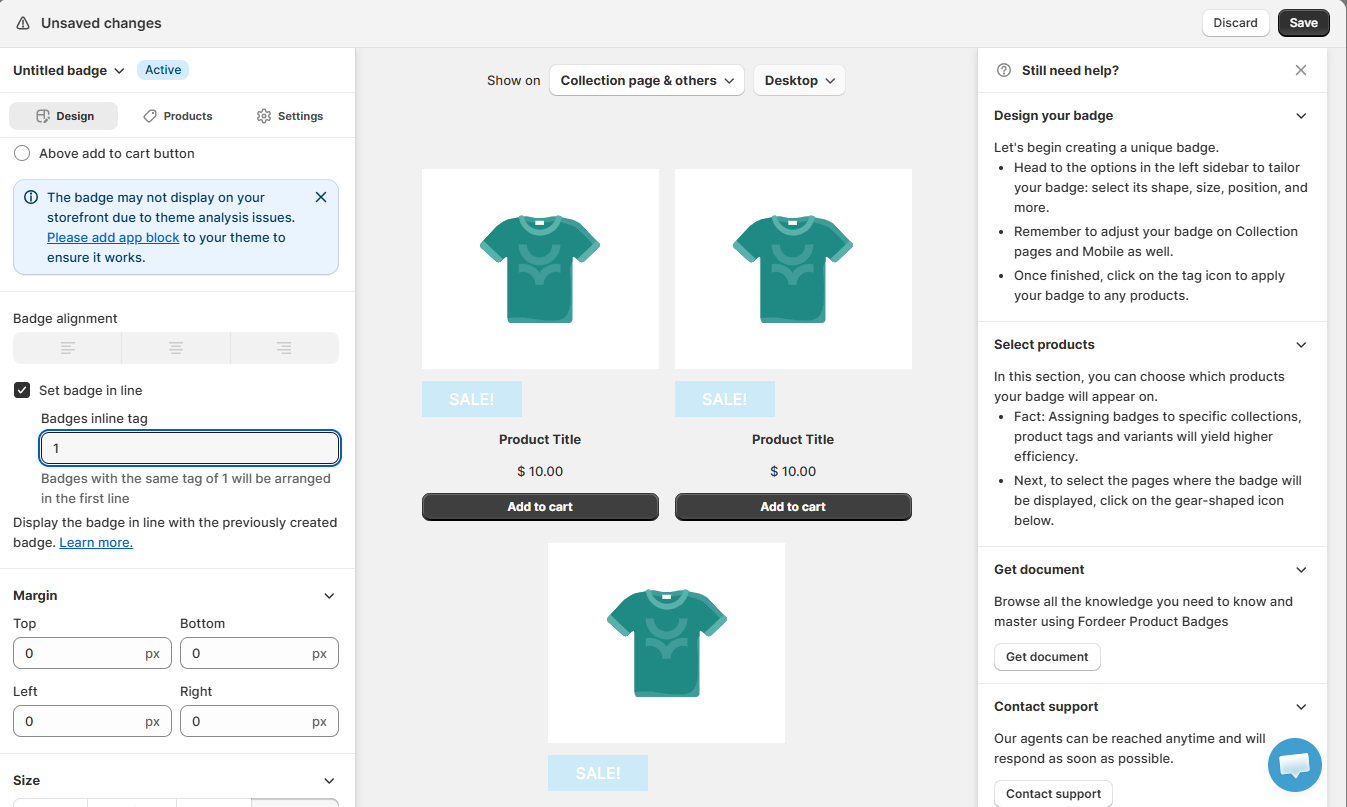
Enter the same Badges inline tag for badges that you want to display on the same line.
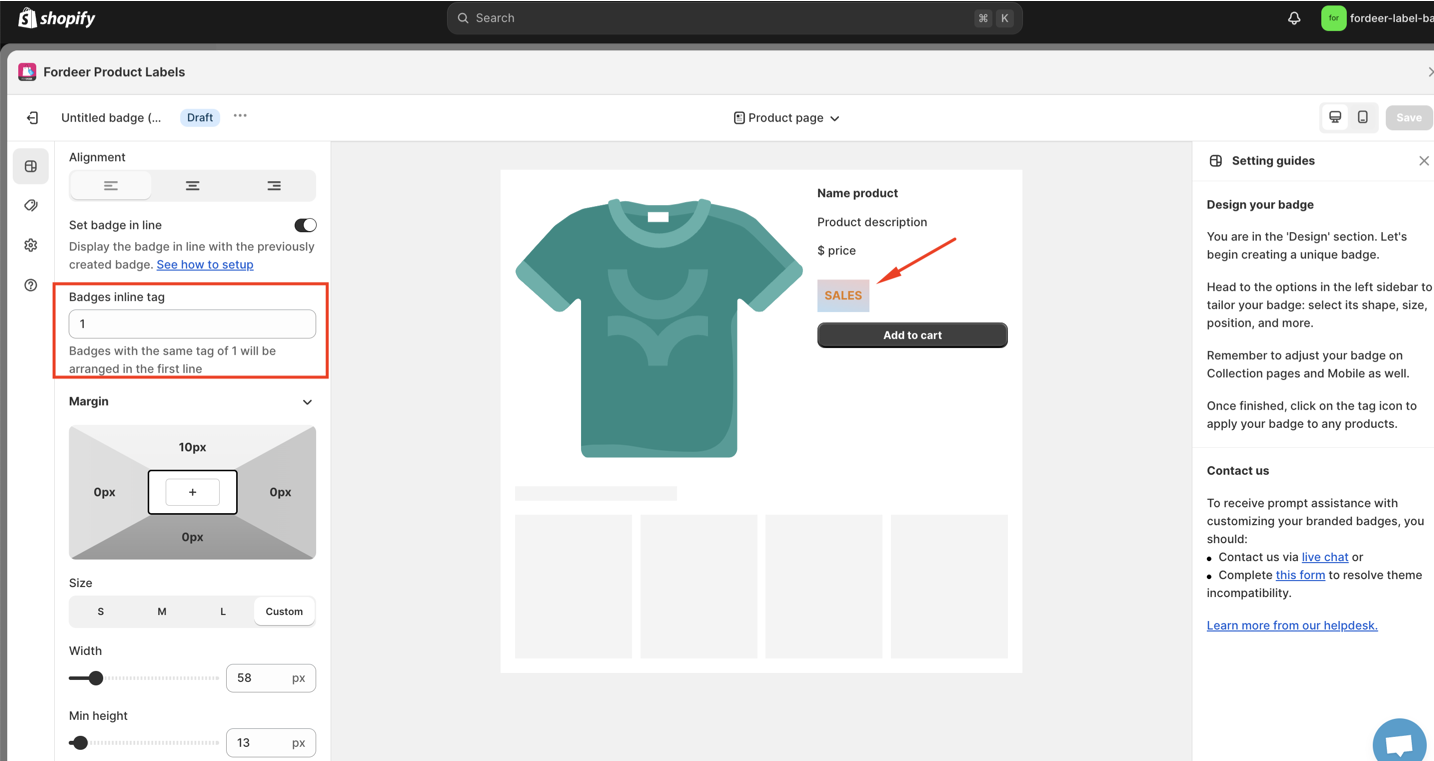
For example, enter 1 for two badge campaigns to display both badges together on the first line.
Badges with the same tag will be grouped on the same line.
Step 4: Set up additional lines
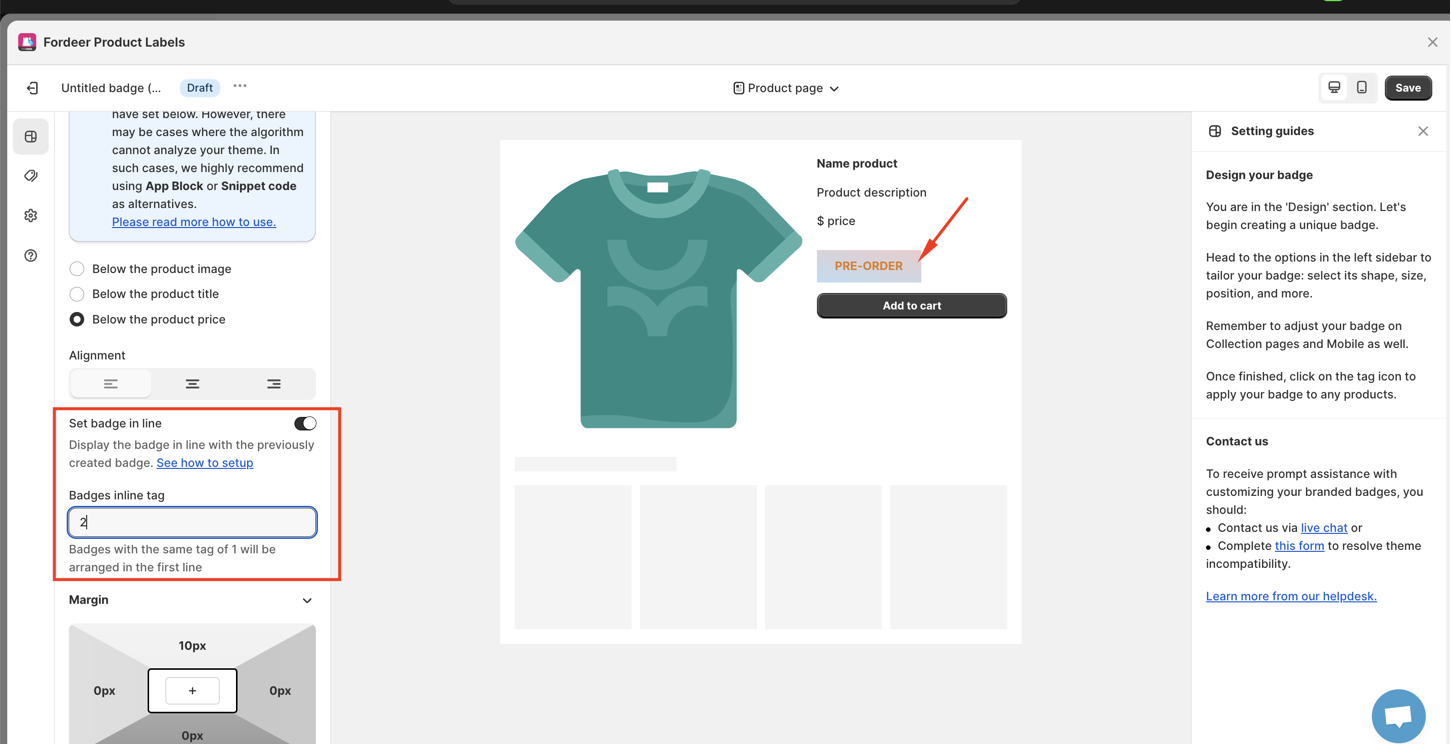
To display badges on different lines, assign them different inline tags.
For example:
-
Badge 1 → Tag 1
-
Badge 2 → Tag 1
-
Badge 3 → Tag 2
Badge 1 and Badge 2 will appear together on the first line, while Badge 3 will appear on the second line.
Tip: Badges on the same line are arranged from left to right. If there isn't enough space, they may wrap to the next line.
Step 5: Save and check your badges
Click Save in the top-right corner.
Repeat the setup for the other badge campaigns you want to group, then visit your storefront to make sure the badges appear in the expected lines and order.
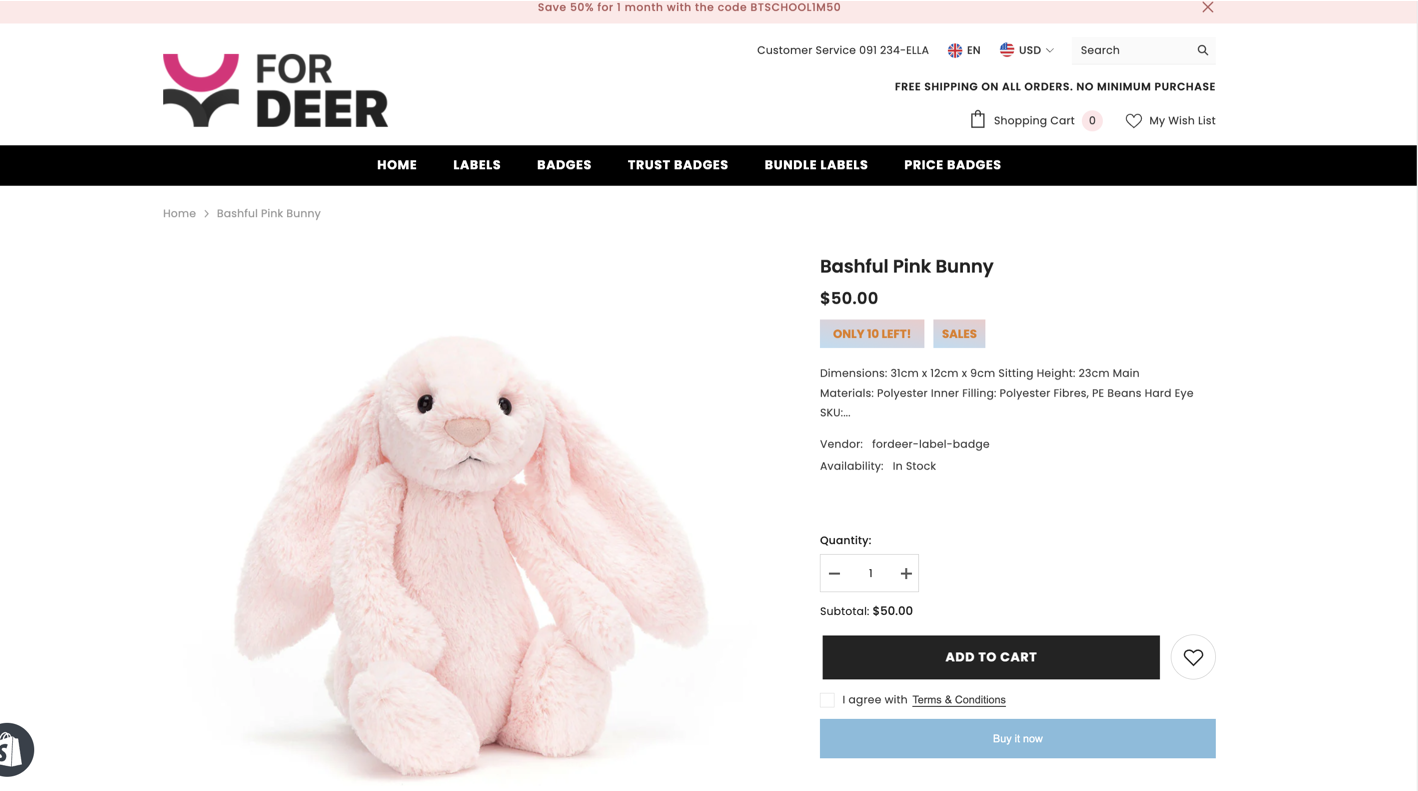
Example: Display two badges on one line
To display two badges next to each other:
-
Enable Set badge in line for both badges.
-
Enter the same Badges inline tag, such as 1, for both.
-
Save both badges.
Both badges will then be displayed on the same line.
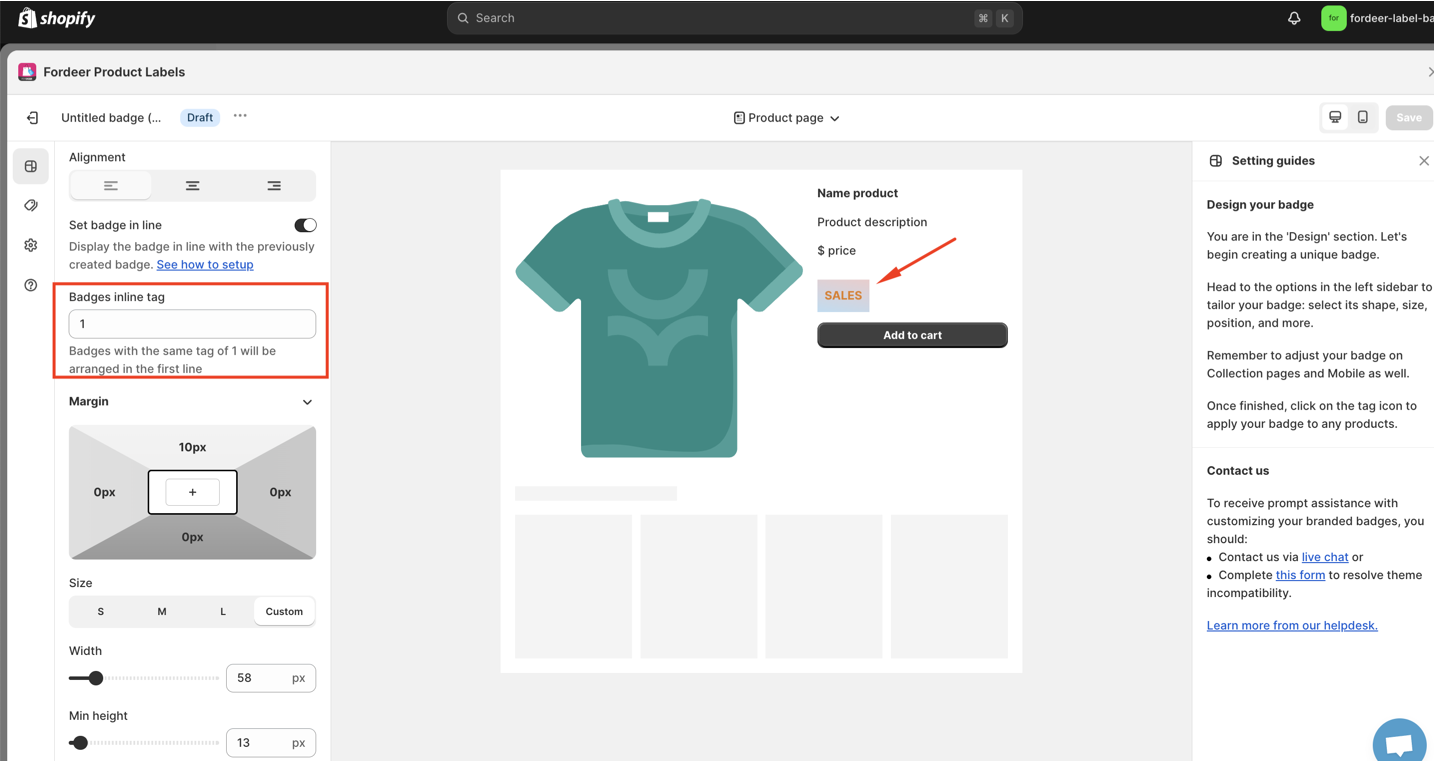
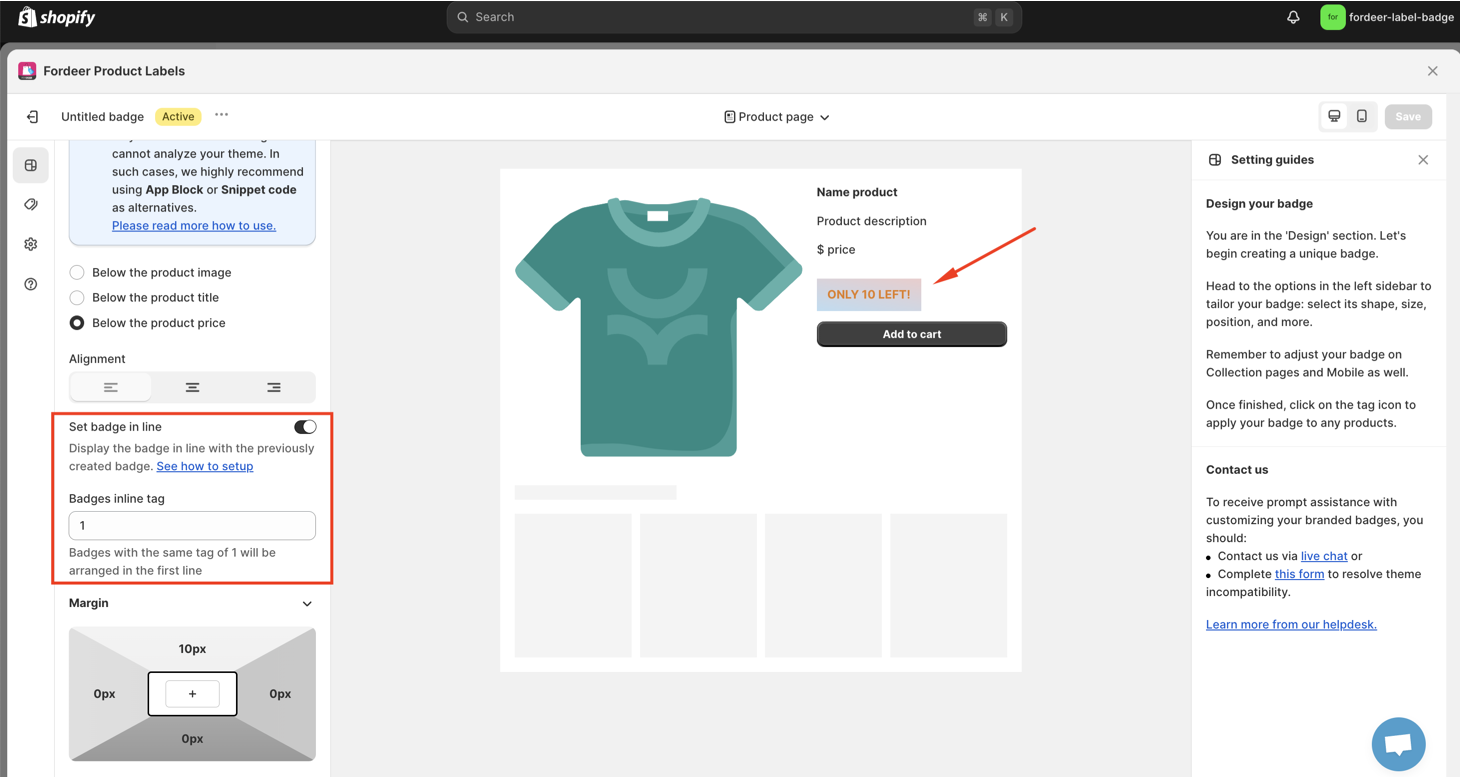
The result:
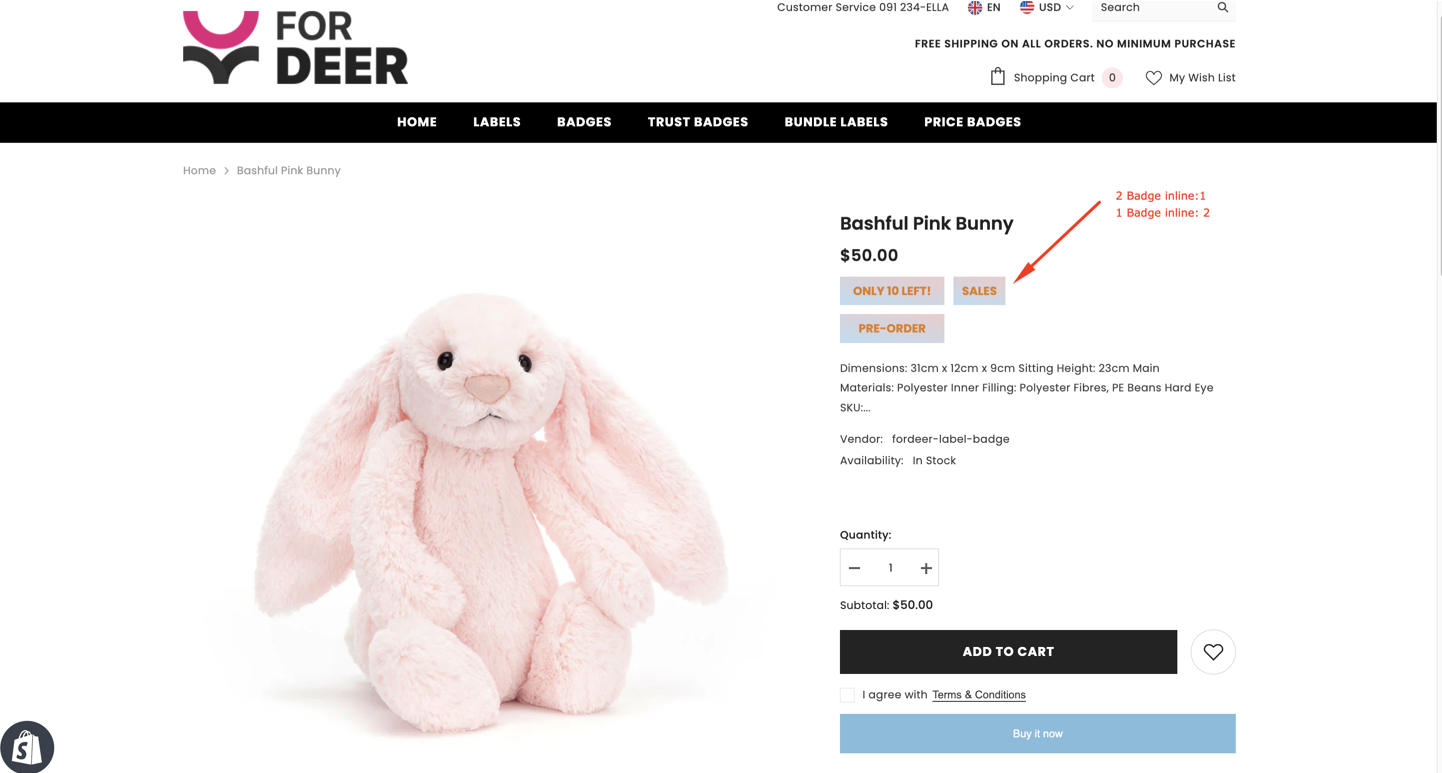
Example: Display three badges on two lines
To display two badges on the first line and one on the second:
-
Set the first two badges to Badges inline tag 1.
-
Set the third badge to Badges inline tag 2.
-
Save your changes.
The first two badges will appear together, while the third badge will appear on the next line.
The result:
Note: Set badge in line is available on the Advanced plan.
We value your feedback — it helps us continuously improve ForDeer and provide you with a better experience.
🖥️ Demo store: Check out here with password: 1
👉 Chat with us: Share your feedback directly with our team.
👉 Email us: hi@fordeercommerce.io
👉 Explore more apps: Discover more ForDeer apps.
👉 Join our community: Join ForDeer Community to get the latest updates, tips, and special deals.
🕐 Working hours: 8:30 AM – 5:00 PM (UTC+7), Monday–Friday.
We typically reply to live chats within minutes and emails within a few hours.
Need help? Feel free to reach out anytime via live chat or email!