

Fordeer hello! 😄
Are you looking to display a label or badge on specific products in your store, but not on all products?
This feature is now available in Fordeer Product Labels. In this article, we will guide you through the steps to create a label/badge for specific products
-
Navigate to the Label section and select the settings of the label you want to display on products.
-
Choose Product settings on sidebar, click on All products and a dropdown list will show up
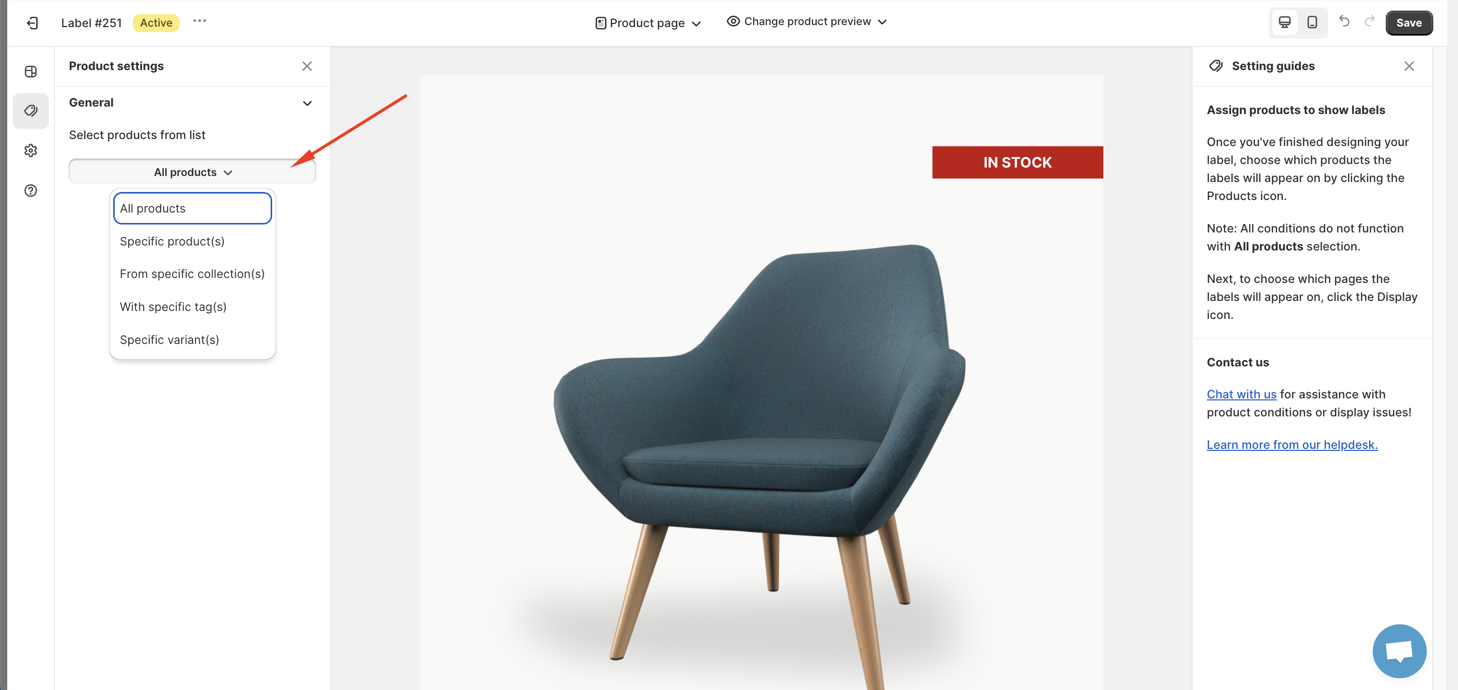
- Choose Specific products then press Select products
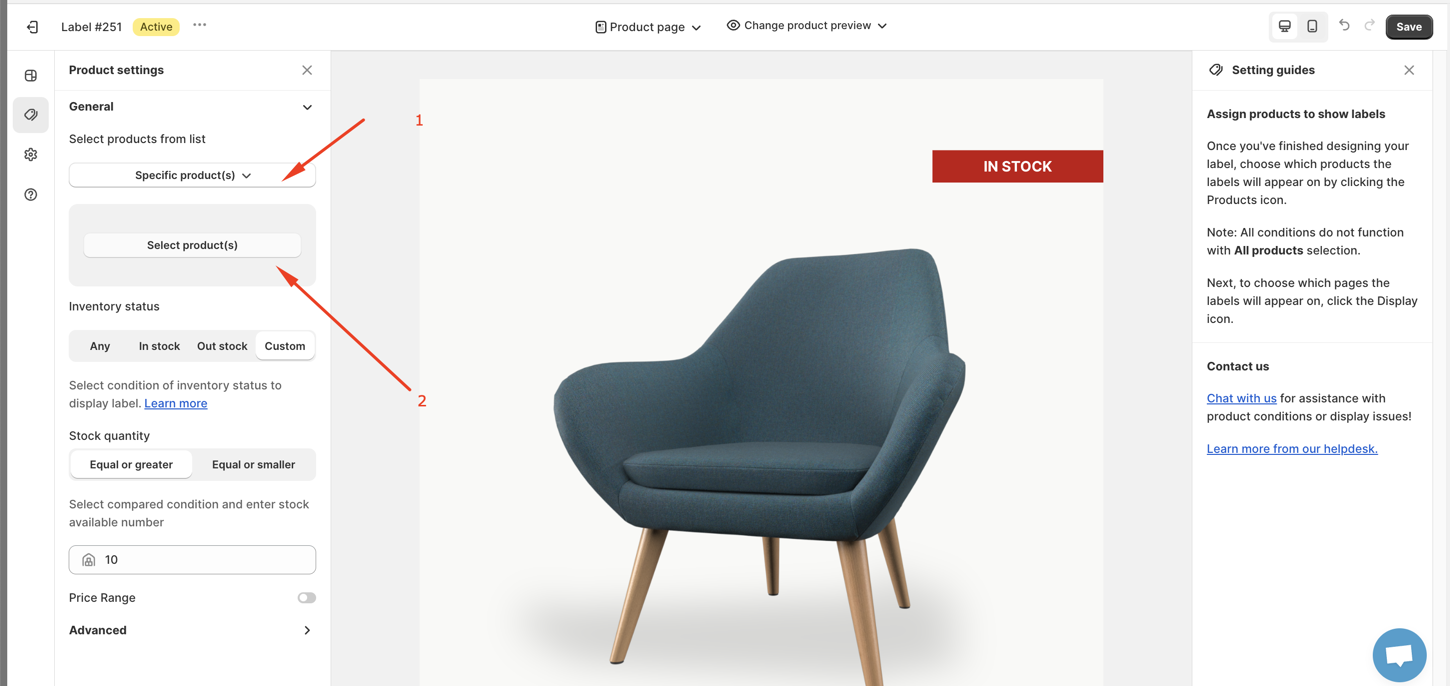
- Click Add to choose the products you want to label then press Save to make it official
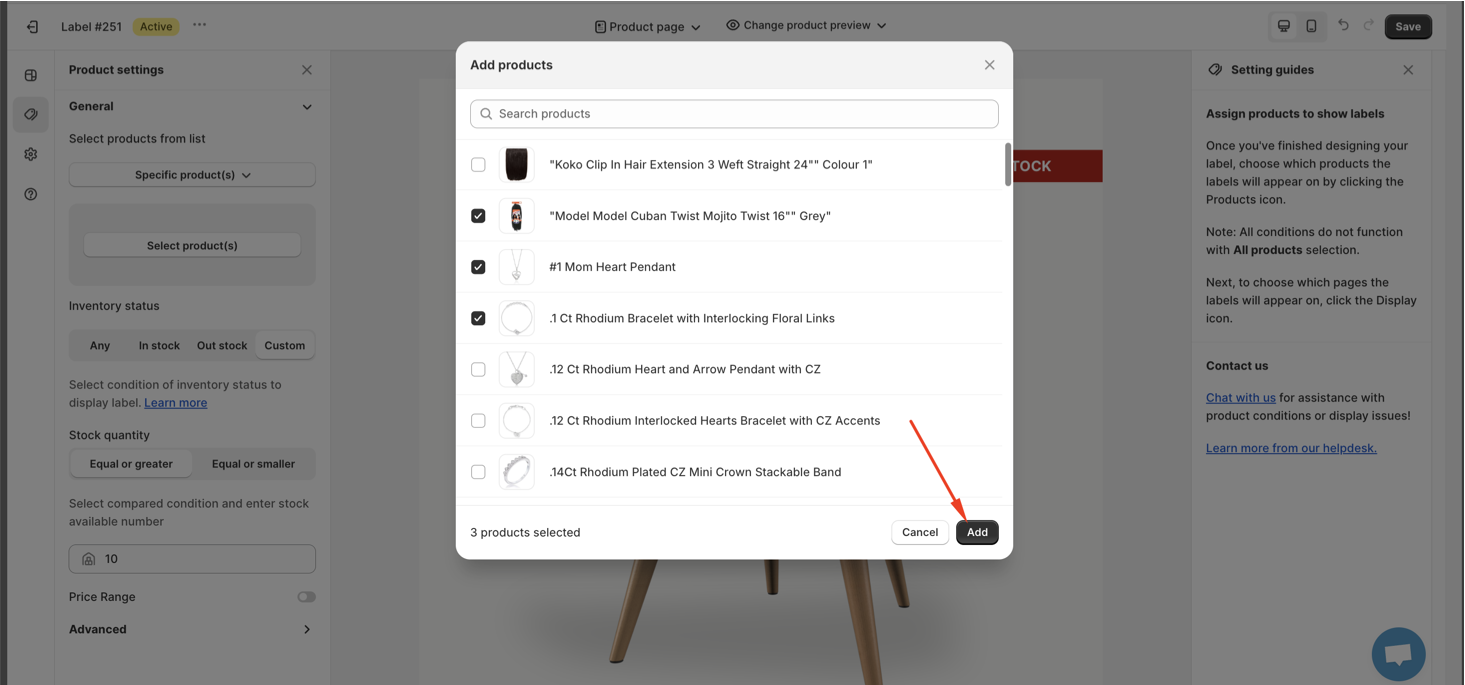
And there you have it! You've successfully added labels or badges to specific products. It's a great way to draw attention to sales, new arrivals, or any other special items you want to feature.
For Free plan you can only choose max 10 products for 1 label/badge campaign. Also all the conditions will be enable when choose specific products.
You can take a look at this article for more details 👉👉How can I not select all products option while choosing another condition? (gan link)
We value your feedback — it helps us continuously improve ForDeer and provide you with a better experience.
🖥️ Demo store: Check out here with password: 1
👉 Chat with us: Share your feedback directly with our team.
👉 Email us: support@fordeercommerce.io
👉 Explore more apps: Discover more ForDeer apps.
👉 Join our community: Join ForDeer Community to get the latest updates, tips, and special deals.
🕐 Working hours: 8:30 AM – 5:00 PM (UTC+7), Monday–Friday.
We typically reply to live chats within minutes and emails within a few hours.
Need help? Feel free to reach out anytime via live chat or email!