

Hello you guys! (Ngọc my bảo cần sửa)
Sometimes you want to change the position of the label/badge to be different from the default option, maybe because it 's block the picture or something, but you don't know how to 🤨
Today we will show you how to do it 🥰
-
Go to Label setting and go to the first page called Design
-
Scroll down until you see the Position option on the Layout section.
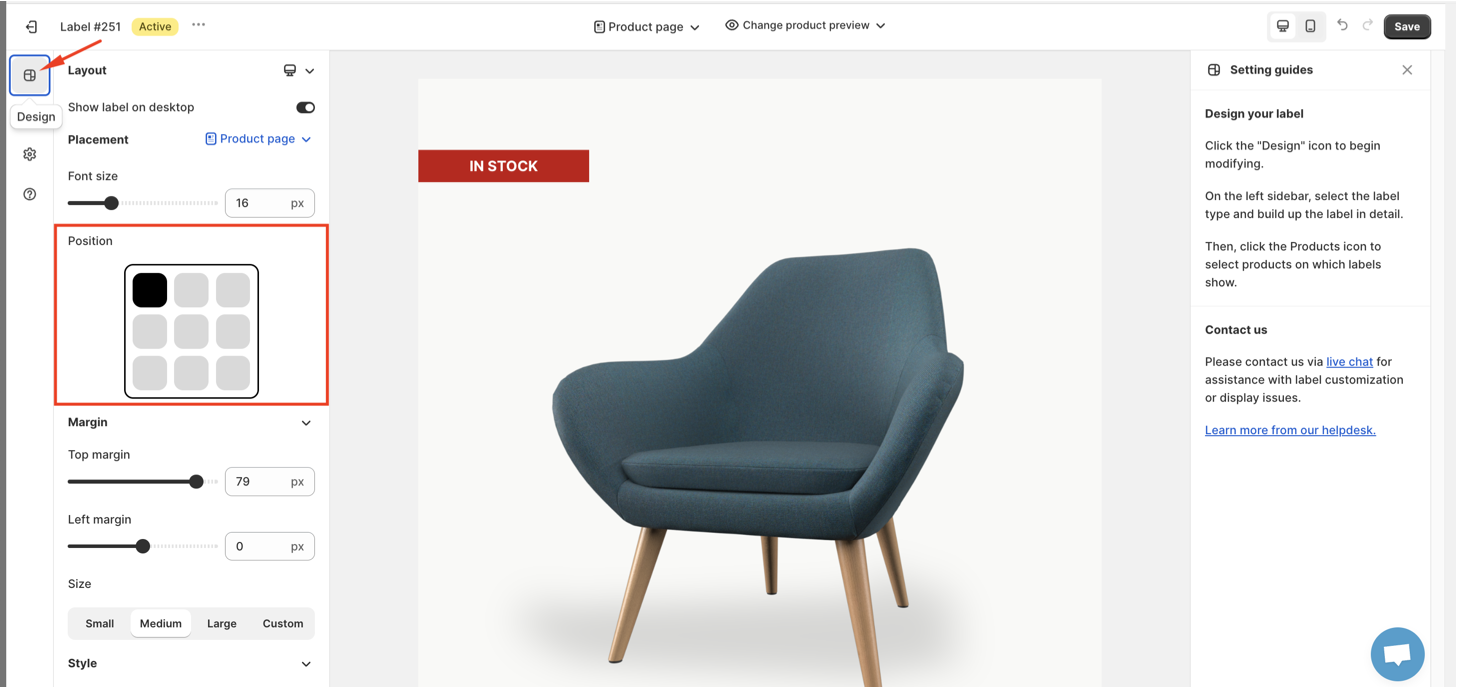
- Click on the square where you want the label to display.
You can also change the product preview to see if the label is working with all the product that you are choosing.
The preview right at the center of the setting page will show exactly how the label will display on the store.
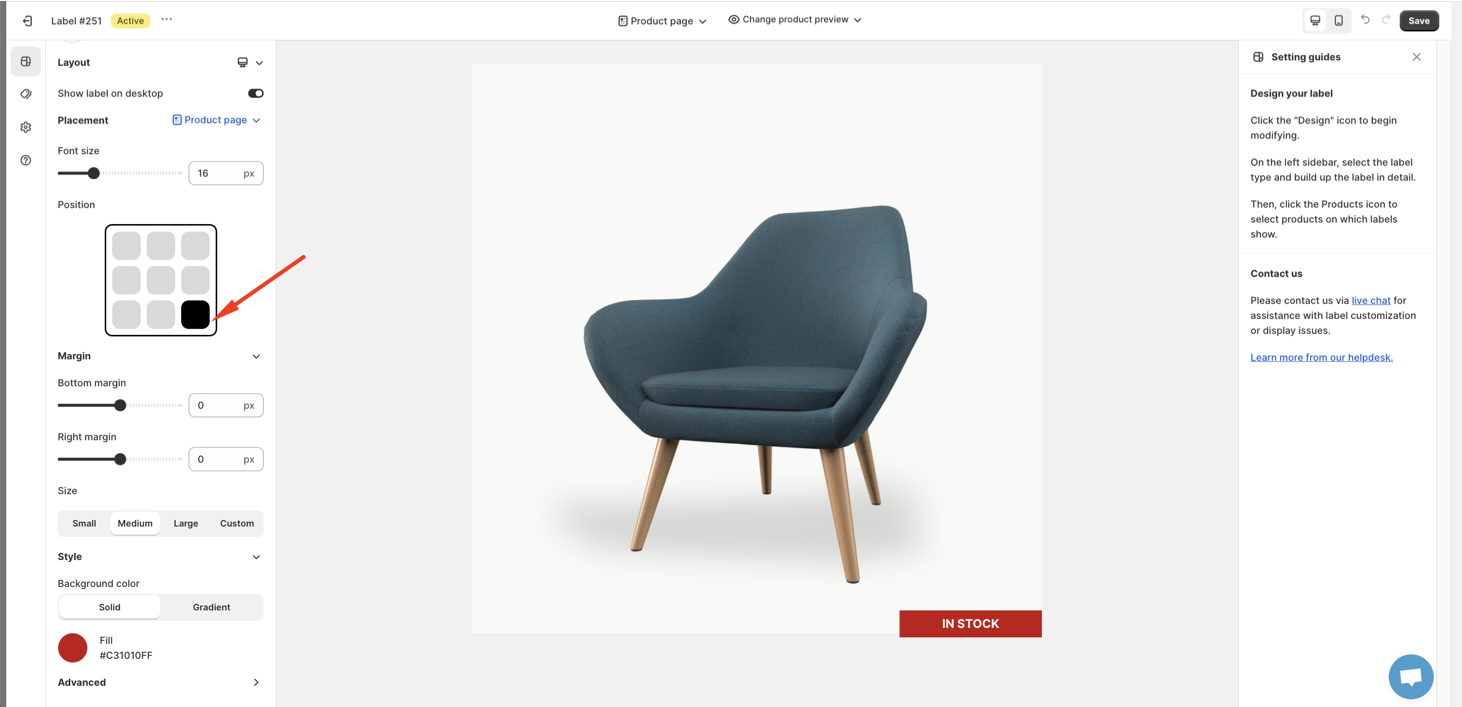
- Remember to Save and then you are done. It is easy, right?
I hope that this article helps you with changing the position of the label that you want.
Besides, if you want to customize the label to fit your needs, check out the related articles below:
-
How to change the name of the label/badge?
-
How to translate the label/badge?
-
How to edit the margin of the label/badge?
We value your feedback — it helps us continuously improve ForDeer and provide you with a better experience.
🖥️ Demo store: Check out here with password: 1
👉 Chat with us: Share your feedback directly with our team.
👉 Email us: support@fordeercommerce.io
👉 Explore more apps: Discover more ForDeer apps.
👉 Join our community: Join ForDeer Community to get the latest updates, tips, and special deals.
🕐 Working hours: 8:30 AM – 5:00 PM (UTC+7), Monday–Friday.
We typically reply to live chats within minutes and emails within a few hours.
Need help? Feel free to reach out anytime via live chat or email!
Talk soon!